
Intune Win32 App Install Stuck at Waiting, Pending, Installing, or Failed
When to Use This Guide
Use this guide when a Windows app packaged as an Intune Win32 app is stuck in one of these states:
- Waiting in Company Portal
- Pending install or Pending sync in Intune reporting
- Installing for much longer than the installer should take
- Failed with a generic error code
- Not installed even though the device is in the target group
- Installed in Windows, but Intune continues to retry the app
The aim is to identify which layer is stuck: assignment, Intune Management Extension, content download, requirement evaluation, dependency processing, install command, detection rule, reboot handling, or reporting.
For the wider endpoint management context, see the Intune hub. For reusable scripts and report exports, see the PowerShell hub and Microsoft Graph PowerShell migration.
Scope and Assumptions
This guide is written for Windows 10 22H2 and Windows 11 23H2, 24H2 and 25H2 devices managed by Microsoft Intune. It focuses on Win32 apps deployed through the Intune Management Extension, including required apps, available apps installed from Company Portal, dependencies, supersedence, and uninstall assignments.
It does not cover Microsoft Store app deployment, single MSI line-of-business app deployment, macOS apps, mobile apps, or Configuration Manager application deployment.
Microsoft's current Win32 app documentation is here: Win32 app management in Microsoft Intune.
Prerequisites
Before troubleshooting a single app, confirm the device can process Win32 app policy at all:
- The device is enrolled in Intune.
- The device is Microsoft Entra joined, Microsoft Entra hybrid joined, Microsoft Entra registered, or enrolled using a supported Group Policy enrolment path.
- The device is not running Windows Home or Windows in S mode.
- The Intune Management Extension is installed and running.
- The app package is a valid
.intunewinpackage and is no larger than the supported Win32 app size limit. - The install command is silent. Microsoft does not support interactive Win32 app installers through Intune.
- You know whether the assignment is Required, Available for enrolled devices, or Uninstall.
- You know whether the app is device-context or user-context.
Check the local join and MDM state first:
dsregcmd /statusExpected output shape:
AzureAdJoined    : YES
DomainJoined     : YES or NO
WorkplaceJoined  : YES or NO
MdmUrl           : https://enrollment.manage.microsoft.com/...
TenantName       : <tenant display name>
Then check the Intune Management Extension service:
Get-Service IntuneManagementExtension |
    Select-Object Name, Status, StartType
Expected output shape:
Name                       Status   StartType
----                       ------   ---------
IntuneManagementExtension  Running  Automatic
If the service is missing, do not start with the app package. Start with enrolment, assignment scope and IME prerequisites.
Symptoms
Use the exact status and location to choose the first check.
| Symptom | First place to check |
|---|---|
| App never appears in Company Portal | Assignment type, user targeting, availability time, Company Portal sync |
| Required app never starts installing | Device assignment, IME check-in, app applicability, requirement rules |
| Company Portal shows Waiting | Dependency, pending reboot, availability time, IME check-in |
| Company Portal shows Installing for hours | Deadline timing, install timeout, installer process, content download |
| Intune shows Failed but app is installed | Detection rule or return code |
| Intune keeps reinstalling the same app | Detection rule does not match installed state |
| App fails only during Autopilot ESP | ESP timeout, mixed Win32 and LOB apps, dependency chain, network |
| App fails only for standard users | User-context install needs admin rights, install command uses profile paths |
For ESP-specific app failures, use this alongside Autopilot Enrollment Status Page Stuck.
Likely Causes
These are the common causes in the order I normally check them.
-
The device or user is not actually targeted. The app exists, but the target group does not include the device or signed-in user, or an exclusion wins.
-
The app is available, not required. Available apps wait for the user to install from Company Portal. They do not install automatically unless a supersedence auto-update scenario applies.
-
The Intune Management Extension has not checked in. Microsoft documents IME check-in as separate from normal MDM sync. A device sync from the Intune portal does not always force an IME check-in.
-
A requirement rule is false. Architecture, minimum OS, disk space, registry requirement, file requirement or custom requirement script can mark the app not applicable.
-
The detection rule is wrong. If detection returns not installed after a successful install, Intune can report failure or offer the app again.
-
The install command is not silent or uses the wrong bitness. A hidden prompt, wrong working directory, 32-bit PowerShell call, or missing quote can leave the install hanging.
-
A dependency is blocked. A parent app waits while a dependent Win32 app fails, needs a reboot, or has unmet requirements.
-
Supersedence is not targeted as expected. Superseding apps need their own targeting. Supersedence and dependencies can also create conflict states.
-
A reboot is pending. The app may have installed successfully but cannot complete detection or the next app until restart.
-
The installer exits with an unmapped return code. Intune treats unmapped return codes as failure.
-
Content download failed. Delivery Optimisation, proxy, firewall, low disk space or corrupt content cache can block the installer before it runs.
-
Reporting is stale. The device may be correct locally while Intune has not received the latest IME report.
Step 1: Capture the App and Device Facts
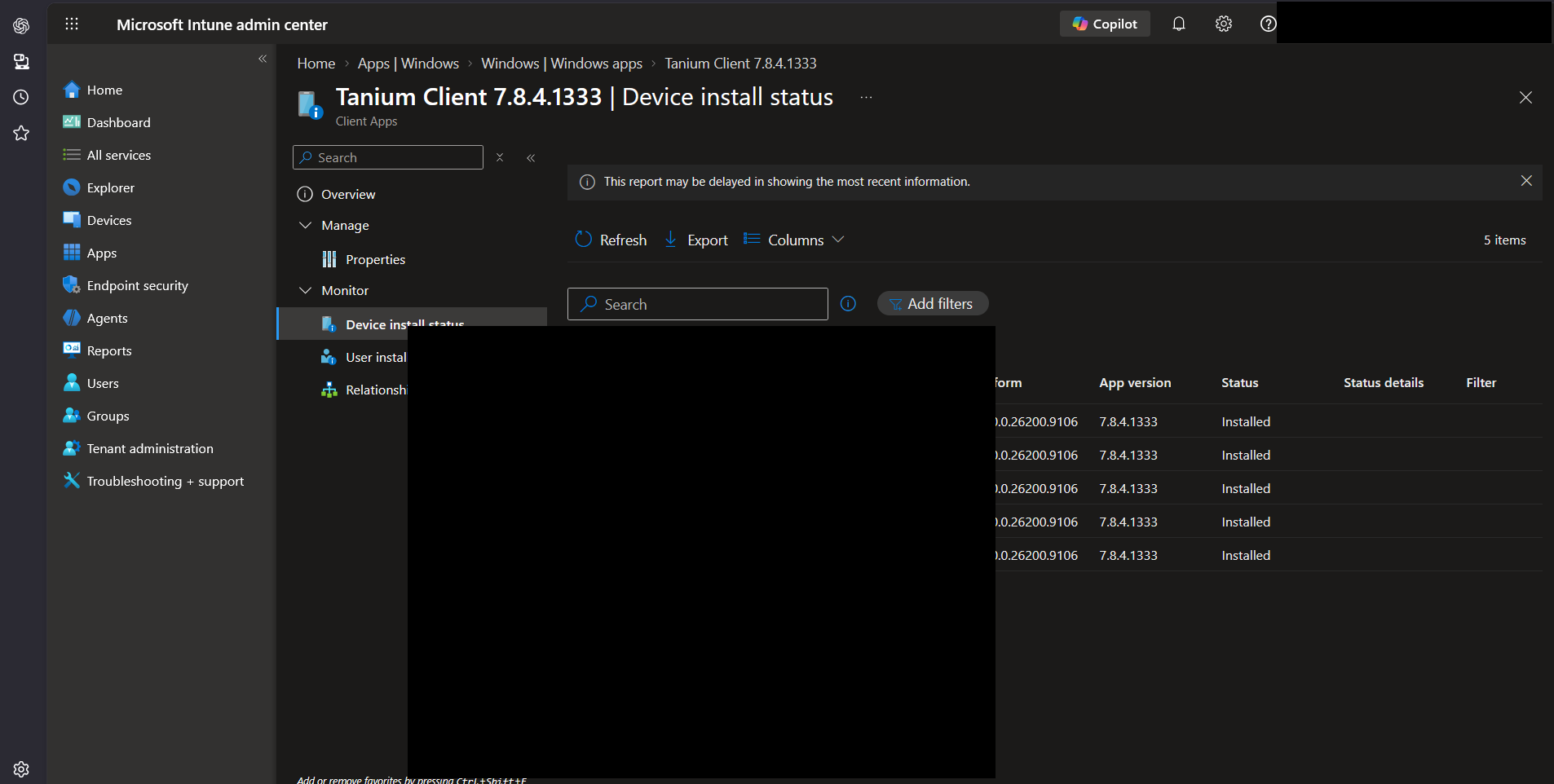
Before changing anything, record the facts for one affected device.
| Question | Example answer shape |
|---|---|
| Device name | DEVICE-NAME |
| App display name | APP-NAME |
| Assignment type | Required, Available, or Uninstall |
| Targeting basis | Device group or User group |
| Install behaviour | System or User |
| Install command | Vendor silent command or wrapper script |
| Detection type | MSI, file, registry, or script |
| Dependencies | None or list of dependent Win32 apps |
| Supersedence | None or app being replaced |
| Portal status | Waiting, Pending, Installing, Failed, Installed |
| Local status | Installed, partially installed, not present |
Do not rely on the top-level app status only. In Intune, open the app, then check:
- Device install status
- User install status
- The specific affected device
- The failure reason and error code, if present
- Whether the app is blocked by dependency, requirement, reboot or install failure
Microsoft's app monitoring guidance is here: Monitor app information and assignments.
Step 2: Confirm IME Health
On the affected device, check the IME service, version and log folder.
$ImeExe = "C:\Program Files (x86)\Microsoft Intune Management Extension\Microsoft.Management.Services.IntuneWindowsAgent.exe"
$LogRoot = "C:\ProgramData\Microsoft\IntuneManagementExtension\Logs"

Get-Service IntuneManagementExtension |
    Select-Object Name, Status, StartType

if (Test-Path $ImeExe) {
    Get-Item $ImeExe |
        Select-Object FullName, LastWriteTime, @{ Name = "Version"; Expression = { $_.VersionInfo.FileVersion } }
} else {
    Write-Output "IME executable not found."
}

if (Test-Path $LogRoot) {
    Get-ChildItem $LogRoot |
        Select-Object Name, Length, LastWriteTime |
        Sort-Object LastWriteTime -Descending
} else {
    Write-Output "IME log folder not found."
}
Expected output shape:
Name                       Status   StartType
----                       ------   ---------
IntuneManagementExtension  Running  Automatic

FullName      : C:\Program Files (x86)\Microsoft Intune Management Extension\Microsoft.Management.Services.IntuneWindowsAgent.exe
LastWriteTime : <date and time>
Version       : <agent version>

Name                          Length   LastWriteTime
----                          ------   -------------
IntuneManagementExtension.log <bytes>  <date and time>
AppWorkload.log               <bytes>  <date and time>
AgentExecutor.log             <bytes>  <date and time>
If the log files have not changed recently, the app may be waiting because IME is not checking in.
Microsoft's IME documentation confirms that logs are normally under C:\ProgramData\Microsoft\IntuneManagementExtension\Logs, and that IME check-in is separate from normal MDM sync: Intune Management Extension for Windows.
Step 3: Read the Right Logs
The main log path is:
C:\ProgramData\Microsoft\IntuneManagementExtension\LogsStart with these files:
| Log file | Use it for |
|---|---|
IntuneManagementExtension.log | IME check-in, policy requests, processing and reporting |
AppWorkload.log | Win32 app deployment activity, install processing and app state |
AgentExecutor.log | PowerShell script execution, including script-based detection or installer scripts |
AppActionProcessor.log | Detection and applicability checks for assigned apps |
ClientHealth.log | IME health and recovery behaviour |
Win32AppInventory.log | App inventory collection |
Search the logs for the app name, app ID, common error text and return codes:
$LogRoot = "C:\ProgramData\Microsoft\IntuneManagementExtension\Logs"
$SearchTerms = @(
    "APP-NAME",
    "Detection",
    "Applicability",
    "Requirement",
    "InstallCommand",
    "Exit code",
    "0x"
)

Select-String -Path "$LogRoot\*.log" -Pattern $SearchTerms -SimpleMatch |
    Select-Object Path, LineNumber, Line |
    Sort-Object Path, LineNumber |
    Select-Object -First 80
Expected output shape:
Path       : C:\ProgramData\Microsoft\IntuneManagementExtension\Logs\AppWorkload.log
LineNumber : <line number>
Line       : <timestamp> <thread> <app processing message>
If you know the app ID from the Intune URL, search for that as well:
$AppId = "<win32-app-guid-from-intune-url>"
Select-String -Path "$LogRoot\*.log" -Pattern $AppId -SimpleMatch |
    Select-Object Path, LineNumber, Line
Do this before retrying or uninstalling. The first failure is often the cleanest evidence.
Step 4: Check Assignment and Group Targeting
In Intune, open Apps > Windows > [app name] > Properties > Assignments.
Check:
- Is the app assigned as Required, Available for enrolled devices, or Uninstall?
- Is the group included in the right assignment section?
- Is the device or user also in an exclusion group?
- If the assignment is user-based, has that user signed in to the device?
- If the app installs in user context, does the user have the permissions the installer needs?
- Is the availability start time in the future?
- Is the installation deadline in the future?
- Is the assignment filtered by device filter?
For device-side group confirmation through Microsoft Graph PowerShell:
Connect-MgGraph -Scopes "Device.Read.All", "Group.Read.All"

$DeviceName = "DEVICE-NAME"
$Device = Get-MgDevice -DeviceId "<verified-entra-object-id>" -ErrorAction Stop

Get-MgDeviceTransitiveMemberOf -DeviceId $Device.Id -All |
    Where-Object { $_.AdditionalProperties.'@odata.type' -eq '#microsoft.graph.group' } |
    Select-Object Id, @{ Name = "DisplayName"; Expression = { $_.AdditionalProperties.displayName } } |
    Sort-Object DisplayName
Expected output shape:
Id                                    DisplayName
--                                    -----------
<group id>                            Intune - Win32 App Pilot Devices
<group id>                            All Managed Windows Devices
For user-based available apps, check user group membership as well. Company Portal is user-facing, so a device assignment and a user assignment can appear differently to the person at the keyboard.
Microsoft's assignment options for Win32 apps are documented here: Add, assign, and monitor a Win32 app.
Step 5: Understand Device Sync and Company Portal Behaviour
There are two different sync paths that are often confused.
| Action | What it does |
|---|---|
| Intune portal device action Sync | Starts MDM sync |
| Windows Settings Access work or school > Info > Sync | Starts MDM sync |
| Company Portal Settings > Sync | Starts MDM sync and IME check-in |
Restarting IntuneManagementExtension service | Restarts IME and initiates check-in |
For a safe retry on one device:
Restart-Service IntuneManagementExtension -Force
Start-Sleep -Seconds 30
Get-Service IntuneManagementExtension | Select-Object Name, Status
Expected output shape:
Name                       Status
----                       ------
IntuneManagementExtension  Running
Then open Company Portal and select Settings > Sync. Give the device several minutes before re-reading AppWorkload.log.
If Company Portal shows Installing but the app has a future deadline, the content may have downloaded but the install may not run until the deadline. Microsoft documents that Company Portal does not show that distinction clearly for Win32 apps with deadline timing.
Step 6: Check Requirement Rules
Requirement rules decide whether Intune should attempt the app on this device. If a requirement is false, the app may sit as not applicable or pending, and the install command never runs.
In Intune, open the app and check Properties > Requirements.
Check:
- Operating system architecture includes the device architecture.
- Minimum operating system is not higher than the installed build.
- Disk space requirement is realistic.
- Physical memory and CPU requirements are not excluding low-spec devices.
- Additional file, registry or script requirement rules match the device.
- A custom requirement script runs in the expected 32-bit or 64-bit context.
- A user-context requirement is not being used for a device-context install without a signed-in user.
Test the basic device requirements locally:
$Computer = Get-ComputerInfo
$Drive = Get-PSDrive -Name C

[pscustomobject]@{
    ComputerName      = $env:COMPUTERNAME
    WindowsProduct    = $Computer.WindowsProductName
    WindowsVersion    = $Computer.WindowsVersion
    OsBuildNumber     = $Computer.OsBuildNumber
    OsArchitecture    = $Computer.OsArchitecture
    FreeSpaceGB       = [math]::Round($Drive.Free / 1GB, 2)
    TotalMemoryGB     = [math]::Round((Get-CimInstance Win32_ComputerSystem).TotalPhysicalMemory / 1GB, 2)
}
Expected output shape:
ComputerName   : DEVICE-NAME
WindowsProduct : Windows 11 Enterprise
WindowsVersion : 24H2
OsBuildNumber  : <build number>
OsArchitecture : 64-bit
FreeSpaceGB    : <number>
TotalMemoryGB  : <number>
If you use a registry requirement, check both registry views:
$Paths = @(
    "HKLM:\SOFTWARE\Vendor\App",
    "HKLM:\SOFTWARE\WOW6432Node\Vendor\App"
)

foreach ($Path in $Paths) {
    Write-Output ""
    Write-Output "[$Path]"
    if (Test-Path $Path) {
        Get-ItemProperty $Path | Format-List
    } else {
        Write-Output "Not present"
    }
}
Expected output shape:
[HKLM:\SOFTWARE\Vendor\App]
Not present

[HKLM:\SOFTWARE\WOW6432Node\Vendor\App]
Version : <version string>
That result tells you whether the app writes to the 32-bit or 64-bit registry view. Match the Intune rule accordingly.
Step 7: Check Detection Rules
Detection rules answer a different question from requirements. Requirement rules decide whether the app should run. Detection rules decide whether the app is already installed, and whether the install succeeded.
In Intune, open Properties > Detection rules.
Check:
- At least one detection rule exists.
- If multiple manual detection rules exist, all of them must be true.
- MSI product code matches the installed MSI product code.
- File detection points to the final installed file, not the installer cache.
- File version comparisons use the version format actually present on disk.
- Registry detection uses the correct 32-bit or 64-bit view.
- Script detection exits
0and writes to STDOUT when installed. - Script detection does not write anything to STDERR on the success path.
For MSI detection, avoid Win32_Product because it can trigger MSI repair operations. Use uninstall registry keys instead:
$ProductCode = "{PRODUCT-CODE-GUID}"
$Roots = @(
    "HKLM:\SOFTWARE\Microsoft\Windows\CurrentVersion\Uninstall",
    "HKLM:\SOFTWARE\WOW6432Node\Microsoft\Windows\CurrentVersion\Uninstall"
)

foreach ($Root in $Roots) {
    Get-ChildItem $Root -ErrorAction SilentlyContinue |
        Where-Object { $_.PSChildName -eq $ProductCode } |
        ForEach-Object {
            Get-ItemProperty $_.PSPath |
                Select-Object DisplayName, DisplayVersion, Publisher, InstallDate, PSChildName
        }
}
Expected output shape:
DisplayName    : <app display name>
DisplayVersion : <version>
Publisher      : <publisher>
InstallDate    : <yyyyMMdd>
PSChildName    : {PRODUCT-CODE-GUID}
For file detection:
$File = "C:\Program Files\Vendor\App\App.exe"

if (Test-Path $File) {
    Get-Item $File |
        Select-Object FullName, Length, LastWriteTime, @{ Name = "Version"; Expression = { $_.VersionInfo.FileVersion } }
} else {
    Write-Output "File not found: $File"
}
Expected output shape:
FullName      : C:\Program Files\Vendor\App\App.exe
Length        : <bytes>
LastWriteTime : <date and time>
Version       : <file version>
A safe custom detection script looks like this:
$File = "C:\Program Files\Vendor\App\App.exe"

if (Test-Path $File) {
    Write-Output "Detected"
    exit 0
}

exit 1
Do not use Write-Error for a normal not-detected path. Microsoft documents that detection script success requires exit code 0 and STDOUT data, and STDERR can make detection evaluate as not installed.
Step 8: Check the Install Command and Return Codes
In Intune, open Properties > Program.
Check:
- The install command is silent.
- The uninstall command is silent.
- The command uses quotes around paths with spaces.
- The command works from a local admin PowerShell session.
- The install behaviour matches the installer. Use System for most device-wide apps.
- PowerShell is launched in the right bitness.
- The installation timeout is long enough for the app.
- Vendor success, reboot and retry return codes are mapped.
Microsoft notes that calling powershell.exe directly from the install command launches a 32-bit PowerShell process. If your installer must run 64-bit PowerShell, use:
%SystemRoot%\Sysnative\WindowsPowerShell\v1.0\powershell.exeA common wrapper pattern:
%SystemRoot%\Sysnative\WindowsPowerShell\v1.0\powershell.exe -ExecutionPolicy Bypass -File .\Install-App.ps1Test the command manually from the extracted package folder:
$Process = Start-Process -FilePath ".\setup.exe" `
    -ArgumentList "/quiet /norestart" `
    -Wait `
    -PassThru

Write-Output "Exit code: $($Process.ExitCode)"
Expected output shape:
Exit code: 0Common return code meanings:
| Return code | Typical meaning | Intune handling to consider |
|---|---|---|
0 | Success | Success |
3010 | Success, restart required | Soft reboot |
1641 | Success, restart initiated | Hard reboot |
1618 | Another install is already running | Retry |
1603 | Fatal MSI error | Failed, inspect MSI log |
87 | Invalid parameter | Failed, fix command line |
If the app runs msiexec, add MSI logging inside the install command or wrapper:
msiexec /i "App.msi" /qn /norestart /L*v "%ProgramData%\Microsoft\IntuneManagementExtension\Logs\AppName-msi.log"That log then travels with the IME log folder if you collect diagnostics.
Step 9: Check Dependencies
Dependencies can leave the parent app looking like it is waiting, even when the parent app is fine.
In Intune, open Properties > Dependencies.
Check:
- Every dependency is a Win32 app.
- The dependency app has uploaded content and valid detection.
- The dependency requirement rules apply to the affected device.
- Automatically install is set to Yes if the parent app should trigger it.
- A dependency is not waiting for a reboot.
- The dependency has not failed with its own install command or detection rule.
Microsoft documents that dependent apps do not need separate assignment when automatically installed as a dependency, but their install status only appears in Intune if they are also targeted. That can make a dependency problem look invisible in the portal.
On the device, search the logs for dependency language:
$LogRoot = "C:\ProgramData\Microsoft\IntuneManagementExtension\Logs"

Select-String -Path "$LogRoot\*.log" -Pattern "dependency", "dependent", "pending reboot", "requirements" |
    Select-Object Path, LineNumber, Line |
    Select-Object -First 80
Expected output shape:
Path       : C:\ProgramData\Microsoft\IntuneManagementExtension\Logs\AppWorkload.log
LineNumber : <line number>
Line       : <timestamp> <dependency or applicability message>
Fix the first failing dependency before repeatedly retrying the parent app.
Step 10: Check Supersedence
Supersedence can update or replace another Win32 app, but it has its own targeting rules.
In Intune, open Properties > Supersedence.
Check:
- The superseding app is targeted to the device or user.
- The superseded app is correctly selected.
- Uninstall previous version matches your intended behaviour.
- The uninstall command for the old app works silently.
- The new app detection does not still detect the old app.
- There is no conflict between supersedence and dependency relationships.
Microsoft documents that superseding apps do not get automatic targeting. If the superseding app is not targeted, the agent ignores it. Microsoft also documents a maximum number of nodes in a supersedence graph. See Add Win32 app supersedence.
If users installed the old app from Company Portal and you use available app auto-update, remember that this is not instant. Microsoft documents that supersedence auto-update for available apps commonly needs two available app check-ins.
Step 11: Check Reboot State
A pending reboot can leave the status stuck or prevent the next app in a chain from running.
Run:
$Checks = [ordered]@{
    CBSRebootPending = "HKLM:\SOFTWARE\Microsoft\Windows\CurrentVersion\Component Based Servicing\RebootPending"
    WURebootRequired = "HKLM:\SOFTWARE\Microsoft\Windows\CurrentVersion\WindowsUpdate\Auto Update\RebootRequired"
    PendingFileRename = "HKLM:\SYSTEM\CurrentControlSet\Control\Session Manager"
}

[pscustomobject]@{
    CBSRebootPending = Test-Path $Checks.CBSRebootPending
    WURebootRequired = Test-Path $Checks.WURebootRequired
    PendingFileRenameOperations = [bool](Get-ItemProperty -Path $Checks.PendingFileRename -Name PendingFileRenameOperations -ErrorAction SilentlyContinue)
}
Expected output shape:
CBSRebootPending             : False
WURebootRequired             : True
PendingFileRenameOperations  : False
If a reboot is pending and the app return code was mapped as soft reboot or hard reboot, reboot the test device before changing detection rules.
Step 12: Check Local IME Registry State
IME stores Win32 app processing state under the local Intune Management Extension registry keys. Treat this as diagnostic evidence, not as a supported configuration interface.
$Base = "HKLM:\SOFTWARE\Microsoft\IntuneManagementExtension"

Get-ChildItem $Base -Recurse -ErrorAction SilentlyContinue |
    Where-Object { $_.PSPath -match "Win32Apps|Policies|SideCar" } |
    Select-Object PSPath |
    Select-Object -First 80
Expected output shape:
PSPath
------
Microsoft.PowerShell.Core\Registry::HKEY_LOCAL_MACHINE\SOFTWARE\Microsoft\IntuneManagementExtension\Win32Apps\...
Microsoft.PowerShell.Core\Registry::HKEY_LOCAL_MACHINE\SOFTWARE\Microsoft\IntuneManagementExtension\Policies\...
If you know the app ID, look for it:
$AppId = "<win32-app-guid-from-intune-url>"

Get-ChildItem "HKLM:\SOFTWARE\Microsoft\IntuneManagementExtension" -Recurse -ErrorAction SilentlyContinue |
    Where-Object { $_.Name -match $AppId } |
    Select-Object Name, PSChildName
Do not bulk-delete IME registry keys on production devices as a first-line fix. You can hide the evidence and make the next failure harder to diagnose.
Step 13: Collect Diagnostics
For persistent failures, collect logs before changing the app again.
Useful paths:
C:\ProgramData\Microsoft\IntuneManagementExtension\Logs\IntuneManagementExtension.log
C:\ProgramData\Microsoft\IntuneManagementExtension\Logs\AppWorkload.log
C:\ProgramData\Microsoft\IntuneManagementExtension\Logs\AgentExecutor.log
C:\ProgramData\Microsoft\IntuneManagementExtension\Logs\AppActionProcessor.log
C:\ProgramData\Microsoft\IntuneManagementExtension\Logs\ClientHealth.log
C:\ProgramData\Microsoft\IntuneManagementExtension\Logs\Win32AppInventory.log
You can collect a local zip:
$Source = "C:\ProgramData\Microsoft\IntuneManagementExtension\Logs"
$Destination = "C:\Temp\IME-Logs-$env:COMPUTERNAME.zip"

New-Item -Path "C:\Temp" -ItemType Directory -Force | Out-Null
Compress-Archive -Path "$Source\*" -DestinationPath $Destination -Force
Write-Output $Destination
Expected output shape:
C:\Temp\IME-Logs-DEVICE-NAME.zipYou can also use Intune's Collect diagnostics action. Microsoft's Win32 app troubleshooting documentation explains that diagnostic collection can include Win32 app logs and has file count and size limits: Troubleshooting Win32 app installations with Intune.
Safe Retry Steps
Use the least disruptive retry first.
- Confirm the app is not currently installing:
Get-Process msiexec, setup, install, powershell -ErrorAction SilentlyContinue |
    Select-Object Id, ProcessName, StartTime, Path
Expected output shape:
Id    ProcessName  StartTime            Path
--    -----------  ---------            ----
<id>  msiexec      <date and time>      C:\Windows\System32\msiexec.exe
If an installer is still running and using CPU or disk, wait or inspect its own log. Killing it can leave a partial install.
- Restart IME:
Restart-Service IntuneManagementExtension -Force-
Open Company Portal and run Settings > Sync.
-
Re-check
AppWorkload.logand the app's device install status. -
If the app is available, ask the user to retry from Company Portal after sync.
-
If the app is required and detection still fails, fix the detection rule and publish a new app revision or a superseding app. Required apps can be offered again after Intune re-evaluates them.
Avoid these as first-line fixes:
- Deleting all IME registry keys
- Deleting the whole IME folder
- Reinstalling Company Portal to fix an IME policy problem
- Rebuilding the device before collecting logs
- Changing assignment, detection, requirements, dependencies and supersedence all at once
Safe Rollback Steps
If the app partially installed or a supersedence chain removed the old version, separate containment from repair.
If the App Is Broken but Still Required
- Remove the device from the required assignment or add it to a temporary exclusion group.
- Wait for policy to process or restart IME and sync through Company Portal.
- Run the app's silent uninstall command locally on one test device.
- Confirm detection now returns not installed.
- Fix the package or detection rule.
- Reintroduce a small pilot group before broad assignment.
If the App Was Installed Through Supersedence
- Check whether Uninstall previous version removed the old app.
- Confirm the old app's installer and detection are still available.
- Assign the old app only to the rollback group if reinstall is required.
- Remove or pause the superseding app assignment for the rollback group.
- Do not delete the old app object while it is still in a dependency or supersedence relationship.
If the Failure Happened During Autopilot
For a single device, a reset may get the user moving, but it destroys local evidence. For repeated failures, collect the IME and Autopilot logs first and compare with Autopilot Enrollment Status Page Stuck.
If the app is blocking ESP:
- Temporarily remove it from the ESP blocking app list if it is not required for first sign-in.
- Move the app to post-enrolment deployment.
- Reduce dependency chain depth.
- Increase ESP timeout only after proving the install is genuinely long, not hung.
Prevention Checklist
Before promoting a Win32 app to broad deployment:
- The install command is silent and tested manually from the extracted package folder.
- The uninstall command is silent and tested.
- Installer return codes are mapped, including success, retry and reboot codes.
- Detection uses the final installed state, not temporary setup files.
- Custom detection scripts exit
0and write STDOUT only when installed. - Detection scripts do not write to STDERR during a successful detection path.
- Requirement rules are tested on a target device and a known non-target device.
- Registry rules use the correct 32-bit or 64-bit view.
- Assignment uses device groups for device-wide required apps unless user targeting is deliberate.
- Exclusions and assignment filters are documented.
- Dependencies are kept shallow and have their own validated detection.
- Superseding apps are explicitly targeted.
- Reboot behaviour is intentional and return codes match it.
- MSI logging or wrapper logging writes into the IME log folder.
- One pilot device is checked locally with
AppWorkload.logbefore broad deployment. - A rollback group and uninstall path are prepared before replacing an app used by many users.
- Intune app reporting is exported after pilot deployment. See Microsoft Graph PowerShell migration.
Home lab notebook (one freeware Win32 app)
Package 7-Zip or Notepad++ only if the licence allows redistribution. Do not wrap paid software. This revision does not claim the notebook was executed.
- Download the vendor installer to the lab PC, not a work device.
- Wrap it with the Microsoft Win32 Content Prep Tool. Keep install and uninstall command lines that you actually tested locally (
msiexecor the silent EXE switch from the vendor). - In Intune, add a Windows app (Win32) assigned as Required to the lab VM only.
- Detection: a file exists rule for the real binary path, for example
C:\Program Files\7-Zip\7z.exe. Do not detect on a directory that already exists. - On the VM, wait for IME. Capture
IntuneManagementExtension.logandAppWorkload.loglines for the app's GUID when status is Success. - Induce a miss: change detection to a path that does not exist, sync, capture Failed, then restore the good rule.
Microsoft's Win32 app troubleshooting is the log map; this notebook is the one-app proof.
Do not set labTested until both statuses exist. Do not commit the .intunewin file.
Related Resources
- Microsoft Intune hub
- PowerShell hub
- Microsoft Graph PowerShell migration
- Autopilot Enrollment Status Page Stuck
- Intune Compliance Policy Not Evaluating
- Microsoft documentation: Win32 app management in Intune
- Microsoft documentation: Add, assign, and monitor a Win32 app
- Microsoft documentation: Intune Management Extension for Windows
- Microsoft documentation: Troubleshooting Win32 app installations
- Microsoft documentation: Add Win32 app supersedence
Verification clarification, 10 September 2026: Environment descriptions are assumptions or documentation-review context. No complete lab/tenant execution is established by the material retained with this article; example commands and output are illustrative. Genuine individual captures do not verify the whole procedure.
Correction record
19 September 2026: Added a one-device home-lab notebook for a licensed freeware Win32 app and a broken detection rule. No tenant execution is claimed.
10 September 2026 — Reviewed against documentation: Clarified example status and used a verified Entra object ID to avoid ambiguous display-name matches. Code and output remain illustrative, not execution evidence.

Jack Hadcroft
LinkedInBand 6 Endpoint Specialist and author of AdminSignal
Technical claims are reviewed against current Microsoft documentation. Lab or tenant checks are named only when they were done.
Independent publication. About · Editorial policy