
Migrating AzureAD and MSOnline PowerShell Scripts to Microsoft Graph PowerShell SDK
Who This Guide Is For
This guide is for administrators and platform engineers who still have production PowerShell scripts using the old AzureAD, AzureADPreview, or MSOnline modules and need to move them to the Microsoft Graph PowerShell SDK.
It is written for scripts that do real operational work, such as:
| Script type | Examples |
|---|---|
| User lifecycle | Find disabled users, update user properties, revoke sessions, report licences |
| Group management | Export members, add owners, check dynamic groups, audit mail-enabled security groups |
| Device inventory | Find stale devices, compare Entra devices with Intune devices |
| App registration hygiene | Find old secrets, list owners, audit redirect URIs |
| Service principal review | Check enterprise apps, owners, app role assignments, consent grants |
| Microsoft 365 reporting | Export tenant and licence data for support, compliance, or operations |
Use these related AdminSignal resources while planning the migration:
- PowerShell
- Microsoft Entra ID
- Microsoft 365
- Microsoft 365 Admin Centre Mandatory MFA Readiness
- Conditional Access Microsoft 365 Policy Map
Official Microsoft references used for this guide:
- Upgrade from Azure AD PowerShell to Microsoft Graph PowerShell
- Find Azure AD PowerShell and MSOnline cmdlets in Microsoft Graph PowerShell
- Microsoft Graph PowerShell overview
- Install the Microsoft Graph PowerShell SDK
- Authentication module cmdlets in Microsoft Graph PowerShell
- Find-MgGraphCommand
- Use Find-MgGraphPermission
- Use query parameters to customise PowerShell query outputs
- Advanced query capabilities on Microsoft Entra ID objects
- Paging Microsoft Graph data in your app
- Microsoft Graph throttling guidance
- Revoke-MgUserSignInSession
- Archive for Microsoft Entra releases and announcements
Scope and Verification Basis
This guide was written and reviewed on May 8, 2026 against the current Microsoft Learn guidance for Microsoft Graph PowerShell SDK and Microsoft Entra PowerShell migration.
The examples assume:
- PowerShell 7 or later for new automation.
- Windows PowerShell 5.1 only where an existing host still requires it.
- Microsoft Graph PowerShell SDK 2.x or later.
- Microsoft Entra ID tenant administration from a privileged admin workstation, Azure Automation account, managed identity host, or secure build runner.
- Production scripts are stored in source control with a reviewed change process.
- Scripts can be tested in a non-production tenant or against a narrow pilot group before broad use.
The examples show expected output shapes only. They do not include real tenant IDs, object IDs, user names, app names, group names, device names, licence counts, or production values.
Why AzureAD and MSOnline Scripts Need Replacing
Microsoft documents the AzureAD, AzureADPreview, and MSOnline modules as deprecated, and directs administrators to Microsoft Graph PowerShell SDK or Microsoft Entra PowerShell for Microsoft Entra ID automation. Microsoft Entra release notes also warned that MSOnline would stop working during 2025 and that AzureAD support ended after March 30, 2025, with retirement following later.
For production operations, this means old scripts carry several risks:
| Risk | Why it matters |
|---|---|
| Module retirement | A script can stop working even if the code did not change |
| Legacy authentication | Older scripts often rely on sign-in flows that do not fit MFA, Conditional Access, or workload identity controls |
| Azure AD Graph dependency | Many old commands were built around legacy API behaviour |
| Different permission model | Graph requires explicit delegated scopes or application permissions |
| Different object shape | Graph output properties can differ from AzureAD and MSOnline objects |
| Different filtering rules | OData filters, search, count, and advanced queries need different syntax |
| Operational blind spots | A simple cmdlet rename can hide paging, throttling, beta endpoint, or consent issues |
Do not treat this as a search and replace job. The right migration pattern is to classify each script, map the Graph API and permissions, rewrite the query, test the output shape, and only then replace the production job.
Prerequisites
Before migrating scripts, collect:
- A list of all scripts that import or call
AzureAD,AzureADPreview, orMSOnline. - The scheduled task, automation account, runner, or workstation that runs each script.
- The account or app identity used by each script.
- The script owner and rollback owner.
- The business purpose of each script.
- The current output format, such as CSV, JSON, HTML, email, Teams message, or ticket update.
- The current permissions or admin role used by the script.
- A list of write operations, such as updates, deletes, licence assignment, session revocation, or group membership changes.
- A safe test scope, such as one test user, one test group, or one pilot app registration.
Check installed legacy module usage:
$ScriptRoot = "C:\Scripts"

Select-String `
    -Path (Join-Path $ScriptRoot "*.ps1") `
    -Pattern "AzureAD|MSOnline|Connect-AzureAD|Connect-MsolService|Get-Msol|Set-Msol|New-Msol|Remove-Msol" `
    -CaseSensitive:$false |
    Select-Object Path, LineNumber, Line
Expected output shape:
Path                       LineNumber Line
----                       ---------- ----
C:\Scripts\UserReport.ps1  <n>        Connect-MsolService
C:\Scripts\AppAudit.ps1    <n>        Get-AzureADApplication -All $true
C:\Scripts\GroupSync.ps1   <n>        Add-AzureADGroupMember ...
Create a migration register:
| Field | Example shape |
|---|---|
| Script name | UserReport.ps1 |
| Owner | <team or person> |
| Current module | MSOnline |
| Current auth | <interactive, service account, secret, certificate, managed identity> |
| Data touched | <users, groups, devices, apps, service principals> |
| Write actions | <none, update user, add group member, revoke sessions> |
| Business criticality | <low, medium, high, critical> |
| Migration status | <inventory, mapped, built, tested, deployed, retired> |
Microsoft Graph PowerShell SDK Module Strategy
The Microsoft Graph PowerShell SDK is split into v1.0 and beta modules:
| Module family | Use |
|---|---|
Microsoft.Graph | Microsoft Graph v1.0 endpoint. Use this for production unless a required API is not available in v1.0 |
Microsoft.Graph.Beta | Microsoft Graph beta endpoint. Use only when the beta API is required and the operational risk is accepted |
| Individual submodules | Smaller install footprint and clearer imports for production automation |
Microsoft notes that installing the main Microsoft.Graph module installs many submodules. For build agents and automation workers, prefer a deliberate list of modules.
Install the full SDK on an admin workstation used for discovery:
Install-Module Microsoft.Graph -Scope CurrentUser -Repository PSGallery -Force

Get-InstalledModule Microsoft.Graph |
    Select-Object Name, Version, InstalledLocation
Expected output shape:
Name            Version InstalledLocation
----            ------- -----------------
Microsoft.Graph <version> <module path>
Find available submodules:
Find-Module Microsoft.Graph* |
    Select-Object Name, Version |
    Sort-Object Name
Expected output shape:
Name                                      Version
----                                      -------
Microsoft.Graph.Authentication            <version>
Microsoft.Graph.Users                     <version>
Microsoft.Graph.Groups                    <version>
Microsoft.Graph.Identity.DirectoryManagement <version>
Microsoft.Graph.Applications              <version>
Microsoft.Graph.Users.Actions             <version>
For a production script that touches users, groups, devices, applications, service principals, and sign-in session revocation, import only what it uses:
Import-Module Microsoft.Graph.Authentication
Import-Module Microsoft.Graph.Users
Import-Module Microsoft.Graph.Users.Actions
Import-Module Microsoft.Graph.Groups
Import-Module Microsoft.Graph.Identity.DirectoryManagement
Import-Module Microsoft.Graph.Applications
Keep beta separate:
Install-Module Microsoft.Graph.Beta -Scope CurrentUser -Repository PSGallery -Force

Import-Module Microsoft.Graph.Beta.Users
Do not mix beta and v1.0 commands casually in the same production script. If a beta command is required, mark it clearly in the migration register and add a review date.
Authentication Strategy
Most legacy scripts use one of these patterns:
| Old pattern | Problem | Safer Graph pattern |
|---|---|---|
Connect-MsolService with an admin account | Interactive, MFA and Conditional Access issues | Delegated Graph for admin-run tasks |
Connect-AzureAD from a workstation | User context is often unclear | Delegated Graph with explicit scopes and Get-MgContext logging |
| Stored username and password | Not suitable for modern production automation | App-only certificate or managed identity |
| Long-lived client secret | Secret rotation and leakage risk | Certificate, managed identity, or workload identity |
| Shared admin account | Poor audit trail | Named admin account or dedicated app identity |
Pick one authentication model per script. Do not let a script silently choose interactive auth when certificate auth fails.
Delegated Authentication
Use delegated authentication for human-run admin scripts where the signed-in admin should be visible in audit logs and should pass MFA and Conditional Access.
Example read-only discovery session:
Import-Module Microsoft.Graph.Authentication
Import-Module Microsoft.Graph.Users
Import-Module Microsoft.Graph.Groups

$Scopes = @(
    "User.Read.All",
    "Group.Read.All",
    "Device.Read.All",
    "Application.Read.All",
    "Directory.Read.All"
)

Connect-MgGraph `
    -TenantId "<tenant-id>" `
    -Scopes $Scopes `
    -ContextScope Process `
    -NoWelcome

Get-MgContext |
    Select-Object Account, TenantId, AuthType, ContextScope, Scopes
Expected output shape:
Account      : admin@domain.example
TenantId     : <tenant-id>
AuthType     : Delegated
ContextScope : Process
Scopes       : {User.Read.All, Group.Read.All, Device.Read.All...}
For privileged delegated scripts:
- Use the least privileged scopes that make the script work.
- Prefer
-ContextScope Processso the token is limited to the current PowerShell session. - Log
Get-MgContextat the start, without logging tokens. - Use a named admin account, not a shared admin account.
- Disconnect at the end.
try {
    Connect-MgGraph -Scopes "User.Read.All" -ContextScope Process -NoWelcome
    Get-MgUser -Top 1 | Select-Object Id, DisplayName, UserPrincipalName
}
finally {
    Disconnect-MgGraph -ErrorAction SilentlyContinue
}
App-Only Authentication with Certificate
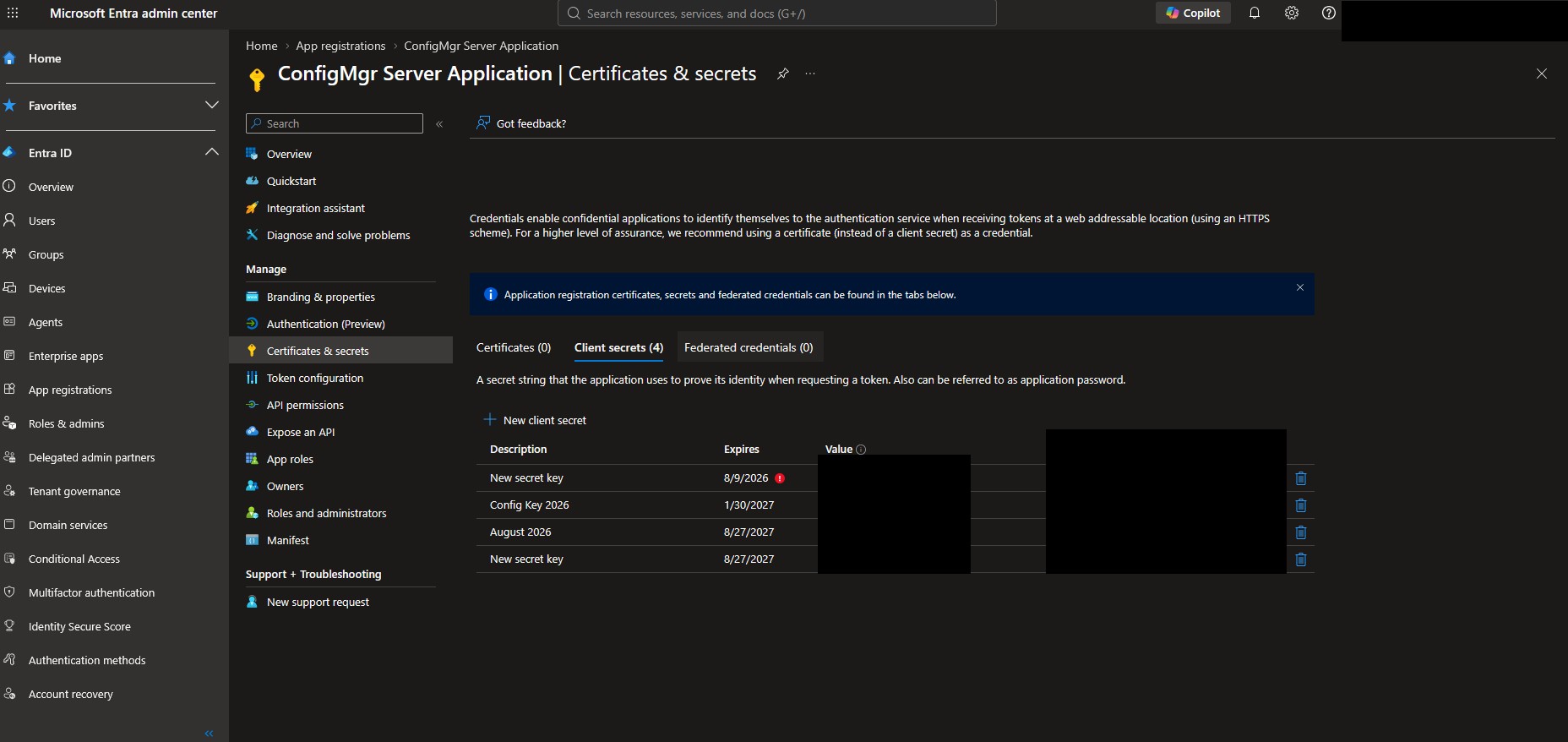
Use app-only authentication for scheduled jobs where no user should sign in. Certificate authentication is usually a better production choice than a client secret because it avoids storing a plain secret value in the script.
High level setup:
- Create or identify an app registration.
- Upload the public certificate to the app registration.
- Add Microsoft Graph application permissions.
- Grant admin consent.
- Install the private certificate on the automation host.
- Connect with
Connect-MgGraph. - Log the app identity and tenant, not the token.
Connection example:
Import-Module Microsoft.Graph.Authentication
Import-Module Microsoft.Graph.Users

$TenantId = "<tenant-id>"
$ClientId = "<application-client-id>"
$Thumbprint = "<certificate-thumbprint>"

Connect-MgGraph `
    -TenantId $TenantId `
    -ClientId $ClientId `
    -CertificateThumbprint $Thumbprint `
    -NoWelcome

Get-MgContext |
    Select-Object TenantId, ClientId, AuthType, CertificateThumbprint
Expected output shape:
TenantId              : <tenant-id>
ClientId              : <application-client-id>
AuthType              : AppOnly
CertificateThumbprint : <certificate-thumbprint>
Check the certificate exists on the host:
$Thumbprint = "<certificate-thumbprint>"

Get-ChildItem Cert:\CurrentUser\My, Cert:\LocalMachine\My -ErrorAction SilentlyContinue |
    Where-Object { $_.Thumbprint -eq $Thumbprint } |
    Select-Object Subject, Thumbprint, NotAfter, HasPrivateKey
Expected output shape:
Subject       Thumbprint               NotAfter              HasPrivateKey
-------       ----------               --------              -------------
CN=<name>     <certificate-thumbprint>  <expiry date/time>    True
Use application permissions for app-only scripts. Delegated scopes such as User.Read.All in an interactive session are not the same thing as application permissions granted to an app registration.
Managed Identity Where Useful
Use managed identity when the script runs in an Azure host that supports it, such as Azure Automation, Azure Functions, or a virtual machine. This removes the need to manage a client secret or certificate on the host.
System-assigned managed identity:
Import-Module Microsoft.Graph.Authentication
Import-Module Microsoft.Graph.Users

Connect-MgGraph -Identity -NoWelcome

Get-MgContext |
    Select-Object TenantId, ClientId, AuthType, AuthProviderType
Expected output shape:
TenantId         : <tenant-id>
ClientId         : <managed-identity-client-id>
AuthType         : AppOnly
AuthProviderType : ManagedIdentityAuthProvider
User-assigned managed identity:
Connect-MgGraph `
    -Identity `
    -ClientId "<user-assigned-managed-identity-client-id>" `
    -NoWelcome
Managed identity still needs Microsoft Graph application permissions. The common mistake is enabling the identity on the Azure resource but not granting the required Graph app roles. Record the managed identity object ID, app role grants, and admin consent evidence in the migration register.
Permission Scope Discovery
Do not copy broad scopes from old scripts. Discover what the new cmdlet needs, then choose the least privileged permission that works.
Find the API path and permissions for a command:
Import-Module Microsoft.Graph.Authentication

Find-MgGraphCommand -Command Get-MgUser |
    Select-Object -First 5 Command, Module, Method, URI, APIVersion
Expected output shape:
Command    Module Method URI              APIVersion
-------    ------ ------ ---              ----------
Get-MgUser Users  GET    /users           v1.0
Get-MgUser Users  GET    /users/{user-id} v1.0
Get-MgUser Users  GET    /users           beta
Find permissions for a command:
Find-MgGraphCommand -Command Get-MgUser |
    Select-Object -First 1 -ExpandProperty Permissions |
    Select-Object Name, IsAdmin, Description |
    Sort-Object Name
Expected output shape:
Name              IsAdmin Description
----              ------- -----------
User.Read.All     True    <permission description>
User.ReadBasic.All False  <permission description>
Directory.Read.All True   <permission description>
Find permissions by domain or name:
Find-MgGraphPermission user.read |
    Select-Object PermissionType, Consent, Name, Description |
    Sort-Object PermissionType, Name
Expected output shape:
PermissionType Consent Name              Description
-------------- ------- ----              -----------
Delegated      Admin   User.Read.All     <description>
Application    Admin   User.Read.All     <description>
Use this process for each script:
- List every Graph cmdlet used.
- Use
Find-MgGraphCommandto identify the API and candidate permissions. - Use
Find-MgGraphPermissionto understand permission type and consent. - Choose delegated or application permissions.
- Test with read-only permissions first.
- Add write permissions only when the script reaches a tested write stage.
Practical Cmdlet Mapping Table
Use Microsoft's cmdlet map for final validation. This table covers common production patterns and the migration notes that usually matter.
| Legacy command | Graph PowerShell SDK command | Migration note |
|---|---|---|
Connect-AzureAD | Connect-MgGraph | Choose delegated, certificate app-only, or managed identity |
Disconnect-AzureAD | Disconnect-MgGraph | Use in finally blocks for admin-run scripts |
Get-AzureADCurrentSessionInfo | Get-MgContext | Log context safely at script start |
Get-AzureADUser | Get-MgUser | Use -Property for non-default properties |
Get-MsolUser | Get-MgUser | Rewrite filters and licence logic |
Set-MsolUser -BlockCredential | Update-MgUser -AccountEnabled | Test carefully, especially for synced users |
Get-MsolAccountSku | Get-MgSubscribedSku | SKU identifiers and output shape differ |
Set-MsolUserLicense | Set-MgUserLicense | Requires app or delegated permissions that can assign licences |
Get-AzureADGroup | Get-MgGroup | Dynamic group properties may need -Property |
Add-AzureADGroupMember | New-MgGroupMemberByRef | Uses an @odata.id reference body |
Remove-AzureADGroupMember | Remove-MgGroupMemberByRef | Confirm object IDs before removing |
Get-AzureADDevice | Get-MgDevice | Device ID and object ID are different concepts |
Get-AzureADApplication | Get-MgApplication | App registration object, not enterprise app instance |
Get-AzureADServicePrincipal | Get-MgServicePrincipal | Enterprise application object |
New-AzureADApplicationPasswordCredential | Add-MgApplicationPassword | Secret value is returned only at creation |
Remove-AzureADApplicationPasswordCredential | Remove-MgApplicationPassword | Requires key ID, not secret display text |
Get-MsolDomain | Get-MgDomain | Output properties differ |
Get-AzureADTenantDetail | Get-MgOrganization | Use for tenant metadata |
Revoke-AzureADUserAllRefreshToken | Revoke-MgUserSignInSession | Requires session revoke permissions |
For MSOnline per-user MFA scripts, do not assume a simple cmdlet replacement. Review whether the business process should move to Conditional Access, authentication methods, registration reporting, or security defaults. Use Microsoft 365 Admin Centre Mandatory MFA Readiness and Conditional Access Microsoft 365 Policy Map before keeping legacy per-user MFA logic.
User Examples
Basic user lookup:
Connect-MgGraph -Scopes "User.Read.All" -ContextScope Process -NoWelcome

$User = Get-MgUser `
    -UserId "user@domain.example" `
    -Property Id, DisplayName, UserPrincipalName, AccountEnabled, Mail

$User |
    Select-Object Id, DisplayName, UserPrincipalName, AccountEnabled, Mail
Expected output shape:
Id                  : <user-object-id>
DisplayName         : <display name>
UserPrincipalName   : user@domain.example
AccountEnabled      : True
Mail                : user@domain.example
Replace a simple Get-MsolUser -All style report:
$Users = Get-MgUser `
    -All `
    -Property Id, DisplayName, UserPrincipalName, AccountEnabled, UserType, CreatedDateTime

$Users |
    Select-Object Id, DisplayName, UserPrincipalName, AccountEnabled, UserType, CreatedDateTime |
    Export-Csv C:\Reports\GraphUsers.csv -NoTypeInformation
Expected output shape:
Id DisplayName UserPrincipalName AccountEnabled UserType CreatedDateTime
-- ----------- ----------------- -------------- -------- ---------------
<id> <name>    <upn>             True           Member   <date/time>
Revoke sign-in sessions for one user:
Connect-MgGraph `
    -Scopes "User.RevokeSessions.All" `
    -ContextScope Process `
    -NoWelcome

$UserId = "user@domain.example"

Revoke-MgUserSignInSession -UserId $UserId -Confirm:$true
Expected output shape:
TrueTreat session revocation as a write action. Put it behind confirmation, a ticket number, or an explicit -WhatIf style wrapper in your own function.
Group Examples
Find a group by display name:
Connect-MgGraph -Scopes "Group.Read.All" -ContextScope Process -NoWelcome

$Group = Get-MgGroup `
    -Filter "displayName eq 'GROUP-NAME'" `
    -Property Id, DisplayName, MailEnabled, SecurityEnabled, GroupTypes

$Group |
    Select-Object Id, DisplayName, MailEnabled, SecurityEnabled, GroupTypes
Expected output shape:
Id              : <group-object-id>
DisplayName     : GROUP-NAME
MailEnabled     : False
SecurityEnabled : True
GroupTypes      : {}
Export members:
$GroupId = "<group-object-id>"

$Members = Get-MgGroupMember -GroupId $GroupId -All

$Members |
    Select-Object Id, AdditionalProperties |
    Export-Csv C:\Reports\GroupMembers.csv -NoTypeInformation
Expected output shape:
Id                                   AdditionalProperties
--                                   --------------------
<directory-object-id>                 {[displayName, <name>], [@odata.type, #microsoft.graph.user]...}
For mixed member types, the returned directory objects may need type-specific follow-up queries. Do not assume every member is a user.
Add a user to a group:
Connect-MgGraph -Scopes "GroupMember.ReadWrite.All" -ContextScope Process -NoWelcome

$GroupId = "<group-object-id>"
$UserId = "<user-object-id>"

$Body = @{
    "@odata.id" = "https://graph.microsoft.com/v1.0/directoryObjects/$UserId"
}

New-MgGroupMemberByRef -GroupId $GroupId -BodyParameter $Body
Expected output shape:
<no output when the reference is created successfully>Always validate membership after a write:
Get-MgGroupMember -GroupId $GroupId -All |
    Where-Object { $_.Id -eq $UserId } |
    Select-Object Id
Device Examples
Device migration is where many scripts get object IDs wrong. Entra device Id, device DeviceId, and Intune managed device IDs are not interchangeable.
Find Entra devices by display name:
Connect-MgGraph -Scopes "Device.Read.All" -ContextScope Process -NoWelcome

$DeviceName = "DEVICE-NAME"

Get-MgDevice `
    -Filter "displayName eq '$DeviceName'" `
    -Property Id, DeviceId, DisplayName, AccountEnabled, OperatingSystem, ApproximateLastSignInDateTime |
    Select-Object Id, DeviceId, DisplayName, AccountEnabled, OperatingSystem, ApproximateLastSignInDateTime
Expected output shape:
Id                            : <entra-device-object-id>
DeviceId                      : <device-guid>
DisplayName                   : DEVICE-NAME
AccountEnabled                : True
OperatingSystem               : Windows
ApproximateLastSignInDateTime : <date/time>
Find stale Entra devices:
$Cutoff = (Get-Date).AddDays(-90)

Get-MgDevice `
    -All `
    -Property Id, DeviceId, DisplayName, OperatingSystem, ApproximateLastSignInDateTime |
    Where-Object {
        $_.OperatingSystem -eq "Windows" -and
        $_.ApproximateLastSignInDateTime -lt $Cutoff
    } |
    Select-Object DisplayName, DeviceId, ApproximateLastSignInDateTime
Expected output shape:
DisplayName DeviceId       ApproximateLastSignInDateTime
----------- --------       -----------------------------
DEVICE-NAME <device-guid>  <date/time>
For a fuller stale device workflow, use the PowerShell hub.
App Registration Examples
App registrations are application objects. Enterprise applications are service principals. Many legacy scripts blur those concepts.
Find an app registration:
Connect-MgGraph -Scopes "Application.Read.All" -ContextScope Process -NoWelcome

$App = Get-MgApplication `
    -Filter "displayName eq 'APP-NAME'" `
    -Property Id, AppId, DisplayName, SignInAudience, PasswordCredentials, KeyCredentials

$App |
    Select-Object Id, AppId, DisplayName, SignInAudience
Expected output shape:
Id             : <application-object-id>
AppId          : <application-client-id>
DisplayName    : APP-NAME
SignInAudience : AzureADMyOrg
Report app credentials without exposing secrets:
$Apps = Get-MgApplication `
    -All `
    -Property Id, AppId, DisplayName, PasswordCredentials, KeyCredentials

foreach ($App in $Apps) {
    foreach ($Secret in $App.PasswordCredentials) {
        [PSCustomObject]@{
            AppDisplayName = $App.DisplayName
            AppId = $App.AppId
            CredentialType = "Password"
            KeyId = $Secret.KeyId
            DisplayName = $Secret.DisplayName
            EndDateTime = $Secret.EndDateTime
        }
    }

    foreach ($Certificate in $App.KeyCredentials) {
        [PSCustomObject]@{
            AppDisplayName = $App.DisplayName
            AppId = $App.AppId
            CredentialType = "Certificate"
            KeyId = $Certificate.KeyId
            DisplayName = $Certificate.DisplayName
            EndDateTime = $Certificate.EndDateTime
        }
    }
}
Expected output shape:
AppDisplayName CredentialType KeyId     DisplayName EndDateTime
-------------- -------------- -----     ----------- -----------
APP-NAME       Password       <key-id>  <name>      <date/time>
APP-NAME       Certificate    <key-id>  <name>      <date/time>
Secret values are not available later. If your old script depended on reading an existing secret value, that design must change.
Service Principal Examples
Find the service principal for an app ID:
Connect-MgGraph -Scopes "Application.Read.All" -ContextScope Process -NoWelcome

$AppId = "<application-client-id>"

$ServicePrincipal = Get-MgServicePrincipal `
    -Filter "appId eq '$AppId'" `
    -Property Id, AppId, DisplayName, AccountEnabled, ServicePrincipalType, AppOwnerOrganizationId

$ServicePrincipal |
    Select-Object Id, AppId, DisplayName, AccountEnabled, ServicePrincipalType
Expected output shape:
Id                   : <service-principal-object-id>
AppId                : <application-client-id>
DisplayName          : APP-NAME
AccountEnabled       : True
ServicePrincipalType : Application
List owners:
$ServicePrincipalId = "<service-principal-object-id>"

Get-MgServicePrincipalOwner -ServicePrincipalId $ServicePrincipalId -All |
    Select-Object Id, AdditionalProperties
Expected output shape:
Id                                   AdditionalProperties
--                                   --------------------
<directory-object-id>                 {[displayName, <owner name>], [@odata.type, #microsoft.graph.user]...}
If your output needs owner display names and UPNs, resolve user owners separately and handle non-user owners safely.
Paging with -All
Many old AzureAD and MSOnline scripts used -All $true or returned everything by default. Microsoft Graph commonly returns paged data. In Graph PowerShell, use -All when you need every object from a collection.
Bad migration pattern:
# Only returns the first page for many collections.
$Users = Get-MgUser
Safer pattern:
$Users = Get-MgUser -All -Property Id, DisplayName, UserPrincipalName

$Users.Count
Expected output shape:
<number-of-users-returned>Use -Top for controlled tests:
Get-MgUser -Top 10 -Property Id, DisplayName, UserPrincipalName |
    Select-Object Id, DisplayName, UserPrincipalName
For production exports, always decide whether the script needs:
- One object by ID.
- One page for a dashboard sample.
- Every object with
-All. - A filtered subset with
-Filter. - A report export pattern such as PowerShell topic hub.
Do not rely on visual output in the console to prove paging is correct. Count the returned objects and compare with an expected source such as the admin centre or an existing approved report.
OData Filter Differences
Graph filters are OData filters. They are not PowerShell Where-Object filters, and they are not always equivalent to -SearchString.
Common differences:
| Old habit | Graph pattern |
|---|---|
-SearchString "Alex" | -Search '"displayName:Alex"' or -Filter "startsWith(displayName,'Alex')" |
| PowerShell property names after the query | OData property names inside -Filter |
| Filter after retrieving all objects | Filter at the Graph query when supported |
Assume contains works everywhere | Check support. Some directory object filters do not support contains |
| Assume case and null behaviour are the same | Test each filter against known objects |
Examples:
# Exact UPN match
Get-MgUser -Filter "userPrincipalName eq 'user@domain.example'"

# Starts with display name
Get-MgUser -Filter "startsWith(displayName,'Alex')"

# Enabled users only
Get-MgUser -Filter "accountEnabled eq true" -All

# Groups with a specific display name
Get-MgGroup -Filter "displayName eq 'GROUP-NAME'"
Expected output shape:
Id                                   DisplayName UserPrincipalName
--                                   ----------- -----------------
<object-id>                          <name>      <upn>
If a filter fails, do not replace it with Get-MgUser -All | Where-Object in a large tenant without thinking. That may work for a small pilot but become slow, expensive, and more likely to hit throttling in production.
Eventual Consistency and ConsistencyLevel
Some advanced Microsoft Entra directory queries require eventual consistency and count support. Microsoft documents this for advanced query capabilities such as ne, not, endsWith, $search, combining filter and orderby, and certain collection count filters.
Example with ne:
$UserCount = 0

$Users = Get-MgUser `
    -Filter "accountEnabled ne true" `
    -ConsistencyLevel eventual `
    -CountVariable UserCount `
    -All `
    -Property Id, DisplayName, UserPrincipalName, AccountEnabled

$UserCount

$Users |
    Select-Object DisplayName, UserPrincipalName, AccountEnabled
Expected output shape:
<count>

DisplayName UserPrincipalName AccountEnabled
----------- ----------------- --------------
<name>      <upn>             False
Search example:
Get-MgUser `
    -Search '"displayName:Admin"' `
    -ConsistencyLevel eventual `
    -CountVariable UserCount `
    -All `
    -Property Id, DisplayName, UserPrincipalName |
    Select-Object DisplayName, UserPrincipalName
Expected output shape:
DisplayName        UserPrincipalName
-----------        -----------------
<matching name>     <upn>
Operational notes:
- Advanced queries use an indexed store and can be eventually consistent.
- Do not use advanced query results as the only proof immediately after a write.
- For a write-then-read validation, query the object directly by ID after the write.
- If a report depends on count accuracy, record the query time and consistency behaviour.
Throttling and Retry Patterns
Microsoft Graph can throttle requests. Microsoft documents HTTP 429 responses and the Retry-After header as the main recovery signal. The Graph SDK has retry handling, but production scripts should still be written to reduce calls and handle failures clearly.
Avoid throttling first:
- Use
-Propertyto return only needed fields. - Use
-FilterbeforeWhere-Objectwhen the API supports it. - Avoid nested loops that call Graph once per user when a batch or relationship query is available.
- Cache lookup tables such as SKU IDs and group IDs during the script run.
- Avoid polling Graph repeatedly for state changes.
- Split very large reports by time window or object type if needed.
When you call Invoke-MgGraphRequest directly, add retry handling:
function Invoke-GraphRequestWithRetry {
    param(
        [Parameter(Mandatory)]
        [string]$Uri,

        [ValidateSet("GET", "POST", "PATCH", "DELETE")]
        [string]$Method = "GET",

        [object]$Body,

        [int]$MaxAttempts = 5
    )

    for ($Attempt = 1; $Attempt -le $MaxAttempts; $Attempt++) {
        try {
            $Parameters = @{
                Method = $Method
                Uri = $Uri
                ErrorAction = "Stop"
            }

            if ($PSBoundParameters.ContainsKey("Body")) {
                $Parameters.Body = ($Body | ConvertTo-Json -Depth 20)
                $Parameters.ContentType = "application/json"
            }

            return Invoke-MgGraphRequest @Parameters
        }
        catch {
            $Response = $_.Exception.Response
            $StatusCode = if ($Response) { [int]$Response.StatusCode } else { $null }

            if ($StatusCode -ne 429 -or $Attempt -eq $MaxAttempts) {
                throw
            }

            $RetryAfter = $Response.Headers["Retry-After"]
            $DelaySeconds = if ($RetryAfter) { [int]$RetryAfter } else { [math]::Min([math]::Pow(2, $Attempt), 60) }

            Start-Sleep -Seconds $DelaySeconds
        }
    }
}
Expected logging shape:
Timestamp              Attempt Status DelaySeconds Uri
---------              ------- ------ ------------ ---
<date/time>            1       429    <seconds>    <graph-uri>
<date/time>            2       200    0            <graph-uri>
For normal Graph SDK cmdlets such as Get-MgUser, still log the operation, elapsed time, object count, and any exception. If the SDK throws after retries, your script needs a clear failure state rather than a partial silent export.
Beta Endpoint Caveats
Microsoft recommends using Microsoft Graph v1.0 for scripts where possible. The beta endpoint is preview and can change.
Use beta only when:
- The required API or property is not available in v1.0.
- The business owner accepts preview risk.
- The script logs which beta commands are used.
- There is a review date to move back to v1.0.
- The output contract is tested more often than a stable v1.0 script.
Example:
Import-Module Microsoft.Graph.Beta.Users

Connect-MgGraph -Scopes "User.Read.All" -ContextScope Process -NoWelcome

Get-MgBetaUser -Top 5 |
    Select-Object Id, DisplayName, UserPrincipalName
Expected output shape:
Id                                   DisplayName UserPrincipalName
--                                   ----------- -----------------
<user-object-id>                      <name>      <upn>
Do not load beta modules simply because an internet example uses them. Start with v1.0 and only move to beta when the API requirement is real.
Logging and Safe Migration Workflow
Migration should produce evidence, not just a changed script.
Use this workflow:
| Stage | Goal |
|---|---|
| Inventory | Find every legacy module command and classify script risk |
| Map | Map cmdlets, parameters, permissions, filters, output fields, and write actions |
| Read-only build | Build a Graph version that only reads data |
| Output compare | Compare old and new output shapes against a small safe scope |
| Permission review | Replace broad admin access with explicit delegated scopes or app permissions |
| Pilot write | Test one write operation against one approved test object |
| Production shadow | Run the new script beside the old one without taking action |
| Cutover | Disable old scheduled job and enable new job |
| Post-cutover | Compare output, logs, object counts, and audit events |
| Retire | Remove old module dependency and update runbooks |
Add a standard log object:
$RunId = [guid]::NewGuid().Guid
$Started = Get-Date

$Log = [System.Collections.Generic.List[object]]::new()

function Write-MigrationLog {
    param(
        [string]$Stage,
        [string]$Operation,
        [string]$Status,
        [string]$Detail
    )

    $Log.Add([PSCustomObject]@{
        RunId = $RunId
        Timestamp = (Get-Date).ToString("o")
        Stage = $Stage
        Operation = $Operation
        Status = $Status
        Detail = $Detail
    })
}

Write-MigrationLog -Stage "Start" -Operation "Connect" -Status "Started" -Detail "Graph migration run started"
Expected output shape:
RunId     : <run-guid>
Timestamp : <date/time>
Stage     : Start
Operation : Connect
Status    : Started
Detail    : Graph migration run started
At the end:
$OutputPath = "C:\Reports\GraphMigration"
New-Item -Path $OutputPath -ItemType Directory -Force | Out-Null

$Log |
    Export-Csv (Join-Path $OutputPath "MigrationRun-$RunId.csv") -NoTypeInformation
Never log access tokens, client secrets, certificate private keys, full user export files into public build logs, or raw Graph responses that contain sensitive attributes unless that location is approved for that data.
Example Migration: User Report
Legacy pattern:
Connect-MsolService

Get-MsolUser -All |
    Select-Object DisplayName, UserPrincipalName, IsLicensed, BlockCredential |
    Export-Csv C:\Reports\MsolUsers.csv -NoTypeInformation
Graph pattern:
Import-Module Microsoft.Graph.Authentication
Import-Module Microsoft.Graph.Users

Connect-MgGraph `
    -Scopes "User.Read.All", "Directory.Read.All" `
    -ContextScope Process `
    -NoWelcome

$Users = Get-MgUser `
    -All `
    -Property Id, DisplayName, UserPrincipalName, AccountEnabled, AssignedLicenses

$Users |
    Select-Object `
        DisplayName,
        UserPrincipalName,
        @{Name="IsLicensed";Expression={$_.AssignedLicenses.Count -gt 0}},
        @{Name="AccountEnabled";Expression={$_.AccountEnabled}} |
    Export-Csv C:\Reports\GraphUsers.csv -NoTypeInformation
Expected output shape:
DisplayName UserPrincipalName IsLicensed AccountEnabled
----------- ----------------- ---------- --------------
<name>      <upn>             True       True
Notice the migration is not a direct property rename. BlockCredential and AccountEnabled are inverse concepts in many reporting contexts, so confirm the old report logic before changing downstream processes.
Example Migration: App Credential Report
Legacy pattern:
Connect-AzureAD

Get-AzureADApplication -All $true |
    Select-Object DisplayName, AppId, PasswordCredentials, KeyCredentials
Graph pattern:
Import-Module Microsoft.Graph.Authentication
Import-Module Microsoft.Graph.Applications

Connect-MgGraph `
    -Scopes "Application.Read.All" `
    -ContextScope Process `
    -NoWelcome

$Applications = Get-MgApplication `
    -All `
    -Property Id, AppId, DisplayName, PasswordCredentials, KeyCredentials

$CredentialRows = foreach ($Application in $Applications) {
    foreach ($Password in $Application.PasswordCredentials) {
        [PSCustomObject]@{
            DisplayName = $Application.DisplayName
            AppId = $Application.AppId
            CredentialType = "Password"
            KeyId = $Password.KeyId
            EndDateTime = $Password.EndDateTime
        }
    }

    foreach ($Key in $Application.KeyCredentials) {
        [PSCustomObject]@{
            DisplayName = $Application.DisplayName
            AppId = $Application.AppId
            CredentialType = "Certificate"
            KeyId = $Key.KeyId
            EndDateTime = $Key.EndDateTime
        }
    }
}

$CredentialRows |
    Sort-Object EndDateTime |
    Export-Csv C:\Reports\AppCredentials.csv -NoTypeInformation
Expected output shape:
DisplayName AppId       CredentialType KeyId    EndDateTime
----------- -----       -------------- -----    -----------
APP-NAME    <client-id> Password       <key-id> <date/time>
Rollback Plan
Every production script migration needs rollback, especially if the script writes data.
Rollback plan:
- Keep the old script and its scheduled job disabled but recoverable during the first cutover window.
- Keep the previous app registration, certificate, and permissions until the Graph script is stable.
- Record the old output from the final successful legacy run.
- Record the new output from the first Graph production run.
- For read-only reports, rollback means re-enable the old job and mark the new output as rejected.
- For write scripts, define object-level reversal steps before cutover.
- Do not run old and new write scripts at the same time.
- If the Graph script partially completes, stop the schedule, export logs, and review object-level changes before rerunning.
Rollback evidence table:
| Evidence | Source |
|---|---|
| Old script hash | Source control or file hash |
| New script hash | Source control or file hash |
| Old scheduled job state | Task Scheduler, Azure Automation, pipeline, or runner |
| New scheduled job state | Task Scheduler, Azure Automation, pipeline, or runner |
| Final legacy output | Approved report location |
| First Graph output | Approved report location |
| Graph permissions | App registration or delegated consent record |
| Change ticket | Service management system |
For destructive operations such as remove member, delete app password, revoke sessions, or disable account, add a pre-change export:
$BeforePath = "C:\Reports\BeforeChange-$RunId.csv"

$TargetUsers |
    Select-Object Id, DisplayName, UserPrincipalName, AccountEnabled |
    Export-Csv $BeforePath -NoTypeInformation
Expected output shape:
Id DisplayName UserPrincipalName AccountEnabled
-- ----------- ----------------- --------------
<id> <name>    <upn>             True
Common Migration Failures
| Failure | Cause | Fix |
|---|---|---|
Connect-MgGraph prompts during automation | Script fell back to delegated auth | Fail fast if certificate or managed identity auth is missing |
| Empty report | Missing -All, wrong filter, or missing selected property | Add -All, test filter, add -Property |
| Permission denied | Delegated scope or application permission is missing | Use Find-MgGraphCommand and grant the least privileged permission |
| Script works for admin but not automation | Delegated permissions used in manual test, application permissions used in job | Test with the same auth type as production |
| Filter works in old module but fails in Graph | OData syntax or property support differs | Rewrite filter and check advanced query requirements |
| Count is missing | Advanced query parameters not used | Add -ConsistencyLevel eventual and -CountVariable where supported |
| Group export misses members | Paging not handled | Use -All |
| App report misses credentials | Property not selected | Add -Property PasswordCredentials, KeyCredentials |
| Service principal confused with app registration | Wrong object type | Use Get-MgApplication for app registrations and Get-MgServicePrincipal for enterprise apps |
| Throttling in large tenant | Too many broad calls or nested queries | Filter earlier, select fewer fields, cache lookups, respect Retry-After |
| Beta script breaks | Beta API changed | Move to v1.0 or add explicit beta review and monitoring |
Prevention Checklist
Use this before approving each migrated script:
- The script owner is recorded.
- The business purpose is still valid.
- The old AzureAD or MSOnline commands are listed.
- The Microsoft Graph cmdlet map has been checked.
Find-MgGraphCommandhas been used for each new command.Find-MgGraphPermissionhas been used for each new permission family.- Authentication type is explicit.
- Delegated scripts use explicit scopes and named admin accounts.
- Automation scripts use certificate app-only auth or managed identity.
- No plaintext password or client secret is stored in the script.
- The script uses
-Allwhere full collection export is required. - The script uses
-Propertyfor non-default properties. - OData filters have been tested against known objects.
- Advanced queries use
-ConsistencyLevel eventualand-CountVariablewhere required. - Write actions have confirmation, ticketing, or a safe wrapper.
- Output has been compared with the legacy script.
- Logs include run ID, auth type, operation count, and status.
- Logs do not include secrets or tokens.
- Throttling behaviour is understood.
- Beta commands are avoided or explicitly approved.
- Rollback has been tested or documented.
- The old scheduled job is disabled only after the new job is proven.
- The runbook has been updated.
Final Migration Pattern
The practical pattern is:
- Inventory every legacy script.
- Rank scripts by business risk.
- Start with read-only, low-risk scripts.
- Map cmdlets, filters, properties, output, and permissions.
- Choose the right authentication model.
- Build the Graph version with narrow test scope.
- Compare output shape and counts.
- Add logging and retry handling.
- Pilot any write action.
- Run in shadow mode.
- Cut over one schedule at a time.
- Keep rollback ready until production output is stable.
- Remove the old module dependency from the runbook.
The goal is not only to make the old script run again. The goal is to leave behind a script that uses modern authentication, explicit permissions, predictable Graph queries, safe logging, and a supportable operational path.
Home lab notebook (app-only device count)
Register an app in the personal developer tenant only. Least privilege: Device.Read.All or User.Read.All, not Directory.ReadWrite.All. This revision does not claim the notebook was executed.
- App registration, client secret or certificate, admin consent for the one read permission.
Connect-MgGraphwith client credentials. RecordGet-MgContextAuthType, TenantId (redact), and Scopes.- Run one count, not a dump:
# Replace the three values from the lab app registration. Do not commit them.
Connect-MgGraph -ClientId $clientId -TenantId $tenantId -CertificateThumbprint $thumbprint -NoWelcome
Get-MgContext | Select-Object AuthType, Scopes
Get-MgDevice -CountVariable deviceCount -ConsistencyLevel eventual -Top 1 | Out-Null
Write-Output "DeviceCount=$deviceCount"
Disconnect-MgGraph | Out-Null- Rotate or delete the secret or certificate after the capture. Do not commit it.
Do not set labTested until AuthType is app-only and the secret has been disposed. Do not paste a client secret into the article.
Related Resources
- PowerShell
- Microsoft Entra ID
- Microsoft 365
- Microsoft 365 Admin Centre Mandatory MFA Readiness
- Conditional Access Microsoft 365 Policy Map
- Upgrade from Azure AD PowerShell to Microsoft Graph PowerShell
- Find Azure AD PowerShell and MSOnline cmdlets in Microsoft Graph PowerShell
- Install the Microsoft Graph PowerShell SDK
- Authentication module cmdlets in Microsoft Graph PowerShell
- Use query parameters to customise PowerShell query outputs
- Advanced query capabilities on Microsoft Entra ID objects
- Microsoft Graph throttling guidance
Verification clarification, 19 September 2026: Added a read-only app-only Graph notebook. No tenant execution is claimed.
Verification clarification, 10 September 2026: Environment descriptions are assumptions or documentation-review context. No complete lab/tenant execution is established by the material retained with this article; example commands and output are illustrative. Genuine individual captures do not verify the whole procedure.
Microsoft Intune
Product linkManage, secure, and report on all your endpoints from a single cloud-native console.
This is a Microsoft product link, not an advert and not an affiliate placement. AdminSignal has no affiliate arrangement for Intune.

Jack Hadcroft
LinkedInBand 6 Endpoint Specialist and author of AdminSignal
Technical claims are reviewed against current Microsoft documentation. Lab or tenant checks are named only when they were done.
Independent publication. About · Editorial policy