
Migrating Intune Administrative Templates to Settings Catalog Without Breaking Policy Behaviour
Why This Migration Needs Care
Moving Intune policies into Settings Catalog sounds like a housekeeping job. It is not. A badly planned migration can change registry scope, duplicate a CSP setting, remove a working exclusion, or leave two configuration policies fighting over the same value on the same device.
The old Templates > Administrative Templates profile type is no longer the right place to build new Windows ADMX policies. Microsoft now documents Administrative Templates as part of Settings Catalog, and says the old profile type is deprecated and read-only from the December 2412 Intune release. Existing profiles can still matter, though. Some are stable, assigned to sensitive devices, and better left alone until there is a real reason to change them.
This guide is for the practical middle ground: build a clean migration path to Settings Catalog without breaking current device behaviour.
Use these related AdminSignal guides while planning the wider change:
- Microsoft Intune
- Microsoft Entra ID
- PowerShell
- Intune Device Not Syncing
- Intune Compliance Policy Not Evaluating
- Entra Dynamic Group Not Updating
- Microsoft Graph PowerShell migration
- Conditional Access Microsoft 365 Policy Map
Official Microsoft references used for this guide:
- Use the Intune settings catalog to configure settings
- Configure ADMX settings using the settings catalog in Microsoft Intune
- Create a device configuration profile in Microsoft Intune
- Manage device security with endpoint security policies in Microsoft Intune
- Assign device profiles in Microsoft Intune
- See device configuration policies with Microsoft Intune
- Common questions with policies and profiles in Microsoft Intune
- Export Intune reports using Graph APIs
- Intune reports and properties available using Graph API
- List deviceManagementConfigurationPolicies
- List deviceManagementConfigurationSettings
- deviceConfiguration resource type
- List deviceConfigurationAssignments
- Create a Settings Catalog policy from imported GPOs
Scope and Verification Basis
This guide is written for Microsoft Intune tenants using Windows 10 and Windows 11 device management, with illustrative policy inventory and reporting queries for Microsoft Graph PowerShell. Their inclusion does not establish tenant execution.
The process assumes:
- Windows devices are already enrolled in Intune.
- Existing policies may include old Administrative Templates, Settings Catalog profiles, security baselines, Endpoint Security profiles, custom OMA-URI profiles, and older device configuration templates.
- The operator can use Microsoft Graph PowerShell with read permissions before any change work begins.
- Pilot devices are available and can be synced on demand.
- Policy assignment groups are managed in Microsoft Entra ID.
The PowerShell examples show expected output shapes only. They do not include real tenant IDs, device names, group names, policy IDs, user names, or production values from any tenant.
When to Migrate and When to Leave a Profile Alone
Do not migrate just because a policy is old. Migrate when the move reduces risk, improves supportability, or is needed because the old profile type cannot be edited cleanly.
Good reasons to migrate:
| Situation | Why migration helps |
|---|---|
| Old Administrative Templates profile needs changes | New ADMX work belongs in Settings Catalog |
| The same setting is configured in several places | Settings Catalog gives better per-setting visibility |
| A custom OMA-URI now exists in Settings Catalog | The built-in setting is easier to understand and report |
| You need a clean pilot before broad rollout | New profile can be assigned to a small group first |
| The old profile has unclear ownership | Migration is a chance to split settings by workload owner |
| Reporting is too vague | Modern configuration reports show success, error and conflict states more clearly |
| You need to align with a current Microsoft path | Settings Catalog is the documented destination for granular Windows policy |
Good reasons to leave a profile alone for now:
| Situation | Safer choice |
|---|---|
| The profile is stable and rarely touched | Leave it until there is a business reason |
| It manages Wi-Fi, VPN, certificates, email, kiosk, DFCI, domain join or Autopilot behaviour | Keep the dedicated template unless you have a tested replacement |
| It is an Endpoint Security profile for antivirus, firewall, disk encryption, attack surface reduction or EDR | Keep the security workload in Endpoint Security unless you are resolving a known duplicate |
| It contains custom or partner ADMX that is still handled through imported templates | Do not assume a built-in Settings Catalog match exists |
| It uses a custom OMA-URI with no Settings Catalog equivalent | Keep it documented and isolated |
| It applies to production devices that cannot be easily recovered | Inventory and pilot first |
| The original owner and reason are unknown | Freeze, document, and validate before rebuilding |
The most useful rule is simple: migrate settings, not profile names. A large old profile might become three smaller Settings Catalog profiles, or it might stay in place because only one harmless setting needs future replacement.
Prerequisites
Before you build a replacement profile, collect these items:
- A list of all Windows configuration profiles and Endpoint Security profiles.
- The current assignments, exclusions, filters and scope tags for each in-scope profile.
- A pilot group that can be included in the new profile and safely removed from the old profile if needed.
- A way to identify pilot devices in Intune and Entra ID.
- Recent device check-in data.
- Current conflict, error and not applicable reports.
- A copy of every policy you intend to change or replace.
- A rollback owner who can disable or unassign the new policy quickly.
- A clear decision on whether the setting is owned by device configuration, Endpoint Security, compliance, security baseline or another workload.
Install the Microsoft Graph PowerShell modules on an admin workstation:
Install-Module Microsoft.Graph -Scope CurrentUser
Install-Module Microsoft.Graph.Beta -Scope CurrentUser

Import-Module Microsoft.Graph.Authentication
Import-Module Microsoft.Graph.DeviceManagement
Import-Module Microsoft.Graph.Beta.DeviceManagement
Connect with read scopes first:
Connect-MgGraph -Scopes @(
    "DeviceManagementConfiguration.Read.All",
    "DeviceManagementManagedDevices.Read.All",
    "DeviceManagementApps.Read.All",
    "Group.Read.All"
)

Get-MgContext | Select-Object Account, TenantId, Scopes
Expected output shape:
Account  : admin@domain.example
TenantId : <tenant-id>
Scopes   : {DeviceManagementConfiguration.Read.All, DeviceManagementManagedDevices.Read.All, Group.Read.All...}
Use write scopes only when you are ready to create, assign or change policy. Most migration planning should be read-only.
Administrative Templates vs Settings Catalog
Administrative Templates are ADMX-backed Windows policy settings. In Intune, Microsoft now exposes built-in Administrative Templates through Settings Catalog. Microsoft documents that these settings correlate to the on-premises Group Policy path you see in Local Group Policy Editor, and that they use Windows policy CSPs.
Settings Catalog is broader. It lists many settings in one place, including ADMX-backed settings and CSP-backed settings. It also gives you search, filters, per-setting reporting, export and import for Settings Catalog policies.
Use this comparison during mapping:
| Area | Old Administrative Templates profile | Settings Catalog |
|---|---|---|
| Creation path | Old Templates > Administrative Templates path | Devices > Manage devices > Configuration > Create > Settings catalog |
| Current Microsoft direction | Deprecated and read-only for new work | Recommended path for granular settings |
| Setting source | Built-in ADMX settings | ADMX, CSP and platform settings exposed by Intune |
| Search | Old template browsing | Search, category and filter tools |
| Scope clues | User configuration and computer configuration | Setting names often show User or Device scope |
| Reporting | Older profile reporting | Policy, device, assignment and per-setting reports |
| Export | Limited through Graph or manual record | JSON export and import for Settings Catalog policies |
Do not treat the wording as a perfect one-to-one map. The same policy intent can appear under a different category or with a more precise setting name in Settings Catalog.
Device Configuration Profiles vs Endpoint Security Profiles
This is where many migrations go wrong. Settings Catalog is a device configuration path. Endpoint Security profiles are security workload profiles for areas such as antivirus, firewall, disk encryption, endpoint detection and attack surface reduction.
Keep security ownership clear:
| Setting type | Better owner |
|---|---|
| Defender Antivirus core behaviour | Endpoint Security Antivirus |
| Firewall rules and global firewall state | Endpoint Security Firewall |
| BitLocker policy used by security operations | Endpoint Security Disk encryption or a dedicated Settings Catalog profile, but not both |
| Attack surface reduction rules | Endpoint Security Attack surface reduction |
| EDR onboarding | Endpoint Security Endpoint detection and response |
| Start menu, browser, Office, OneDrive, Control Panel and general Windows experience | Settings Catalog |
| Legacy ADMX settings that map to Group Policy paths | Settings Catalog Administrative Templates |
| Compliance evaluation such as minimum OS or encryption required | Compliance policy |
If Endpoint Security already owns a setting, do not recreate it in Settings Catalog unless the goal is to remove the Endpoint Security setting and move ownership. Two configuration sources setting different values is a conflict, not defence in depth.
For Conditional Access planning that depends on compliance, use Intune Compliance Policy Not Evaluating and Conditional Access Microsoft 365 Policy Map before you make compliance-related policy changes.
Step 1: Inventory Existing Profiles
Start with a tenant-wide inventory. The old device configuration profiles live under the deviceConfigurations Graph resource. Settings Catalog and other unified platform policies use configurationPolicies.
List older device configuration profiles:
$LegacyProfiles = Get-MgDeviceManagementDeviceConfiguration -All |
    Select-Object `
        Id,
        DisplayName,
        Description,
        CreatedDateTime,
        LastModifiedDateTime,
        Version,
        @{Name="ODataType";Expression={$_.AdditionalProperties.'@odata.type'}}

$LegacyProfiles |
    Sort-Object DisplayName |
    Format-Table DisplayName, ODataType, LastModifiedDateTime, Version
Expected output shape:
DisplayName                         ODataType                                      LastModifiedDateTime Version
-----------                         ---------                                      -------------------- -------
WIN - Admin Templates - Office       #microsoft.graph.windows10GeneralConfiguration <date/time>         <n>
WIN - Device Restrictions - Baseline #microsoft.graph.windows10GeneralConfiguration <date/time>         <n>
WIN - Custom OMA - Legacy Setting    #microsoft.graph.windows10CustomConfiguration  <date/time>         <n>
List Settings Catalog and unified configuration policies:
$UnifiedPolicies = Get-MgBetaDeviceManagementConfigurationPolicy -All |
    Select-Object `
        Id,
        Name,
        Description,
        Platforms,
        Technologies,
        SettingCount,
        IsAssigned,
        CreatedDateTime,
        LastModifiedDateTime,
        @{Name="TemplateFamily";Expression={$_.TemplateReference.TemplateFamily}},
        @{Name="TemplateDisplayName";Expression={$_.TemplateReference.TemplateDisplayName}}

$UnifiedPolicies |
    Sort-Object Name |
    Format-Table Name, Platforms, Technologies, SettingCount, IsAssigned, TemplateFamily
Expected output shape:
Name                                  Platforms Technologies SettingCount IsAssigned TemplateFamily
----                                  --------- ------------ ------------ ---------- --------------
WIN - SC - Browser Controls           windows10 mdm          <n>          True       <blank or value>
WIN - Endpoint Security - Firewall    windows10 mdm          <n>          True       endpointSecurityFirewall
WIN - SC - OneDrive Known Folder Move windows10 mdm          <n>          False      <blank or value>
Add a classification column to your own working sheet:
| Classification | Meaning |
|---|---|
| Replace now | Needed because the old policy must be changed or has known duplicates |
| Replace later | Good candidate, but no urgent risk |
| Leave alone | Stable or purpose-built profile |
| Investigate | Owner, setting source or assignment is unclear |
| Retire | No assignment, obsolete purpose, or superseded by another policy |
Do not edit anything yet.
Step 2: Check Profile Assignments
Migration safety depends on assignments more than names. You need to know exactly who receives the old profile before you build the new one.
Use a helper that reads both old device configuration assignments and Settings Catalog assignments:
Collection reads use the following helper in the same PowerShell session and follow Microsoft Graph paging. This is an illustrative implementation, not a recorded tenant execution.
function Get-GraphCollectionResponse {
    param([Parameter(Mandatory)][string]$Uri)
    $Items = [System.Collections.Generic.List[object]]::new()
    do {
        $Page = Invoke-MgGraphRequest -Method GET -Uri $Uri -ErrorAction Stop
        foreach ($Item in $Page.value) { $Items.Add($Item) }
        $Uri = $Page.'@odata.nextLink'
    } while ($Uri)
    return @{ value = $Items.ToArray() }
}function Get-IntunePolicyAssignment {
param(
[Parameter(Mandatory)]
[string]$PolicyId,
[Parameter(Mandatory)]
[ValidateSet("LegacyDeviceConfiguration", "SettingsCatalog")]
[string]$PolicyKind
)
if ($PolicyKind -eq "LegacyDeviceConfiguration") {
$Uri = "https://graph.microsoft.com/beta/deviceManagement/deviceConfigurations/$PolicyId/assignments"
} else {
$Uri = "https://graph.microsoft.com/beta/deviceManagement/configurationPolicies/$PolicyId/assignments"
}
$Response = Get-GraphCollectionResponse -Uri $Uri
foreach ($Assignment in $Response.value) {
$Target = $Assignment.target
$TargetType = $Target.'@odata.type'
$TargetId = $Target.groupId
if (-not $TargetId) { $TargetId = $Target.entraObjectId }
if (-not $TargetId) { $TargetId = $Target.deviceAndAppManagementAssignmentFilterId }
[PSCustomObject]@{
PolicyId = $PolicyId
PolicyKind = $PolicyKind
AssignmentId = $Assignment.id
TargetType = $TargetType
TargetId = $TargetId
FilterId = $Target.deviceAndAppManagementAssignmentFilterId
FilterType = $Target.deviceAndAppManagementAssignmentFilterType
Intent = $Assignment.intent
}
}
}
$OldPolicyId = "<old-device-configuration-policy-id>"
Get-IntunePolicyAssignment `
-PolicyId $OldPolicyId `
-PolicyKind LegacyDeviceConfiguration |
Format-Table PolicyKind, TargetType, TargetId, FilterId, FilterType, IntentExpected output shape:
PolicyKind                TargetType                                      TargetId       FilterId       FilterType Intent
----------                ----------                                      --------       --------       ---------- ------
LegacyDeviceConfiguration #microsoft.graph.groupAssignmentTarget          <group-id>     <blank>        <blank>    apply
LegacyDeviceConfiguration #microsoft.graph.exclusionGroupAssignmentTarget <group-id>     <blank>        <blank>    apply
LegacyDeviceConfiguration #microsoft.graph.allDevicesAssignmentTarget     <blank>        <filter-id>    include    apply
Resolve group names only after you have the raw IDs:
$Assignments = Get-IntunePolicyAssignment `
    -PolicyId $OldPolicyId `
    -PolicyKind LegacyDeviceConfiguration

$Assignments |
    Where-Object { $_.TargetId } |
    ForEach-Object {
        $Group = Get-MgGroup -GroupId $_.TargetId -ErrorAction SilentlyContinue

        [PSCustomObject]@{
            TargetId = $_.TargetId
            DisplayName = $Group.DisplayName
            TargetType = $_.TargetType
            FilterId = $_.FilterId
            FilterType = $_.FilterType
        }
    } |
    Format-Table DisplayName, TargetType, TargetId, FilterId, FilterType
Expected output shape:
DisplayName                 TargetType                                      TargetId   FilterId   FilterType
-----------                 ----------                                      --------   --------   ----------
<group display name>         #microsoft.graph.groupAssignmentTarget          <group-id> <blank>    <blank>
<excluded group display name> #microsoft.graph.exclusionGroupAssignmentTarget <group-id> <blank>    <blank>
If the old policy uses dynamic groups, read Entra Dynamic Group Not Updating before you use that group for a fast migration pilot. Dynamic membership delay can make a clean pilot look broken.
Step 3: Export and Back Up Before Changes
Backups need to be good enough to explain what changed, not just good enough to make you feel safe.
For Settings Catalog policies, use the Intune admin centre export:
- Go to Devices > Manage devices > Configuration.
- Select the Settings Catalog policy.
- Select the context menu.
- Choose Export JSON.
- Store the file with the date, policy name and change ticket.
For old device configuration profiles, export the Graph object and assignments:
$ExportRoot = Join-Path $env:USERPROFILE "IntunePolicyBackups"
New-Item -ItemType Directory -Path $ExportRoot -Force | Out-Null

$PolicyId = "<old-device-configuration-policy-id>"
$Stamp = Get-Date -Format "yyyyMMdd-HHmmss"

$Profile = Invoke-MgGraphRequest `
    -Method GET `
    -Uri "https://graph.microsoft.com/beta/deviceManagement/deviceConfigurations/$PolicyId"

$Assignments = Invoke-MgGraphRequest `
    -Method GET `
    -Uri "https://graph.microsoft.com/beta/deviceManagement/deviceConfigurations/$PolicyId/assignments"

$Profile |
    ConvertTo-Json -Depth 50 |
    Out-File -FilePath (Join-Path $ExportRoot "$Stamp-profile-$PolicyId.json") -Encoding utf8

$Assignments |
    ConvertTo-Json -Depth 50 |
    Out-File -FilePath (Join-Path $ExportRoot "$Stamp-assignments-$PolicyId.json") -Encoding utf8
Expected file shape:
IntunePolicyBackups
  20260507-101500-profile-<policy-id>.json
  20260507-101500-assignments-<policy-id>.json
This is not a universal one-click restore. Different policy types use different APIs and some values are read-only. Treat the export as change evidence and a rebuild reference.
Also export current policy status through the Intune report export API before the pilot. That gives you a baseline for success, error, conflict and not applicable states.
$Body = @{
    reportName = "DeviceConfigurationPolicyStatusesV3"
    format = "json"
    select = @(
        "PolicyId",
        "PolicyName",
        "IntuneDeviceId",
        "DeviceName",
        "Manufacturer",
        "Model",
        "UPN",
        "PolicyStatus",
        "PspdpuLastModifiedTimeUtc",
        "UnifiedPolicyPlatformType",
        "UnifiedPolicyType",
        "ReportStatus"
    )
} | ConvertTo-Json -Depth 10

$Job = Invoke-MgGraphRequest `
    -Method POST `
    -Uri "https://graph.microsoft.com/beta/deviceManagement/reports/exportJobs" `
    -Body $Body `
    -ContentType "application/json"

$Job | Select-Object Id, ReportName, Status, RequestDateTime
Expected output shape:
id              : DeviceConfigurationPolicyStatusesV3_<job-id>
reportName      : DeviceConfigurationPolicyStatusesV3
status          : notStarted
requestDateTime : <date/time>
Poll the export job until the status is completed:
$JobId = $Job.id

do {
    Start-Sleep -Seconds 10
    $JobStatus = Invoke-MgGraphRequest `
        -Method GET `
        -Uri "https://graph.microsoft.com/beta/deviceManagement/reports/exportJobs('$JobId')"

    $JobStatus | Select-Object Id, Status, Url
} until ($JobStatus.status -eq "completed" -or $JobStatus.status -eq "failed")
Expected output shape:
id     : DeviceConfigurationPolicyStatusesV3_<job-id>
status : completed
url    : <temporary download URL>
The URL is temporary and should be handled like operational data.
Step 4: Find Duplicate or Conflicting Settings
There are three levels of duplicate risk:
| Level | Example | Risk |
|---|---|---|
| Same setting, same value | Two policies both enable the same setting | Noise and unclear ownership |
| Same setting, different value | One policy enables, another disables | Conflict |
| Same outcome, different path | One setting uses ADMX, another uses CSP or Endpoint Security | Harder to diagnose |
Use the Intune admin centre first:
- Go to Devices > Manage devices > Configuration.
- Select the policy.
- Review Device and user check-in status.
- Open View report.
- Check Per-setting status.
- Go to Devices > Monitor > Assignment failures.
- For a specific device, go to Devices > All devices > select device > Device configuration and open any conflict row.
Microsoft documents that when configuration policies conflict with other configuration policies, Intune shows the conflict and an administrator must resolve it. Do not expect Intune to choose the value you meant.
For Settings Catalog policies, use Graph to list setting IDs:
function Get-SettingsCatalogSettingSummary {
    param(
        [Parameter(Mandatory)]
        [string]$PolicyId,

        [Parameter(Mandatory)]
        [string]$PolicyName
    )

    $Uri = "https://graph.microsoft.com/beta/deviceManagement/configurationPolicies/$PolicyId/settings"
    $Response = Get-GraphCollectionResponse -Uri $Uri

    foreach ($Setting in $Response.value) {
        $Instance = $Setting.settingInstance

        [PSCustomObject]@{
            PolicyId = $PolicyId
            PolicyName = $PolicyName
            SettingId = $Setting.id
            SettingDefinitionId = $Instance.settingDefinitionId
            SettingInstanceType = $Instance.'@odata.type'
            ValueShape = ($Instance | ConvertTo-Json -Depth 20 -Compress)
        }
    }
}

$AllCatalogSettings = foreach ($Policy in $UnifiedPolicies) {
    Get-SettingsCatalogSettingSummary -PolicyId $Policy.Id -PolicyName $Policy.Name
}

$AllCatalogSettings |
    Group-Object SettingDefinitionId |
    Where-Object { $_.Count -gt 1 -and $_.Name } |
    ForEach-Object {
        [PSCustomObject]@{
            SettingDefinitionId = $_.Name
            PolicyCount = $_.Count
            Policies = ($_.Group.PolicyName | Sort-Object -Unique) -join "; "
        }
    } |
    Sort-Object PolicyCount -Descending |
    Format-Table SettingDefinitionId, PolicyCount, Policies
Expected output shape:
SettingDefinitionId          PolicyCount Policies
-------------------          ----------- --------
<setting-definition-id>       2           WIN - SC - Browser Controls; WIN - SC - Legacy Browser
<setting-definition-id>       2           WIN - SC - OneDrive; WIN - User Experience
This finds duplicate setting IDs in Settings Catalog policies. It does not prove that every older template, custom OMA-URI, security baseline or Endpoint Security profile is clean. Use it as one input, not the whole conflict review.
For older profiles, use a manual mapping sheet that records:
| Field | What to capture |
|---|---|
| Old policy name | The current profile name |
| Old profile type | Administrative Template, Device Restrictions, Custom OMA-URI, Security Baseline, Endpoint Security |
| Old setting path | ADMX path, CSP path, OMA-URI or UI path |
| Old value | Enabled, Disabled, Not configured or exact value |
| Scope | User or Device |
| Assignment | Include group, exclude group and filter |
| Candidate Settings Catalog setting | Category, setting name and Learn more link |
| New value | Exact intended value |
| Owner | Team that owns the behaviour |
| Test device | Device used for validation |
| Result | Same behaviour, changed behaviour, conflict, not applicable, error |
This sounds boring because it is. It is also the difference between a controlled migration and a day spent guessing which policy changed the desktop.
Step 5: Map Old Settings to Settings Catalog Entries
Use this sequence for each setting:
- Open the old profile and write down the exact setting name, category, configured value and whether it is user or device scoped.
- If it is an Administrative Template setting, record the Group Policy path shown in the old policy.
- In a new Settings Catalog profile, use Add settings > Search with the exact setting name first.
- If that fails, search by a shorter keyword and filter by platform, edition, user scope or device scope.
- Open the setting tooltip and Learn more link where available.
- Confirm whether the setting is ADMX-backed or CSP-backed.
- Confirm supported Windows editions and versions.
- Match the configured value exactly.
- Record whether the new setting has a different default or a different Not configured behaviour.
- Only then add the setting to the replacement policy.
Use this mapping table:
| Old evidence | New evidence | Decision |
|---|---|---|
| Same ADMX path and same value | Same Settings Catalog Administrative Template setting | Safe candidate for pilot |
| Same CSP path and same value | Settings Catalog setting links to same CSP | Safe candidate for pilot |
| Same name but different scope | User vs device scope differs | Do not migrate until tested |
| Old custom OMA-URI maps to a built-in catalog setting | Same CSP path and supported platform | Good candidate, but pilot carefully |
| Old setting is in Endpoint Security | Settings Catalog has similar setting | Keep one owner only |
| Old setting has no catalog equivalent | No match | Leave as custom, retire, or redesign |
| Old setting is no longer relevant | No current business reason | Retire after validation |
The Not configured state deserves special care. In Settings Catalog, removing a setting from the policy means Intune no longer manages that setting from that policy. It does not always mean the device immediately returns to a default state. Some Windows CSP settings can remain tattooed after a profile is removed. If rollback depends on reversing a value, build an explicit rollback setting and test it.
Step 6: Design a Pilot Group
Do not pilot against all users or all devices. A good pilot group gives you clear signal and a clean rollback path.
Use this pilot design:
| Pilot layer | Purpose |
|---|---|
| Lab devices | IT-owned devices where you can force sync, restart and inspect local state |
| Friendly user devices | Real user context, normal apps, normal sign-in and normal support route |
| Edge case devices | Shared devices, Autopilot devices, kiosk-like devices, VPN users, hybrid joined devices if present |
| Exclusions | Devices that must stay on the old profile during pilot |
Prefer a static device group for the first pilot. Dynamic groups are useful later, but they add delay and uncertainty when you are trying to prove behaviour.
Recommended assignment pattern:
| Old profile | New profile | Why |
|---|---|---|
| Keep assigned to production | Assign only to pilot | No broad production change |
| Exclude pilot from old profile if the old and new profile set the same setting | Include pilot in new profile | Avoid duplicate settings on pilot devices |
| Keep old profile unchanged for everyone else | Do not edit production assignments until pilot passes | Clear rollback |
Be careful with mixed user and device group exclusions. Microsoft documents supported and unsupported combinations for include and exclude groups. Keep user policies with user groups and device policies with device groups where possible. Use assignment filters to refine device scope instead of relying on fragile exclusion logic.
For a pilot, record:
- Pilot group object ID.
- Group type, static or dynamic.
- User or device group.
- Assignment filter ID and mode, if used.
- Devices expected to receive the new profile.
- Devices expected not to receive it.
- The old profile assignment change needed to avoid conflict.
Step 7: Create the Replacement Settings Catalog Profile
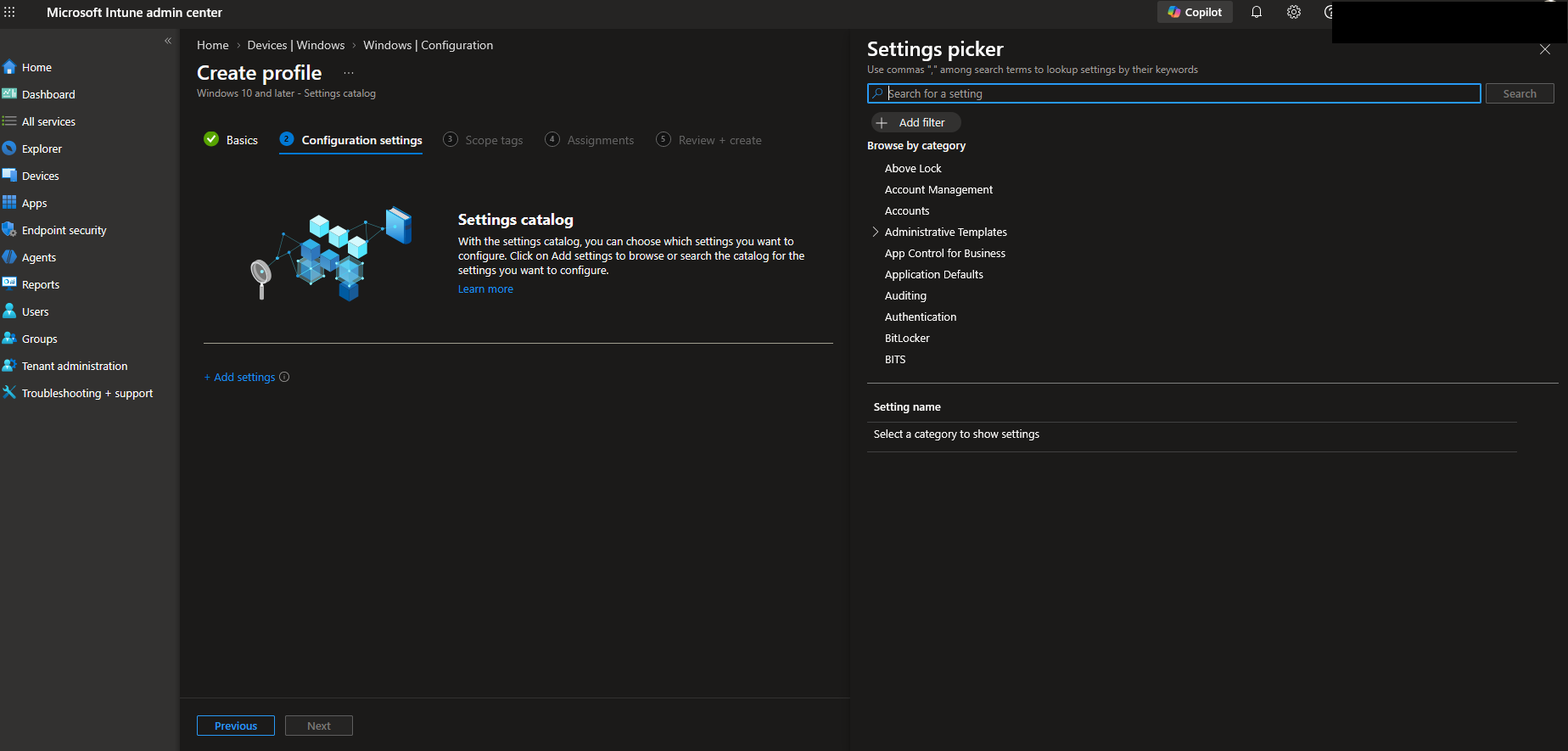
In the Intune admin centre:
- Go to Devices > Manage devices > Configuration.
- Select Create > New policy.
- Choose Windows 10 and later.
- Choose Settings catalog.
- Name the profile with purpose, owner and scope.
- Add only the settings you have mapped.
- Leave unrelated settings out.
- Add a description that names the old profile it replaces.
- Assign only to the pilot group.
- Do not assign to all devices at creation time.
Example naming:
WIN - SC - Office ADMX - Pilot
WIN - SC - Browser Controls - User Scope
WIN - SC - OneDrive Known Folder Move - Devices
Good description shape:
Replaces selected settings from <old profile name>. Pilot only. Do not broaden assignment until conflict and device check-in reports are clean. Owner: <team name>. Rollback: remove pilot assignment and restore old profile pilot inclusion.Avoid copying a messy old profile into one equally messy new profile. Settings Catalog makes it easy to add hundreds of settings. That does not mean you should.
Step 8: Compare Old and New Assignments
Before the first pilot sync, compare assignments. This catches the common mistake where the new profile is scoped to a user group but the old profile was scoped to devices.
$OldPolicyId = "<old-device-configuration-policy-id>"
$NewPolicyId = "<new-settings-catalog-policy-id>"

$OldAssignments = Get-IntunePolicyAssignment `
    -PolicyId $OldPolicyId `
    -PolicyKind LegacyDeviceConfiguration |
    Select-Object TargetType, TargetId, FilterId, FilterType, Intent

$NewAssignments = Get-IntunePolicyAssignment `
    -PolicyId $NewPolicyId `
    -PolicyKind SettingsCatalog |
    Select-Object TargetType, TargetId, FilterId, FilterType, Intent

Compare-Object `
    -ReferenceObject $OldAssignments `
    -DifferenceObject $NewAssignments `
    -Property TargetType, TargetId, FilterId, FilterType, Intent `
    -PassThru |
    Format-Table SideIndicator, TargetType, TargetId, FilterId, FilterType, Intent
Expected output shape:
SideIndicator TargetType                                      TargetId   FilterId   FilterType Intent
------------- ----------                                      --------   --------   ---------- ------
<=            #microsoft.graph.groupAssignmentTarget          <old-id>   <blank>    <blank>    apply
=>            #microsoft.graph.groupAssignmentTarget          <pilot-id> <blank>    <blank>    apply
<=            #microsoft.graph.exclusionGroupAssignmentTarget <old-id>   <blank>    <blank>    apply
Read the side indicator carefully:
| Indicator | Meaning |
|---|---|
<= | Present on the old profile comparison side |
=> | Present on the new profile comparison side |
The new profile should usually show only the pilot target at this stage. If it shows all devices, stop and fix the assignment before devices sync.
Step 9: Check Device Configuration State
After assigning the pilot, trigger sync on a small number of lab devices first. If devices do not check in, use Intune Device Not Syncing before blaming the policy.
Use the Intune admin centre:
- Go to Devices > Manage devices > Configuration.
- Open the new Settings Catalog policy.
- Check Device and user check-in status.
- Open View report.
- Check for Succeeded, Error, Conflict, Pending and Not applicable.
- Open Per-setting status and review conflicts by setting.
- Go to Devices > Monitor > Assignment failures.
Use the report export API for a repeatable Graph check:
$PolicyId = "<new-settings-catalog-policy-id>"

$Body = @{
    reportName = "DeviceConfigurationPolicyStatusesV3"
    filter = "(PolicyId eq '$PolicyId')"
    format = "json"
    select = @(
        "PolicyId",
        "PolicyName",
        "IntuneDeviceId",
        "DeviceName",
        "Manufacturer",
        "Model",
        "UPN",
        "PolicyStatus",
        "PspdpuLastModifiedTimeUtc",
        "UnifiedPolicyPlatformType",
        "UnifiedPolicyType",
        "AssignmentFilterIds",
        "ReportStatus"
    )
} | ConvertTo-Json -Depth 10

$Job = Invoke-MgGraphRequest `
    -Method POST `
    -Uri "https://graph.microsoft.com/beta/deviceManagement/reports/exportJobs" `
    -Body $Body `
    -ContentType "application/json"

$Job | Select-Object Id, Status, Url
Expected output shape:
id     : DeviceConfigurationPolicyStatusesV3_<job-id>
status : notStarted
url    : <blank until completed>
When complete, the downloaded report has this kind of shape:
PolicyId      PolicyName                 DeviceName     UPN                  PolicyStatus ReportStatus
--------      ----------                 ----------     ---                  ------------ ------------
<policy-id>   WIN - SC - Office - Pilot  <device-name>  <user-principal>     success      <status>
<policy-id>   WIN - SC - Office - Pilot  <device-name>  <user-principal>     conflict     <status>
<policy-id>   WIN - SC - Office - Pilot  <device-name>  <user-principal>     error        <status>
For old device configuration profiles, Graph still exposes deviceStatuses, but Microsoft Graph documentation now marks that entity as being deprecated starting May 2026. Use it only as a legacy quick check while it remains available. Prefer the Intune reports for current operational reporting.
$OldPolicyId = "<old-device-configuration-policy-id>"

Get-MgDeviceManagementDeviceConfigurationDeviceStatus `
    -DeviceConfigurationId $OldPolicyId `
    -All |
    Select-Object `
        DeviceDisplayName,
        UserPrincipalName,
        Status,
        LastReportedDateTime |
    Sort-Object LastReportedDateTime -Descending |
    Select-Object -First 20 |
    Format-Table DeviceDisplayName, UserPrincipalName, Status, LastReportedDateTime
Expected output shape:
DeviceDisplayName UserPrincipalName     Status      LastReportedDateTime
----------------- -----------------     ------      --------------------
<device-name>     <user-principal-name> compliant   <date/time>
<device-name>     <user-principal-name> conflict    <date/time>
<device-name>     <user-principal-name> error       <date/time>
If the report shows Pending, do not immediately change the policy. Confirm the device has synced and that the user or device is actually in scope.
Step 10: Validate Behaviour on Devices
Do not rely on Intune status alone. Confirm the actual user or device behaviour.
Use this validation table:
| Setting type | Validation method |
|---|---|
| Device scope policy | Confirm on a pilot device after sync and restart if needed |
| User scope policy | Sign in as the pilot user and sync after sign-in |
| ADMX setting | Check the application, local policy effect, registry location if known, and Intune status |
| Browser policy | Check browser policy page, such as edge://policy, where relevant |
| OneDrive setting | Check OneDrive client behaviour and event logs where relevant |
| Security setting | Check Endpoint Security reports and local security state |
| Compliance-related setting | Check compliance policy evaluation and Conditional Access impact |
For each pilot device, capture:
- Device name.
- Primary user.
- Last Intune check-in time.
- Old profile status.
- New profile status.
- Per-setting status.
- Local behaviour before and after.
- Any help desk ticket or user impact.
If a device shows a policy conflict, open the device configuration view for that device in Intune. Microsoft documents that Intune can show the policies that contain the conflicting setting. Use that before changing assignments blindly.
Step 11: Assignment Strategy for Production
When the pilot is clean, expand in rings. Keep each ring small enough that you can understand a problem before the next ring receives the profile.
Suggested rings:
| Ring | Scope | Exit criteria |
|---|---|---|
| Lab | IT devices | Settings apply and old profile conflict is absent |
| Pilot | Friendly users and representative devices | No unexpected conflict, error or user impact |
| Early | One department or site | Support tickets and reports are clean |
| Broad | Main fleet | Daily reporting stays stable |
| Exception | Devices that cannot move yet | Owner and review date recorded |
For each ring:
- Add the ring to the new Settings Catalog profile.
- Remove or exclude the same ring from the old profile only if both profiles configure the same settings.
- Sync a sample of devices.
- Wait for normal check-in cycles.
- Review conflict and error reports.
- Confirm local behaviour.
- Expand only after the ring passes.
Avoid these assignment patterns:
- New profile assigned to all devices while old profile is still assigned to all devices for the same settings.
- User group include with device group exclude.
- Dynamic group exclusion for urgent rollback.
- Broad assignment filters that nobody can explain.
- Multiple profiles with similar names and no owner.
Use assignment filters for device properties such as OS version, ownership or manufacturer when that is the cleanest scope. Keep filters documented because they can make a policy look correctly assigned while still not applying to a device.
Step 12: Conflict Detection During Migration
Watch these places after each ring:
| Place | What to look for |
|---|---|
| New policy device and user check-in status | Pending, error, conflict, not applicable |
| New policy per-setting status | Setting-level conflict or error |
| Devices > Monitor > Assignment failures | Policy failures across the tenant |
| Device > Device configuration | Policies that apply to one affected device |
| Endpoint Security reports | Duplicate security settings |
| Compliance reports | Compliance changed unexpectedly |
| Conditional Access sign-in logs | Users blocked because compliance changed |
Use this rule for conflicts:
- If a compliance policy conflicts with a device configuration setting, compliance policy precedence can affect evaluation.
- If two configuration policies set different values for the same setting, manually resolve it.
- If Endpoint Security and Settings Catalog set the same security control differently, remove one owner.
- If an old custom OMA-URI conflicts with a new catalog setting, remove or retire the custom OMA-URI only after the catalog setting is proven.
Do not fix a conflict by adding a permanent broad exclusion unless that is the intended final design. Broad exclusions become invisible risk.
Step 13: Reporting and Validation Pack
Create a small pack for every migrated profile:
| Evidence | Source |
|---|---|
| Old profile export | Graph or admin centre |
| Old assignments | Graph assignment export |
| New Settings Catalog JSON | Admin centre export |
| New assignments | Graph assignment export |
| Baseline policy status | Intune report export |
| Pilot policy status | Intune report export |
| Conflict report | Intune per-setting or assignment failures |
| Pilot device notes | Local validation |
| Rollback result | Tested removal or reassignment notes |
Use a simple daily migration report:
Migration item       Ring      Devices in scope  Success  Conflict  Error  Pending  Decision
--------------       ----      ----------------  -------  --------  -----  -------  --------
<profile name>       Lab       <n>               <n>      <n>       <n>    <n>      Continue or hold
<profile name>       Pilot     <n>               <n>      <n>       <n>    <n>      Continue or hold
<profile name>       Early     <n>               <n>      <n>       <n>    <n>      Continue or hold
If the policy affects sign-in, compliance or admin access, include the identity team and use Microsoft Entra ID and Conditional Access Microsoft 365 Policy Map as part of the change review.
Step 14: Rollback Plan
Rollback should be written before production assignment.
Use this rollback path:
- Stop expansion to the next ring.
- Remove the affected ring from the new Settings Catalog assignment.
- Restore the affected ring to the old profile assignment if you excluded it.
- Sync a small number of affected devices.
- Confirm the old behaviour is back.
- Check for tattooed settings that did not revert.
- If needed, deploy a temporary rollback Settings Catalog profile that explicitly sets the previous value.
- Export reports again.
- Record the cause before trying again.
Rollback command shapes for assignment review:
$NewPolicyId = "<new-settings-catalog-policy-id>"

Get-IntunePolicyAssignment `
    -PolicyId $NewPolicyId `
    -PolicyKind SettingsCatalog |
    Format-Table AssignmentId, TargetType, TargetId, FilterId, FilterType, Intent
Expected output shape:
AssignmentId TargetType                             TargetId   FilterId   FilterType Intent
------------ ----------                             --------   --------   ---------- ------
<id>         #microsoft.graph.groupAssignmentTarget <pilot-id> <blank>    <blank>    apply
For actual assignment removal or reassignment, use the Intune admin centre unless you already have a tested Graph change process. The admin centre gives you a clearer review step under pressure.
Rollback warnings:
- Removing a profile does not guarantee every Windows setting immediately returns to its previous value.
- Some CSP-backed settings can tattoo.
- Devices must sync before assignment changes matter.
- User scope settings may need a user sign-in before they apply or clear.
- Dynamic group changes may not be fast enough for urgent rollback.
- If Conditional Access depends on compliance, a configuration rollback may not instantly restore access.
Common Mistakes
| Mistake | Safer approach |
|---|---|
| Rebuilding one huge old profile as one huge new profile | Split by owner, purpose and rollback boundary |
| Assigning old and new policies to the same devices at the same time | Exclude pilot from the old profile when settings overlap |
| Ignoring user vs device scope | Match scope and test with the right sign-in state |
| Moving Endpoint Security settings into Settings Catalog without removing the old owner | Keep one owner per setting |
| Treating Not configured as rollback | Test whether the setting actually clears |
| Using dynamic groups for first pilot exclusions | Use static pilot groups first |
| Assuming all Pending devices are broken | Check sync and assignment before changing policy |
| Ignoring not applicable | Confirm OS edition, version and setting support |
| Forgetting assignment filters | Export and compare filters as part of assignments |
| Migrating custom OMA-URI settings without checking CSP path | Match the exact CSP and value |
| Using a production group as the pilot | Use lab and friendly devices first |
| Changing several policy sources in one window | Change one owner at a time |
Prevention Checklist
Use this checklist before each migration wave:
- The old profile has been exported.
- The old assignments, exclusions and filters have been exported.
- The new Settings Catalog profile contains only mapped settings.
- Every mapped setting has an old path, new path, scope and intended value.
- Endpoint Security ownership has been checked.
- Compliance policy overlap has been checked.
- Custom OMA-URI overlap has been checked.
- The pilot group is static for the first test.
- The pilot is excluded from the old policy where settings overlap.
- The new profile is not assigned broadly.
- The rollback owner is named.
- The rollback path has been tested on at least one lab device.
- Device sync and check-in timing are understood.
- Per-setting status is reviewed, not only the top-level profile status.
- Conflict reports are clean before expansion.
- Dynamic groups and filters are documented.
- Exceptions have an owner and review date.
- The final design has one owner for each setting.
Final Migration Pattern
The safest migration pattern is:
- Inventory.
- Classify.
- Export.
- Map one setting group.
- Build a small Settings Catalog replacement.
- Assign to lab only.
- Exclude lab from the old overlapping policy.
- Validate status and actual behaviour.
- Expand in rings.
- Retire the old profile only after reporting and rollback evidence are clean.
You are not trying to make the Intune console look tidy. You are trying to keep device behaviour stable while moving policy ownership to the current Microsoft control plane.
Home lab notebook (one setting, two sources)
Create a conflict on purpose, then remove one source. Use Delivery Optimization Download mode because it exists in Administrative Templates and in Settings Catalog. See Delivery Optimization reference. This revision does not claim the notebook was executed.
- Assign an Administrative Templates profile to the lab VM: Download mode HTTP only (0).
- Assign a Settings Catalog profile to the same VM: Download mode LAN (1).
- Sync. On the device, record per-setting status in Intune for both profiles. Expect a conflict, not a silent winner you guessed.
- Record the effective value from the policy store or
Get-DeliveryOptimizationStatus/ DO registry so you know which source won, if either did. - Remove the Administrative Templates assignment. Sync again. Confirm the Settings Catalog value is now the only owner and the conflict has cleared.
Do not set labTested until the conflict and the cleared state both exist. Do not run this against a production ring.
Related Resources
- Microsoft Intune
- Microsoft Entra ID
- PowerShell
- Intune Device Not Syncing
- Intune Compliance Policy Not Evaluating
- Entra Dynamic Group Not Updating
- Microsoft Graph PowerShell migration
- Conditional Access Microsoft 365 Policy Map
- Use the Intune settings catalog to configure settings
- Configure ADMX settings using the settings catalog in Microsoft Intune
- See device configuration policies with Microsoft Intune
- Common questions with policies and profiles in Microsoft Intune
- Export Intune reports using Graph APIs
Verification clarification, 10 September 2026: Environment descriptions are assumptions or documentation-review context. No complete lab/tenant execution is established by the material retained with this article; example commands and output are illustrative. Genuine individual captures do not verify the whole procedure.
Correction — 19 September 2026: Added a one-device home-lab notebook that creates a Delivery Optimization Download mode conflict. No tenant execution is claimed.
Correction — 10 September 2026: Added pagination to collection helper reads and clarified that examples are not execution evidence.
Microsoft Intune
Product linkManage, secure, and report on all your endpoints from a single cloud-native console.
This is a Microsoft product link, not an advert and not an affiliate placement. AdminSignal has no affiliate arrangement for Intune.

Jack Hadcroft
LinkedInBand 6 Endpoint Specialist and author of AdminSignal
Technical claims are reviewed against current Microsoft documentation. Lab or tenant checks are named only when they were done.
Independent publication. About · Editorial policy