
Intune Device Not Syncing: Last Check-in Stale, Sync Button Not Helping, or Policies Not Arriving
When to Use This Guide
Use this guide when a Windows device managed by Microsoft Intune is not checking in, policies are not arriving, or the Sync button does not appear to change anything.
Common examples:
- The device shows a stale Last check-in time in Intune.
- Sync in the Intune admin centre says it was sent, but the device still does not update.
- Settings > Accounts > Access work or school > Info > Sync fails or never completes.
- Company Portal shows the device as not compliant, not registered, or waiting for a sync.
- Configuration profiles, compliance policies, scripts, remediations, apps, or update policies do not reach the device.
dsregcmd /statuslooks wrong, or the MDM URL is missing.- The Intune Management Extension is running, but MDM policy still does not arrive.
- The device exists more than once in Intune or Microsoft Entra ID.
The useful question is not "did someone press Sync?" It is "can this device authenticate, reach the MDM service, run the Windows MDM client, and report back to the correct Intune device object?"
For wider context, see the Intune hub, the Microsoft Entra ID hub, and the PowerShell hub.
Scope and Assumptions
This is documentation-based troubleshooting guidance, not a documented end-to-end lab test. The existing redacted portal capture illustrates one check-in screen only. Use a supported Windows release, or a Windows 10 device covered by applicable servicing rights, enrolled in Microsoft Intune. It covers Microsoft Entra joined, Microsoft Entra hybrid joined, and co-managed Windows devices where Intune is expected to deliver MDM policy.
It focuses on device check-in, MDM enrolment health, Company Portal sync behaviour, Intune Management Extension health, local Windows evidence, network access, and stale Entra or Intune device records.
It does not cover iOS, Android, macOS, unsupported Windows editions, or Configuration Manager-only clients except where co-management affects Intune check-in.
Useful Microsoft references:
- Sync your Windows device manually
- Windows device enrolment in Intune
- Troubleshoot devices by using dsregcmd
- Intune network endpoints
Prerequisites
Before troubleshooting one device, confirm the basics:
- You can find the device in Intune admin centre > Devices > Windows devices.
- You know the expected user, device name, serial number, and Entra device ID.
- The device should be enrolled in Intune, not only registered in Entra ID.
- The device has an assigned Intune licence through the user, device licence, or another valid licensing model for your tenant.
- The device is online and has a working system clock.
- The device can reach Microsoft cloud endpoints over HTTPS.
- You have local administrator rights on the device for registry, service, scheduled task, and event log checks.
- You have Intune permissions to read device status and, if needed, trigger remote sync.
Do not start by deleting the device record. If you remove the wrong object before collecting evidence, you can make assignment, compliance, Autopilot, and BitLocker recovery investigations harder.
Symptoms
Use the symptom to choose the first diagnostic path.
| Symptom | First place to check |
|---|---|
| Last check-in is stale in Intune | Intune device object, MDM enrolment, network, scheduled tasks |
| Sync button does not help | Device online state, WNS reachability, MDM client event logs |
| Company Portal says device needs attention | Company Portal sync, user context, device compliance state |
| Profiles do not arrive | MDM event log, PolicyManager registry, assignment scope |
| Apps or remediations do not arrive | Intune Management Extension, IME logs, device check-in |
| Compliance does not update | MDM sync, compliance assignment, local compliance evidence |
| Device appears twice | Entra device object, Intune managed device object, stale records |
dsregcmd /status has no MDM URL | Check tenant MDM configuration and current-user enrolment scope; corroborate with device evidence |
| Sync fails only on corporate network | Proxy, TLS inspection, firewall, DNS, captive portal |
| Sync works after rebuild only | Old enrolment record, duplicate Entra object, Autopilot or hybrid join timing |
If compliance is the only broken workload after sync is healthy, use Intune Compliance Policy Not Evaluating. If Win32 apps or scripts are the only stale workload, compare with Intune Win32 App Install Stuck and Intune Remediation Script Not Running.
Likely Causes
These are the common causes in the order I normally check them.
-
The device is not enrolled in MDM. It may be Entra registered or Entra joined, but not actually enrolled in Intune.
-
The Intune record you are looking at is stale. Rebuilds, re-enrolments, Autopilot resets and hybrid join retries can leave old device records behind.
-
The device cannot reach Intune endpoints. Proxy authentication, TLS inspection, DNS filtering, VPN split tunnel rules, firewall policy, or captive portals can block sync.
-
Windows MDM scheduled tasks are missing or failing. The EnterpriseMgmt tasks trigger MDM client work. If they are absent or broken, portal sync does not repair policy processing by itself.
-
The MDM enrolment certificate or registry state is damaged. The device may have enough state to look enrolled but not enough to complete a normal check-in.
-
The signed-in user is not the enrolled user for user-targeted policy. Device sync may work while user-targeted policy waits for the right user context.
-
Company Portal is stale or signed in as the wrong account. Company Portal status can lag or show the user's registration state rather than the underlying device MDM channel.
-
The Intune Management Extension is unhealthy. MDM sync can be fine while Win32 apps, PowerShell scripts and remediations are stale because IME is stopped or cannot report.
-
Time, trust, or token state is broken. Bad system time, stale Primary Refresh Token state, disabled device object, or failed Entra device authentication can block management traffic.
-
Co-management expectations are wrong. Some workloads may still be owned by Configuration Manager. A healthy Intune check-in does not mean every workload is controlled by Intune.
Step 1: Capture the Device Facts
Record the evidence before changing anything.
| Question | Example answer shape |
|---|---|
| Device name | DEVICE-NAME |
| Serial number | <serial number> |
| Primary user | user@domain.example |
| Intune managed device ID | <managed-device-id> |
| Entra device object ID | <entra-object-id> |
| Entra device ID | <device-id-guid> |
| Last Intune check-in | <date and time> |
| Ownership | Corporate or personal |
| Join type | Entra joined, hybrid joined, or registered |
| Management agent | MDM, EAS/MDM, co-managed, or unknown |
| Expected workload | Compliance, configuration, app, script, remediation, update ring |
Use the Intune admin centre first:
- Go to Devices > Windows devices.
- Open the affected device.
- Check Last check-in.
- Check Ownership, Join type, Management name, Serial number, Azure AD device ID, and Primary user.
- Open Device configuration, Compliance, Managed apps, and Device actions only after the top-level check-in state is understood.
If you see two devices with the same name, compare serial number, Entra device ID, last check-in, and primary user before taking action.
For reporting across multiple devices, the Microsoft Graph PowerShell migration script is a useful companion pattern.
Step 2: Check the Intune Portal State
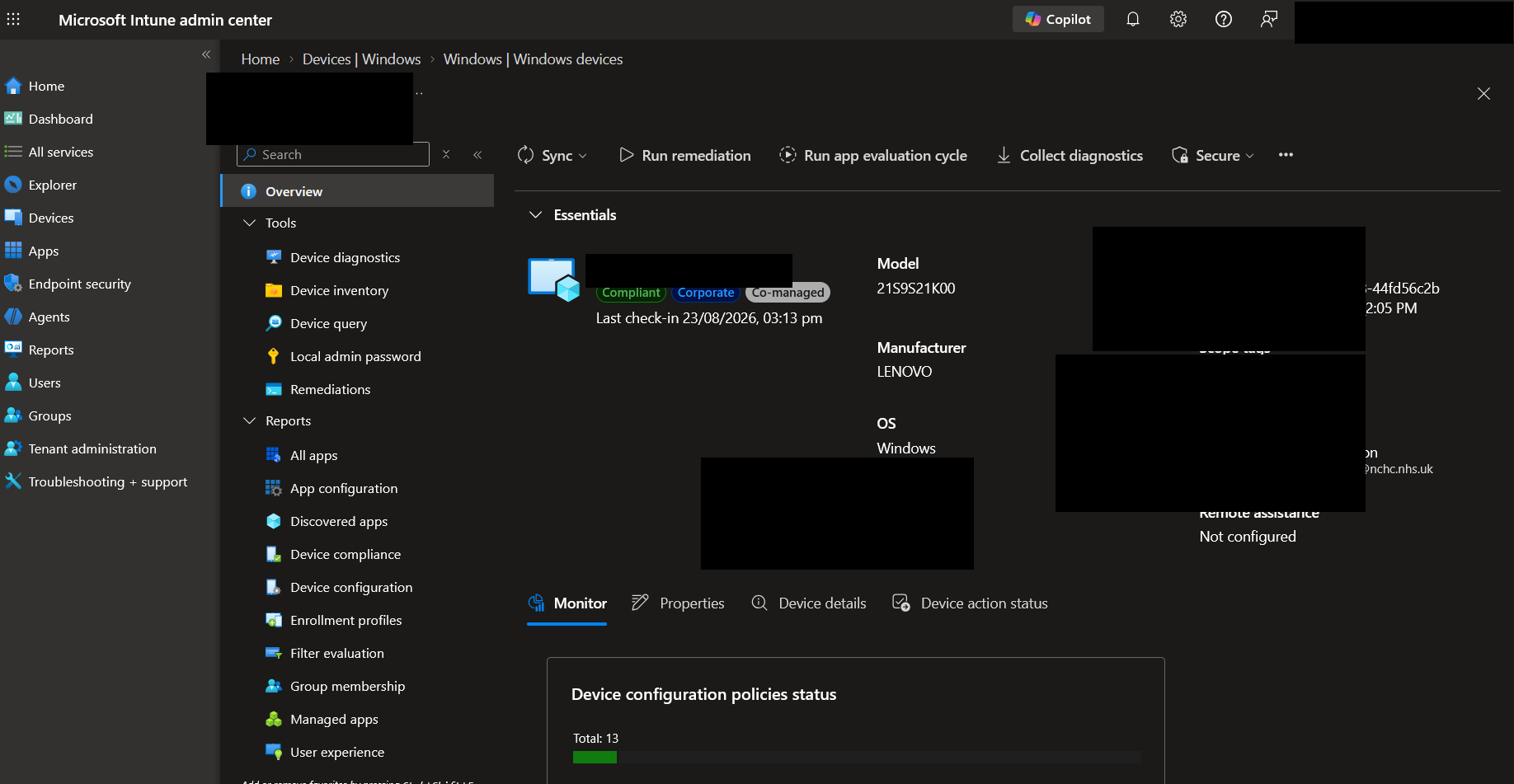
In the Intune admin centre, check whether the device is stale everywhere or only stale for one workload.
| Portal area | What to check |
|---|---|
| Device overview | Last check-in, ownership, join type, compliance state |
| Device configuration | Per-profile status and last update time |
| Compliance | Policy assignment and per-setting state |
| Managed apps | Win32 app or Store app status |
| Scripts and remediations | Device status, last run and output |
| Device actions | Whether a remote sync was recently sent |
Interpret the result carefully:
- If Last check-in is stale, troubleshoot MDM sync first.
- If Last check-in is current but a profile is missing, troubleshoot assignment, filters, applicability and policy conflicts.
- If Last check-in is current but Win32 apps or remediations are stale, troubleshoot the Intune Management Extension.
- If only one user-targeted policy is missing, confirm the enrolled user, primary user and signed-in user.
Trigger one remote sync from Intune, then stop pressing it repeatedly:
- Open the device.
- Select Sync.
- Wait several minutes.
- Watch local event logs and scheduled task history.
- Recheck Last check-in.
The Sync action is a signal to the device. It is not a repair tool for broken enrolment, blocked network, disabled device objects, or missing MDM tasks.
Step 3: Check Local Join and MDM Enrolment
On the device, run:
dsregcmd /statusExpected output shape:
AzureAdJoined    : YES
EnterpriseJoined : NO
DomainJoined     : YES or NO
WorkplaceJoined  : YES or NO

DeviceAuthStatus : SUCCESS

TenantName       : <tenant display name>
TenantId         : <tenant id>

MdmUrl           : https://enrollment.manage.microsoft.com/...
MdmTouUrl        : https://portal.manage.microsoft.com/...
MdmComplianceUrl : https://portal.manage.microsoft.com/...

AzureAdPrt       : YES
Read it in layers:
| Field | Why it matters |
|---|---|
AzureAdJoined | Should normally be YES for Entra joined devices |
DomainJoined | YES on hybrid joined devices |
WorkplaceJoined | Can be YES for registered or user workplace join scenarios |
DeviceAuthStatus | SUCCESS means the device can authenticate as its Entra device object |
MdmUrl | Reflects tenant MDM configuration and user enrolment scope; presence does not prove device enrolment |
AzureAdPrt | Important for user-targeted policy and Company Portal behaviour |
If AzureAdJoined and DomainJoined do not match your intended join model, do not chase Intune policy yet. Fix join and enrolment first.
Microsoft's dsregcmd troubleshooting reference is here: Troubleshoot devices by using dsregcmd.
Step 4: Use Windows Sync Paths Correctly
There are several sync paths, and they do not all prove the same thing.
| Sync method | What it checks |
|---|---|
| Intune admin centre Sync | Sends a remote device sync request |
| Windows Access work or school > Info > Sync | Runs local MDM sync from the device |
| Company Portal Settings > Sync | Syncs through Company Portal and user context |
| Restarting IME | Helps Win32 apps, scripts and remediations, not basic MDM enrolment |
deviceenroller.exe /c /AutoEnrollMDM | Attempts MDM auto-enrolment when auto-enrolment should apply |
On the device, try the local Windows sync:
- Open Settings.
- Go to Accounts > Access work or school.
- Select the connected work account.
- Select Info.
- Select Sync.
If this fails immediately, collect the exact error and move to event logs. If it completes but Intune Last check-in does not change, suspect stale Intune object, reporting delay, network response, or duplicate device records.
Microsoft's user guidance for manual Windows sync is here: Sync your Windows device manually.
Step 5: Check Company Portal Behaviour
Company Portal is useful, but it can be misleading if you treat it as the only source of truth.
Check:
- The user is signed in with the expected work account.
- The device appears under Devices in Company Portal.
- Company Portal shows the expected device name.
- The device does not say it needs to be registered again.
- A Company Portal sync changes local event logs.
- The Microsoft Store or Company Portal app is not badly outdated.
Use Company Portal sync when the issue is user-facing, such as available apps, compliance messages, or user-targeted policy.
Do not use Company Portal as the only test for device-targeted MDM policy. A device can process device policy while Company Portal is stale, and Company Portal can show user registration issues while the device MDM channel is healthy.
Step 6: Check Windows Scheduled Tasks
Windows creates enrolment and MDM tasks under Task Scheduler.
Open:
Task Scheduler Library > Microsoft > Windows > EnterpriseMgmtYou normally see one or more enrolment GUID folders. Task names vary by Windows version and enrolment path, but common examples include tasks for enrolment, certificate maintenance, and running the OMA-DM client.
Use PowerShell:
Get-ScheduledTask |
    Where-Object { $_.TaskPath -like "\Microsoft\Windows\EnterpriseMgmt\*" } |
    Select-Object TaskPath, TaskName, State |
    Sort-Object TaskPath, TaskName
Expected output shape:
TaskPath                                      TaskName                                             State
--------                                      --------                                             -----
\Microsoft\Windows\EnterpriseMgmt\{GUID}\    Schedule created by enrollment client ...             Ready
\Microsoft\Windows\EnterpriseMgmt\{GUID}\    Schedule to run OMADMClient by client                 Ready
\Microsoft\Windows\EnterpriseMgmt\{GUID}\    Schedule to renew enrolment certificate               Ready
If there are no EnterpriseMgmt tasks, the device is probably not enrolled correctly. If tasks exist but fail, check task history and the DeviceManagement event log.
To run the tasks without guessing task names:
$Tasks = Get-ScheduledTask |
    Where-Object { $_.TaskPath -like "\Microsoft\Windows\EnterpriseMgmt\*" }

$Tasks |
    Select-Object TaskPath, TaskName, State |
    Format-Table -AutoSize
If you choose to start a task manually, run one task at a time and watch the event log:
$Task = $Tasks |
    Where-Object { $_.TaskName -like "*OMADM*" } |
    Select-Object -First 1

if ($Task) {
    Start-ScheduledTask -TaskPath $Task.TaskPath -TaskName $Task.TaskName
}
Do not delete EnterpriseMgmt tasks as a first fix. Missing tasks are evidence. Collect diagnostics before rebuilding enrolment.
Step 7: Check Event Viewer Logs
The primary MDM log is:
Event Viewer > Applications and Services Logs > Microsoft > Windows > DeviceManagement-Enterprise-Diagnostics-Provider > AdminUse PowerShell:
$LogName = "Microsoft-Windows-DeviceManagement-Enterprise-Diagnostics-Provider/Admin"

Get-WinEvent -LogName $LogName -MaxEvents 80 |
    Select-Object TimeCreated, Id, LevelDisplayName, Message |
    Format-List
Expected output shape:
TimeCreated      : <date and time>
Id               : <event id>
LevelDisplayName : Information, Warning, or Error
Message          : <MDM enrolment, sync, policy, or OMA-DM message>
Look for:
- Enrolment failures.
- OMA-DM session failures.
- Authentication or token errors.
- CSP failures.
- Policy application errors.
- Network or HTTP errors.
- Repeated retries with the same error.
Also check the operational log:
$OperationalLog = "Microsoft-Windows-DeviceManagement-Enterprise-Diagnostics-Provider/Operational"

Get-WinEvent -LogName $OperationalLog -MaxEvents 80 |
    Select-Object TimeCreated, Id, LevelDisplayName, Message |
    Format-List
For a focused view after you trigger sync:
$Start = (Get-Date).AddMinutes(-20)
$LogName = "Microsoft-Windows-DeviceManagement-Enterprise-Diagnostics-Provider/Admin"

Get-WinEvent -FilterHashtable @{
    LogName   = $LogName
    StartTime = $Start
} |
    Select-Object TimeCreated, Id, LevelDisplayName, Message |
    Format-List
If no new MDM events appear after a local sync, suspect the local enrolment trigger, scheduled tasks, or the enrolment state itself.
Microsoft's Windows MDM diagnostic guidance is here: Diagnose MDM failures in Windows.
Step 8: Check Registry Evidence
Registry checks help prove whether Windows thinks the device is enrolled.
Start with enrolment keys:
$EnrollmentRoot = "HKLM:\SOFTWARE\Microsoft\Enrollments"

Get-ChildItem $EnrollmentRoot |
    ForEach-Object {
        $Props = Get-ItemProperty -Path $_.PsPath -ErrorAction SilentlyContinue
        [pscustomobject]@{
            KeyName          = $_.PSChildName
            UPN              = $Props.UPN
            ProviderID       = $Props.ProviderID
            EnrollmentType   = $Props.EnrollmentType
            EnrollmentState  = $Props.EnrollmentState
            DiscoveryService = $Props.DiscoveryServiceFullURL
        }
    } |
    Sort-Object KeyName |
    Format-Table -AutoSize
Expected output shape:
KeyName                                UPN                 ProviderID  EnrollmentType EnrollmentState DiscoveryService
-------                                ---                 ----------  -------------- --------------- ----------------
<enrolment-guid>                       user@domain.example  MS DM Server <value>        <value>         https://enrollment.manage.microsoft.com/...
Then check OMA-DM accounts:
$OmadmRoot = "HKLM:\SOFTWARE\Microsoft\Provisioning\OMADM\Accounts"

if (Test-Path $OmadmRoot) {
    Get-ChildItem $OmadmRoot |
        Select-Object PSChildName, Name
} else {
    Write-Output "OMADM account registry path not found."
}
Check the current policy manager area:
$PolicyPath = "HKLM:\SOFTWARE\Microsoft\PolicyManager\current\device"

if (Test-Path $PolicyPath) {
    Get-ChildItem $PolicyPath |
        Select-Object PSChildName |
        Sort-Object PSChildName
} else {
    Write-Output "Device PolicyManager path not found."
}
Interpretation:
| Evidence | Meaning |
|---|---|
| No enrolment keys | Device is probably not enrolled in MDM |
Enrolment keys exist but no MdmUrl in dsregcmd | Check tenant MDM configuration and the current user’s enrolment scope; this alone does not establish broken enrolment |
| OMA-DM account path missing | MDM client state may be incomplete |
| PolicyManager has old policy but no new changes | Sync or assignment may be stale |
| Multiple enrolment keys with conflicting UPNs | Re-enrolment or account change needs review |
Do not delete enrolment registry keys unless you have a recovery plan. That is a rebuild-level action, not a normal first diagnostic step.
Step 9: Check Intune Management Extension
The Intune Management Extension is separate from the Windows MDM client.
It matters for:
- Win32 apps.
- PowerShell scripts.
- Remediations.
- Some app and script reporting paths.
It is not the primary engine for basic MDM configuration profile delivery.
Check the service and logs:
$ImeExe = "C:\Program Files (x86)\Microsoft Intune Management Extension\Microsoft.Management.Services.IntuneWindowsAgent.exe"
$ImeLogRoot = "C:\ProgramData\Microsoft\IntuneManagementExtension\Logs"

Get-Service IntuneManagementExtension -ErrorAction SilentlyContinue |
    Select-Object Name, Status, StartType

if (Test-Path $ImeExe) {
    Get-Item $ImeExe |
        Select-Object FullName, LastWriteTime, @{ Name = "Version"; Expression = { $_.VersionInfo.FileVersion } }
} else {
    Write-Output "IME executable not found."
}

if (Test-Path $ImeLogRoot) {
    Get-ChildItem $ImeLogRoot |
        Select-Object Name, Length, LastWriteTime |
        Sort-Object LastWriteTime -Descending
} else {
    Write-Output "IME log folder not found."
}
Expected output shape:
Name                       Status   StartType
----                       ------   ---------
IntuneManagementExtension  Running  Automatic

FullName      : C:\Program Files (x86)\Microsoft Intune Management Extension\Microsoft.Management.Services.IntuneWindowsAgent.exe
LastWriteTime : <date and time>
Version       : <agent version>

Name                          Length   LastWriteTime
----                          ------   -------------
IntuneManagementExtension.log <bytes>  <date and time>
AgentExecutor.log             <bytes>  <date and time>
HealthScripts.log             <bytes>  <date and time>
AppWorkload.log               <bytes>  <date and time>
The key log path is:
C:\ProgramData\Microsoft\IntuneManagementExtension\Logs\IntuneManagementExtension.logUseful quick read:
$Log = "C:\ProgramData\Microsoft\IntuneManagementExtension\Logs\IntuneManagementExtension.log"

if (Test-Path $Log) {
    Get-Content $Log -Tail 120 |
        Select-String -Pattern "checkin|policy|error|fail|proxy|token" -CaseSensitive:$false
} else {
    Write-Output "IME log not found."
}
If MDM Last check-in is stale and IME logs are current, do not assume the whole device is healthy. It may be reporting IME activity while the MDM client is still broken.
For IME-specific problems, use Intune Win32 App Install Stuck and Intune Remediation Script Not Running.
Step 10: Check Network, Proxy, and TLS
Network issues often look like "Sync button does nothing".
Check DNS and HTTPS reachability from the affected device:
$Endpoints = @(
    "enrollment.manage.microsoft.com",
    "manage.microsoft.com",
    "portal.manage.microsoft.com",
    "login.microsoftonline.com",
    "device.login.microsoftonline.com",
    "graph.microsoft.com"
)

$Endpoints |
    ForEach-Object {
        Test-NetConnection -ComputerName $_ -Port 443 |
            Select-Object ComputerName, RemoteAddress, TcpTestSucceeded
    } |
    Format-Table -AutoSize
Expected output shape:
ComputerName                    RemoteAddress   TcpTestSucceeded
------------                    -------------   ----------------
enrollment.manage.microsoft.com <ip address>    True
manage.microsoft.com            <ip address>    True
login.microsoftonline.com       <ip address>    True
Check WinHTTP proxy:
netsh winhttp show proxyExpected output shape:
Current WinHTTP proxy settings:

    Direct access (no proxy server).
or:
Proxy Server(s) : http://proxy.example:8080
Bypass List     : <local>
Check user proxy settings:
Get-ItemProperty "HKCU:\Software\Microsoft\Windows\CurrentVersion\Internet Settings" |
    Select-Object ProxyEnable, ProxyServer, AutoConfigURL
Watch for:
- Proxy authentication prompts that the system account cannot answer.
- TLS inspection that breaks client certificate or service authentication.
- VPN routes that exclude Microsoft endpoints.
- DNS filters that resolve Microsoft endpoints to blocked or inspection addresses.
- Firewalls that allow browser traffic but block Windows system services.
- Captive portals on guest Wi-Fi.
Use Microsoft's endpoint list as the reference, not a guessed allow list: Network endpoints for Microsoft Intune.
Step 11: Check Entra and Intune Device Objects
Stale device records cause a lot of false trails.
Use Graph PowerShell to compare the Entra device and the Intune managed device.
Connect-MgGraph -Scopes "Device.Read.All", "DeviceManagementManagedDevices.Read.All"

$DeviceName = "DEVICE-NAME"

Get-MgDevice -Search "displayName:$DeviceName" -ConsistencyLevel eventual -All |
    Select-Object Id, DisplayName, DeviceId, AccountEnabled, OperatingSystem, OperatingSystemVersion, TrustType, ApproximateLastSignInDateTime |
    Format-Table -AutoSize
Expected output shape:
Id                 DisplayName  DeviceId        AccountEnabled OperatingSystem OperatingSystemVersion TrustType ApproximateLastSignInDateTime
--                 -----------  --------        -------------- --------------- ---------------------- --------- -----------------------------
<entra-object-id>  DEVICE-NAME  <device-guid>   True           Windows         10.0.xxxxx.x           AzureAD   <date and time>
Then check the Intune managed device:
Collection reads use the following helper in the same PowerShell session and follow Microsoft Graph paging. This is an illustrative implementation, not a recorded tenant execution.
function Get-GraphCollectionResponse {
    param([Parameter(Mandatory)][string]$Uri)
    $Items = [System.Collections.Generic.List[object]]::new()
    do {
        $Page = Invoke-MgGraphRequest -Method GET -Uri $Uri -ErrorAction Stop
        foreach ($Item in $Page.value) { $Items.Add($Item) }
        $Uri = $Page.'@odata.nextLink'
    } while ($Uri)
    return @{ value = $Items.ToArray() }
}$Uri = "https://graph.microsoft.com/v1.0/deviceManagement/managedDevices?`$filter=deviceName eq '$DeviceName'&`$select=id,deviceName,azureADDeviceId,lastSyncDateTime,managementAgent,deviceEnrollmentType,deviceRegistrationState,complianceState,userPrincipalName,operatingSystem,osVersion,managedDeviceOwnerType,serialNumber"
$ManagedDevices = Get-GraphCollectionResponse -Uri $Uri
$ManagedDevices.value |
Select-Object id, deviceName, azureADDeviceId, lastSyncDateTime, managementAgent, deviceEnrollmentType, deviceRegistrationState, complianceState, userPrincipalName, operatingSystem, osVersion, serialNumber |
Format-ListExpected output shape:
id                      : <managed-device-id>
deviceName              : DEVICE-NAME
azureADDeviceId          : <device-guid>
lastSyncDateTime         : <date and time>
managementAgent          : mdm
deviceEnrollmentType     : windowsAzureADJoin
deviceRegistrationState  : registered
complianceState          : compliant, noncompliant, unknown, or configManager
userPrincipalName        : user@domain.example
operatingSystem          : Windows
osVersion                : 10.0.xxxxx.x
serialNumber             : <serial number>
Compare:
| Field | What should match |
|---|---|
Entra DeviceId | Intune azureADDeviceId |
| Device name | Current Windows device name |
| Serial number | Physical device or VM serial you expect |
| Last sign-in | Should not be older than the rebuild or re-enrolment |
| Last sync | Should move after a successful device check-in |
| Account enabled | Should be True |
Microsoft Graph references:
Step 12: Trigger Sync with Graph When Useful
Graph is useful when you want to prove whether the remote action can be sent to the correct Intune managed device object.
Connect-MgGraph -Scopes "DeviceManagementManagedDevices.PrivilegedOperations.All"

$ManagedDeviceId = "<managed-device-id>"

Invoke-MgGraphRequest -Method POST -Uri "https://graph.microsoft.com/v1.0/deviceManagement/managedDevices/$ManagedDeviceId/syncDevice"
Expected output shape:
<no response body on success>Then watch the device:
$Start = (Get-Date).AddMinutes(-15)
$LogName = "Microsoft-Windows-DeviceManagement-Enterprise-Diagnostics-Provider/Admin"

Get-WinEvent -FilterHashtable @{
    LogName   = $LogName
    StartTime = $Start
} |
    Select-Object TimeCreated, Id, LevelDisplayName, Message |
    Format-List
If Graph accepts the sync action but the device shows no local activity, the issue is likely device reachability, WNS path, local enrolment state, or stale device identity.
Step 13: Use deviceenroller.exe Carefully
The command below attempts automatic MDM enrolment:
deviceenroller.exe /c /AutoEnrollMDMUse it only when the device should be eligible for automatic MDM enrolment and the current evidence points at missing or broken enrolment.
Run it from an elevated command prompt, then immediately check:
dsregcmd /statusand:
$LogName = "Microsoft-Windows-DeviceManagement-Enterprise-Diagnostics-Provider/Admin"

Get-WinEvent -LogName $LogName -MaxEvents 40 |
    Select-Object TimeCreated, Id, LevelDisplayName, Message |
    Format-List
Expected result shape:
MdmUrl           : https://enrollment.manage.microsoft.com/...

TimeCreated      : <date and time>
Id               : <event id>
LevelDisplayName : Information
Message          : <enrolment or MDM session message>
If the command fails, the event log should tell you whether the failure is licensing, user scope, device scope, authentication, network, or enrolment state.
Do not use this command as a loop. If it fails once with the same evidence, collect diagnostics and fix the underlying cause.
Step 14: Collect Diagnostics Before Rebuilding
Collect local MDM diagnostics:
$Path = "C:\Temp\IntuneSyncDiagnostics"
New-Item -ItemType Directory -Path $Path -Force | Out-Null

mdmdiagnosticstool.exe -area DeviceEnrollment -cab "$Path\DeviceEnrollment.cab"
mdmdiagnosticstool.exe -area DeviceProvisioning -cab "$Path\DeviceProvisioning.cab"
Collect key event logs:
$Path = "C:\Temp\IntuneSyncDiagnostics"
$Logs = @(
    "Microsoft-Windows-DeviceManagement-Enterprise-Diagnostics-Provider/Admin",
    "Microsoft-Windows-DeviceManagement-Enterprise-Diagnostics-Provider/Operational"
)

foreach ($Log in $Logs) {
    $SafeName = $Log -replace "[\\\/]", "_"
    Get-WinEvent -LogName $Log -MaxEvents 300 |
        Select-Object TimeCreated, Id, LevelDisplayName, ProviderName, Message |
        Export-Csv -Path "$Path\$SafeName.csv" -NoTypeInformation
}
Collect IME logs when apps, scripts, or remediations are involved:
$Source = "C:\ProgramData\Microsoft\IntuneManagementExtension\Logs"
$Target = "C:\Temp\IntuneSyncDiagnostics\IMELogs"

if (Test-Path $Source) {
    Copy-Item -Path $Source -Destination $Target -Recurse -Force
}
Do this before re-enrolment or device cleanup, because those actions can remove the evidence you need.
Safe Retry and Recovery Steps
Work from least disruptive to most disruptive.
| Evidence | Safer action |
|---|---|
| Last check-in stale but local MDM sync creates events | Wait briefly, then recheck Intune object and Graph |
| Local sync fails with network errors | Fix proxy, TLS inspection, DNS, firewall or VPN path |
| Company Portal stale only | Sign out and back in, update Company Portal, then sync |
| IME stale only | Restart IntuneManagementExtension, then check IME logs |
| EnterpriseMgmt tasks present but failing | Start one task manually and read the event log |
MdmUrl missing | Review tenant MDM configuration and user scope; do not trigger re-enrolment from this field alone |
| Duplicate Intune objects | Identify active object by serial, Entra device ID and recent check-in before cleanup |
| Entra device disabled | Re-enable only if the device is legitimate and should remain managed |
| Enrolment state corrupt | Collect diagnostics, then plan re-enrolment or rebuild |
| Autopilot device broken after reset | Confirm Autopilot identity, Entra object and Intune managed device are aligned |
Restarting services:
Restart-Service IntuneManagementExtension -ForceThis can help IME workloads. It does not repair base MDM enrolment.
For the Windows MDM client, prefer running the EnterpriseMgmt scheduled task and checking event logs. There is no single safe "restart Intune MDM" service command that fixes all enrolment problems.
If you must re-enrol:
- Export evidence first.
- Confirm BitLocker recovery key escrow.
- Confirm user data backup.
- Confirm Autopilot registration state if the device is Autopilot-managed.
- Identify the active Entra and Intune objects.
- Remove only the stale or incorrect object after you are certain.
- Re-enrol using the approved path for your tenant.
- Confirm
dsregcmd /status, Intune Last check-in, compliance, profiles, IME and apps.
Prevention Checklist
- Device naming, serial number and Entra device ID are captured in support tickets.
- Helpdesk checks
dsregcmd /statusbefore deleting Intune or Entra objects. - Network allow lists are based on Microsoft's Intune endpoint documentation.
- TLS inspection exclusions are documented for Intune, Entra and Windows management endpoints.
- Company Portal support steps distinguish user sync from device MDM sync.
- IME issues are separated from base MDM check-in issues.
- Hybrid and co-managed devices have clear ownership for each workload.
- Duplicate device cleanup uses serial number, Entra device ID and last check-in, not display name alone.
- Device diagnostics are collected before re-enrolment or rebuild.
- Compliance, app, script and remediation investigations start by confirming current device check-in.
Related Resources
- Microsoft Intune hub
- Microsoft Entra ID hub
- PowerShell hub
- Intune Compliance Policy Not Evaluating
- Intune Win32 App Install Stuck
- Intune Remediation Script Not Running
- Microsoft Graph PowerShell migration
- Microsoft documentation: Sync your Windows device manually
- Microsoft documentation: Windows device enrolment in Intune
- Microsoft documentation: Troubleshoot devices by using dsregcmd
- Microsoft documentation: Intune network endpoints
- Microsoft documentation: Diagnose MDM failures in Windows
- Microsoft Graph documentation: managedDevice resource type
- Microsoft Graph documentation: syncDevice action
Correction record
10 September 2026 — Reviewed against documentation: Corrected dsregcmd MDM URL interpretation and replaced unsupported whole-procedure testing claims with scope and assumptions. Code and output remain illustrative, not execution evidence.

Jack Hadcroft
LinkedInBand 6 Endpoint Specialist and author of AdminSignal
Technical claims are reviewed against current Microsoft documentation. Lab or tenant checks are named only when they were done.
Independent publication. About · Editorial policy