
Windows Autopilot Device Not Importing: Hardware Hash CSV, Duplicate Records, and Profile Assignment
When to Use This Guide
Use this guide when a Windows device cannot be imported into Windows Autopilot, an Autopilot hardware hash CSV is rejected, the device does not appear after import, or the device is imported but does not receive the expected Autopilot deployment profile.
Common examples:
- The CSV import fails in the Intune admin centre.
- The import starts but the device never appears under Windows Autopilot devices.
- The device appears under Autopilot devices, but Profile status stays unassigned.
- The serial number is correct, but the wrong group tag or assigned user is shown.
- The device is in the dynamic group, but the Autopilot profile still does not apply.
- The device was previously enrolled, rebuilt, repaired, transferred, or registered in another tenant.
- OOBE starts a normal consumer or Microsoft Entra join path instead of Autopilot.
- Hybrid join Autopilot starts, but the profile or domain join stage does not behave as expected.
The important distinction is this: Autopilot registration, Intune enrolment, Microsoft Entra device objects, and deployment profile assignment are related but not the same thing. A device can be registered for Autopilot without being enrolled in Intune. A device can also exist in Intune without being the Autopilot identity you are troubleshooting.
For wider context, see the Intune hub, the Microsoft Entra ID hub, and the PowerShell hub. If the device imports but then gets stuck during the user experience, use Autopilot Enrollment Status Page Stuck. If the profile relies on a dynamic group, compare the evidence with Microsoft Entra Dynamic Group Not Updating.
Scope and Assumptions
This guide is written for Windows 10 22H2 and Windows 11 23H2, 24H2 and 25H2 devices using Windows Autopilot with Microsoft Intune. It covers manual hardware hash import, Autopilot device identity checks, Microsoft Graph checks, profile assignment, group tag targeting, dynamic groups, and hybrid Microsoft Entra join connector checks where they affect Autopilot.
It does not cover OEM or CSP registration workflows in depth, Partner Center operations, HoloLens registration, third-party MDM platforms, or unsupported Windows editions.
Useful Microsoft references:
- Windows Autopilot registration overview
- Manually register devices with Windows Autopilot
- Windows Autopilot profiles
- Windows Autopilot hybrid Microsoft Entra join
- Install the Intune Connector for Active Directory
- Get-MgDeviceManagementWindowsAutopilotDeviceIdentity
- windowsAutopilotDeviceIdentity Microsoft Graph resource
- Troubleshoot devices by using dsregcmd
Prerequisites
Before troubleshooting the import, confirm the basics:
- The tenant has Microsoft Intune and automatic Windows enrolment configured.
- The admin account has permissions to manage Windows Autopilot devices. Microsoft documents Intune Administrator, Policy and Profile Manager, or a custom Windows Autopilot device manager role with the needed enrolment programme permissions.
- The admin account has consent to use the Microsoft Graph PowerShell modules if you are checking Autopilot device identities with PowerShell.
- The device is running a supported Windows client edition.
- You know the device serial number and, where possible, the hardware hash source.
- You know whether the expected Autopilot profile is Microsoft Entra joined, hybrid Microsoft Entra joined, self-deploying, pre-provisioned, or user-driven.
- You know whether the profile is targeted by all Autopilot devices, a dynamic device group, a group tag, an assigned user, or a manually maintained group.
- You can access the device locally or through a technician session if the hash needs to be collected again.
Do not start by deleting every related device object. Capture the serial number, hash source, import status, Autopilot identity, Entra device object, and Intune managed device state first. A clean-up that removes the wrong object can make BitLocker recovery, enrolment history, and assignment evidence harder to reconstruct.
Symptoms
Use the symptom to choose the first diagnostic path.
| Symptom | First place to check |
|---|---|
| CSV import fails immediately | CSV header, required fields, delimiter, quote handling, file encoding |
| Import starts but never completes | Autopilot device import status, tenant permissions, duplicate identity |
| Device does not appear after import | Autopilot devices list, sync state, serial number search, Graph query |
| Device appears but has no profile | Deployment profile assignment, dynamic group membership, group tag, assignment sync |
| Device receives the wrong profile | Conflicting profile assignments, old group tag, stale group membership |
| OOBE does not show the expected branding | Registration status, profile assignment status, network access during OOBE |
| Hybrid join profile does not progress | Intune Connector for Active Directory, domain join profile, OU permissions |
| Device was repaired or motherboard was replaced | New hardware hash needed, old Autopilot identity may no longer match |
| Device was previously in another tenant | Prior tenant deregistration, OEM or reseller registration conflict |
| Imported device never becomes an Intune device | Autopilot registration is not the same as Intune enrolment, user sign-in and enrolment still need to complete |
If the device imports and receives a profile but later stops syncing after enrolment, use Intune Device Not Syncing. For fleet reporting after enrolment, the Microsoft Graph PowerShell migration script gives a useful audit pattern.
Likely Causes
These are the causes I check most often, in this order:
-
The CSV is malformed. The most common issues are a changed header, a missing hardware hash, spreadsheet quote damage, the wrong delimiter, or rows copied from a formatted export rather than the raw CSV.
-
The hardware hash was collected from the wrong Windows instance. Virtual machines, repaired devices, re-imaged devices, and motherboard replacements can create confusing evidence if the current hardware does not match the imported identity.
-
The device is already registered somewhere. The serial number or hardware identity may already exist in the same tenant, a previous tenant, a reseller flow, or a stale Autopilot record.
-
The import is successful but you are checking the wrong list. Autopilot devices live under Windows enrolment. They are not the same list as enrolled Windows devices.
-
The deployment profile is not assigned to the Autopilot identity. Importing a device does not by itself prove profile assignment.
-
The dynamic group rule does not match the device yet. Group tag, purchase order ID, ZTD ID, device ownership, and stale devicePhysicalIds values can all affect assignment.
-
Group membership has not finished processing. Dynamic membership and Autopilot profile assignment both need time to evaluate.
-
Hybrid join prerequisites are missing. The Intune Connector for Active Directory is needed for hybrid Autopilot domain join flows, but not for a plain Microsoft Entra joined Autopilot import.
-
The expected admin permissions are incomplete. CSV import and Graph checks can fail when the account can read Intune but cannot manage Windows Autopilot device identities.
-
The device record was cleaned up in the wrong order. Deleting the Entra object created by Autopilot can break deployment because Autopilot needs that object to identify the device before sign-in.
Step 1: Capture the Import Facts
Record the evidence before changing the CSV or deleting records.
| Question | Example answer shape |
|---|---|
| Device serial number | <serial number> |
| Manufacturer and model | <manufacturer> <model> |
| Source of hash | Get-WindowsAutopilotInfo, Configuration Manager, OEM, reseller, or Graph |
| CSV row count | One device or batch size |
| Group tag | Empty, or a known tag such as London |
| Assigned user | Empty, or user@domain.example |
| Expected profile | User-driven, self-deploying, pre-provisioned, or hybrid |
| Targeting method | Dynamic group, assigned group, group tag, all devices |
| Import result | Failed, pending, imported, or visible in Autopilot devices |
| Profile status | Assigned, assigning, not assigned, or unknown |
| Previous ownership | New, rebuilt, repaired, returned, tenant transfer, or lab device |
In the Intune admin centre, check the Autopilot list first:
- Go to Devices > Windows > Windows enrolment.
- Open Windows Autopilot devices.
- Search by serial number.
- Add the Group tag, Assigned user, Profile status, and Date assigned columns if they are not visible.
- Select Sync, wait a few minutes, then refresh the list.
Do not rely only on Devices > Windows devices. A newly imported Autopilot device appears in the Autopilot devices list before it becomes an enrolled Intune managed device.
Step 2: Collect the Hardware Hash Cleanly
For a manual import, collect the hash from the device that will actually go through Autopilot. Microsoft documents Get-WindowsAutopilotInfo for this purpose.
On a running Windows installation, open PowerShell as administrator:
New-Item -Path C:\Temp -ItemType Directory -Force
Set-ExecutionPolicy -Scope Process -ExecutionPolicy RemoteSigned -Force
Install-Script Get-WindowsAutopilotInfo -Scope CurrentUser -Force
Get-WindowsAutopilotInfo -OutputFile C:\Temp\AutopilotHWID.csv
Expected output shape:
WARNING: The names of some imported commands from the module may include unapproved verbs.
Writing Autopilot hardware information to C:\Temp\AutopilotHWID.csv
The warning is not normally the import problem. The file content matters more than the warning text.
If the device is at OOBE, use the technician prompt only where your build process allows it:
Shift+F10
PowerShell.exe -ExecutionPolicy Bypass
Then run the same collection commands from PowerShell. Store the CSV on removable media or another approved secure location.
If you upload directly from the script, use it only when the technician account, consent, and network path are known:
Install-Script Get-WindowsAutopilotInfo -Scope CurrentUser -Force
Get-WindowsAutopilotInfo -Online -GroupTag "<group-tag-if-used>"
Expected output shape:
Connecting to Microsoft Graph
Uploading hardware hash for serial number <serial number>
Device imported successfully or import request submitted
Treat direct upload as a convenience, not as a diagnostic shortcut. If online upload fails, collect a local CSV and validate it before trying again.
Step 3: Validate the CSV Before Uploading
Open the CSV as data, not as a spreadsheet. Spreadsheet tools can change long values, quotation marks, and line endings.
$CsvPath = "C:\Temp\AutopilotHWID.csv"
$Rows = Import-Csv -Path $CsvPath
$Rows | Select-Object "Device Serial Number", "Windows Product ID", "Hardware Hash", "Group Tag", "Assigned User"
Expected output shape:
Device Serial Number Windows Product ID Hardware Hash Group Tag Assigned User
-------------------- ------------------ ------------- -------- -------------
<serial number>      <product id>       <long value>  <tag>    <user>
The exact values depend on the device and tenant. The shape should show one row per device and a long hardware hash value, not an empty column.
Check the headers:
$Rows[0].PSObject.Properties.NameExpected output shape:
Device Serial Number
Windows Product ID
Hardware Hash
Group Tag
Assigned User
Check for blank required values:
$Rows | Where-Object {
    [string]::IsNullOrWhiteSpace($_."Device Serial Number") -or
    [string]::IsNullOrWhiteSpace($_."Hardware Hash")
} | Select-Object "Device Serial Number", "Hardware Hash"
Expected output when the required fields are present:
<no rows returned>CSV checks that catch most rejected imports:
| Check | Healthy result |
|---|---|
| Header row | The expected Autopilot column names are present |
| Serial number | Not blank, not replaced by a model number, not trimmed incorrectly |
| Hardware hash | Long encoded value, not empty, not wrapped onto another row |
| Windows product ID | Present when required by the upload method, otherwise can be blank for direct Intune admin import |
| Group tag | Optional, but must match the intended dynamic group rule if used |
| Assigned user | Optional, but should be a real user principal name if populated |
| Row count | Within the documented import limit for the portal |
| Delimiter | Comma-separated values, not semicolon-separated regional spreadsheet output |
| Extra notes | No comments, blank title rows, copied table headings, or footers |
If the file was opened and saved in a spreadsheet tool, collect a fresh CSV or export again from the original source.
Step 4: Import Manually and Check the Right Status
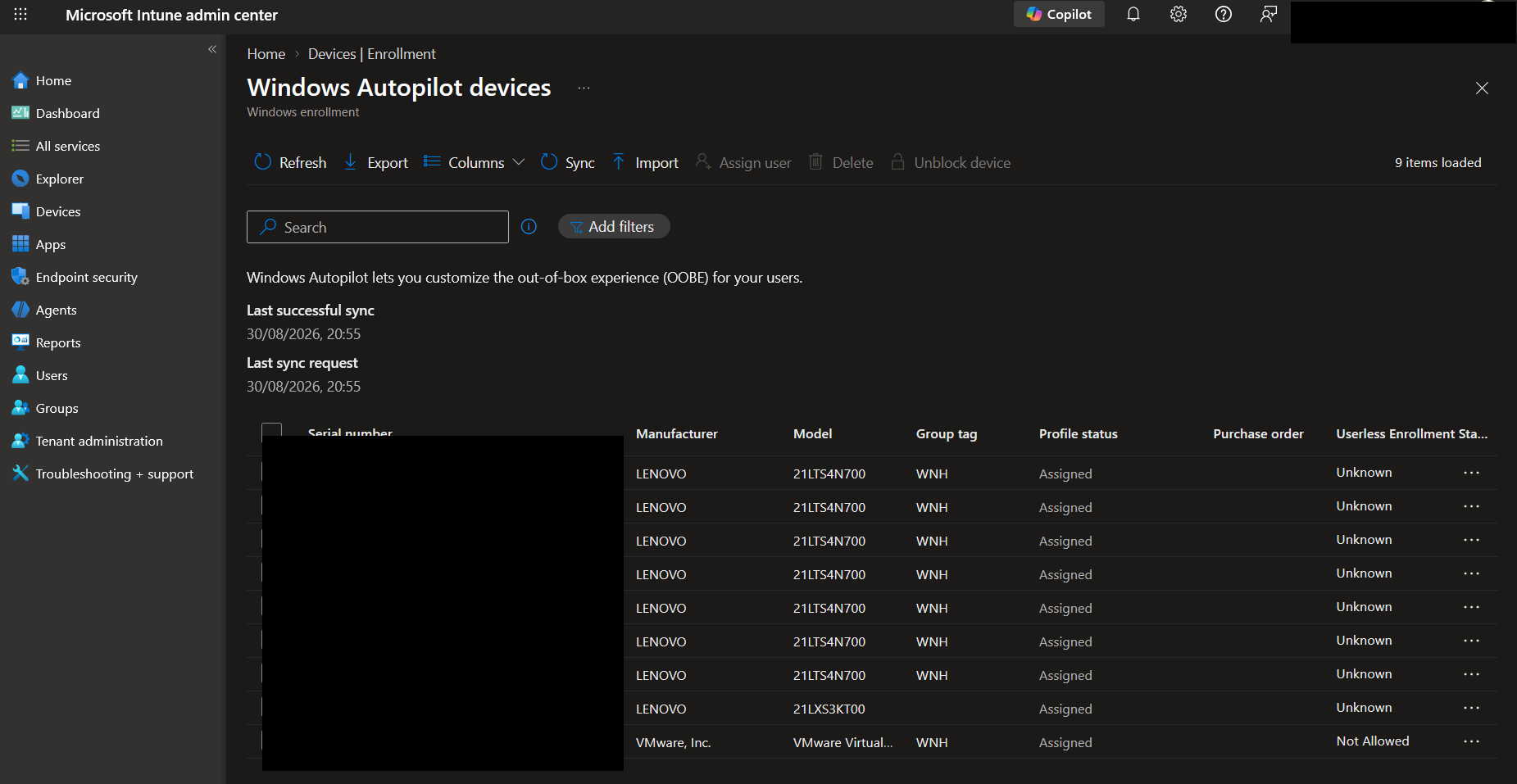
Use a small import when diagnosing. A one-device CSV is easier to reason about than a batch.
In the Intune admin centre:
- Go to Devices > Windows > Windows enrolment.
- Open Windows Autopilot devices.
- Select Import.
- Browse to the validated CSV.
- Start the import.
- Wait for the import request to complete.
- Select Sync.
- Refresh and search by serial number.
If the portal reports a rejected row, download or copy the exact message. Do not paraphrase it in your working notes. Import errors often distinguish between a bad CSV, a duplicate device, and a permission problem.
Healthy result shape:
Serial number        <serial number>
Group tag            <tag or blank>
Assigned user        <user or blank>
Profile status       Assigned, Assigning, or Not assigned
Date assigned        <date/time or blank>
If the device appears with Profile status set to Not assigned, the import is no longer the first problem. Move to profile assignment and group targeting.
Step 5: Check for Duplicate Device and Import Conflicts
A duplicate can be in three different places:
| Location | What it means |
|---|---|
| Windows Autopilot devices | The Autopilot identity already exists in this tenant |
| Intune Windows devices | The device has enrolled before, or a stale managed device remains |
| Microsoft Entra devices | The Autopilot import may have created an Entra object, or an old join object remains |
Start with portal searches by serial number, device name, and Entra device ID if known. Then use Graph when the portal view is unclear.
Install and import Microsoft Graph PowerShell if needed:
Install-Module Microsoft.Graph -Scope CurrentUser
Import-Module Microsoft.Graph.DeviceManagement.Enrollment
Import-Module Microsoft.Graph.DeviceManagement
Import-Module Microsoft.Graph.Identity.DirectoryManagement
Connect with read scopes first:
Connect-MgGraph -Scopes "DeviceManagementServiceConfig.Read.All","DeviceManagementManagedDevices.Read.All","Device.Read.All"Search Autopilot identities:
$Serial = "<serial number>"

Get-MgDeviceManagementWindowsAutopilotDeviceIdentity -All |
    Where-Object { $_.SerialNumber -eq $Serial } |
    Select-Object Id, SerialNumber, GroupTag, EnrollmentState,
        DeploymentProfileAssignmentStatus, DeploymentProfileAssignedDateTime
Expected output shape:
Id                                : <autopilot-device-identity-id>
SerialNumber                      : <serial number>
GroupTag                          : <group tag or blank>
EnrollmentState                   : <state>
DeploymentProfileAssignmentStatus : <status>
DeploymentProfileAssignedDateTime : <date/time or blank>
Search Intune managed devices:
Get-MgDeviceManagementManagedDevice -Filter "serialNumber eq '$Serial'" |
    Select-Object Id, DeviceName, SerialNumber, AzureAdDeviceId, EnrolledDateTime, LastSyncDateTime
Expected output shape:
Id               : <managed-device-id>
DeviceName       : <device name>
SerialNumber     : <serial number>
AzureAdDeviceId  : <entra-device-id>
EnrolledDateTime : <date/time>
LastSyncDateTime : <date/time>
Search Entra devices by display name if you know it:
Get-MgDevice -Filter "displayName eq '<device-name>'" |
    Select-Object Id, DisplayName, DeviceId, AccountEnabled, OperatingSystem, TrustType, ApproximateLastSignInDateTime
If a device was registered to another tenant, you may not be able to fix it from the current tenant. Work with the previous tenant admin, reseller, OEM, or Microsoft support path to deregister or transfer the Autopilot registration.
Step 6: Check Tenant Permissions and Admin Consent
Permissions can fail in two ways: the portal import can be blocked, or the import succeeds but your diagnostic commands cannot read the right objects.
Check these items:
- The admin can open Devices > Windows > Windows enrolment > Windows Autopilot devices.
- The admin can import Autopilot devices, not only read enrolled devices.
- The admin role includes the needed Enrollment programs permissions if you use a custom Intune role.
- Microsoft Graph PowerShell has the consent needed for the scopes being requested.
- Conditional Access does not block the admin session or Graph PowerShell sign-in.
- Privileged Identity Management activation, if used, is active before import.
For a read-only Graph check, this is usually enough:
Connect-MgGraph -Scopes "DeviceManagementServiceConfig.Read.All","Device.Read.All"
Get-MgContext | Select-Object Account, TenantId, Scopes
Expected output shape:
Account  : admin@domain.example
TenantId : <tenant-id>
Scopes   : {DeviceManagementServiceConfig.Read.All, Device.Read.All}
If the import fails only for one admin, compare that admin's Intune role, Entra role, PIM activation, and Graph enterprise application consent with a known working admin.
Step 7: Check Intune Connector Requirements for Hybrid Join
The Intune Connector for Active Directory is not required for a basic Microsoft Entra joined Autopilot import. It matters when the Autopilot profile is for hybrid Microsoft Entra join and Intune must create an offline domain join blob for the device.
Check the connector when the device imports but a hybrid Autopilot deployment cannot receive or complete the domain join part.
In the Intune admin centre:
- Go to Tenant administration > Connectors and tokens.
- Open Intune Connector for Active Directory.
- Confirm the connector server is listed.
- Confirm the status is active.
- Check the last contact time.
- Confirm the connector is installed in the domain that needs to create the computer object.
On the connector server, check the documented ODJ connector logs:
Get-WinEvent -LogName "Microsoft-Intune-ODJConnectorService/Admin" -MaxEvents 20 |
    Select-Object TimeCreated, Id, LevelDisplayName, Message
Expected output shape:
TimeCreated          Id LevelDisplayName Message
-----------          -- ---------------- -------
<date/time>        <id> Information      <connector activity>
<date/time>        <id> Error            <error if connector cannot process a request>
Hybrid join checks to confirm:
| Area | What to check |
|---|---|
| Connector status | Active, recent contact, current supported connector version |
| Domain match | Connector is installed for the domain that should receive the computer object |
| OU permissions | The connector account can create and manage computer objects in the target OU |
| Domain join profile | Correct domain, OU path, computer name prefix, and assignment |
| Deployment profile | Hybrid Microsoft Entra join profile assigned to the correct Autopilot device group |
| Network | Device can reach required Microsoft endpoints during OOBE |
If the profile is not hybrid, do not spend time on the connector. Focus on registration, profile assignment, and OOBE network access.
Step 8: Check Deployment Profile Assignment
An imported device needs a deployment profile before the expected OOBE behaviour is reliable.
In the Intune admin centre:
- Go to Devices > Windows > Windows enrolment.
- Open Deployment Profiles.
- Open the expected profile.
- Check Assignments.
- Check Included groups and Excluded groups.
- Confirm the device is a member of the assigned group.
- Return to Windows Autopilot devices and check Profile status for the serial number.
Profile assignment checks:
| Check | Healthy result |
|---|---|
| Profile type | Matches the deployment path, such as user-driven or hybrid join |
| Assignment group | Contains the Autopilot device identity, not only the enrolled Intune device |
| Exclusions | The device is not excluded through another group |
| Group tag | Matches the dynamic rule if the profile is tag-targeted |
| Assigned user | Only used where your process expects it |
| Profile status | Moves to assigned after group and profile processing complete |
If the profile uses Convert all targeted devices to Autopilot, remember that this is for devices already enrolled in Intune. It is not the same as importing a hardware hash for a device that has never enrolled.
If your tenant uses a default Autopilot profile, confirm that it is intentional. A default profile can hide a missing targeted assignment until a device receives a different OOBE experience than expected.
If you are preparing a Windows 11 deployment flow, compare your profile design with Windows Autopilot v1 vs v2.
Step 9: Check Dynamic Group Targeting
Dynamic group targeting is a common reason for "imported but no profile". The device can be registered correctly while the group rule does not match.
Common Autopilot dynamic device rules:
(device.devicePhysicalIDs -any _ -startsWith "[ZTDId]")(device.devicePhysicalIds -any _ -eq "[OrderID]:<group-tag>")(device.devicePhysicalIds -any _ -eq "[PurchaseOrderId]:<purchase-order-id>")Use the group tag rule only if the Autopilot device actually has that group tag. Check the tag in Windows Autopilot devices or with Graph:
Get-MgDeviceManagementWindowsAutopilotDeviceIdentity -All |
    Where-Object { $_.SerialNumber -eq $Serial } |
    Select-Object SerialNumber, GroupTag, PurchaseOrderIdentifier
Expected output shape:
SerialNumber GroupTag PurchaseOrderIdentifier
------------ -------- -----------------------
<serial>     <tag>    <purchase-order-id or blank>
Then check the group:
$Group = Get-MgGroup -Filter "displayName eq '<group-name>'"
Get-MgGroupMember -GroupId $Group.Id -All |
    Select-Object Id, DeletedDateTime
Expected output shape:
Id                                   DeletedDateTime
--                                   ---------------
<entra-device-object-id>             <blank>
Dynamic membership may take time. If the rule was just changed, wait for processing before deleting or re-importing the device. If the group processing status is paused or errored, fix the group first.
For a deeper diagnosis of rule syntax and processing state, use Microsoft Entra Dynamic Group Not Updating.
Step 10: Check Autopilot Registration and Profile Status with Graph
Graph is useful when the portal is slow, filtered, or unclear. The Autopilot identity resource exposes serial number, group tag, enrolment state, profile assignment status, and related identifiers.
Use the Graph PowerShell cmdlet first:
$Serial = "<serial number>"

$AutopilotDevice = Get-MgDeviceManagementWindowsAutopilotDeviceIdentity -All |
    Where-Object { $_.SerialNumber -eq $Serial }

$AutopilotDevice |
    Select-Object Id, SerialNumber, GroupTag, EnrollmentState,
        DeploymentProfileAssignmentStatus,
        DeploymentProfileAssignedDateTime,
        AzureActiveDirectoryDeviceId,
        ManagedDeviceId
Expected output shape:
Id                                : <autopilot-device-identity-id>
SerialNumber                      : <serial number>
GroupTag                          : <group tag or blank>
EnrollmentState                   : <state>
DeploymentProfileAssignmentStatus : <status>
DeploymentProfileAssignedDateTime : <date/time or blank>
AzureActiveDirectoryDeviceId      : <entra-device-id or blank>
ManagedDeviceId                   : <managed-device-id or blank>
If you need raw Graph output for a support case, use Invoke-MgGraphRequest:
Invoke-MgGraphRequest -Method GET -Uri "https://graph.microsoft.com/v1.0/deviceManagement/windowsAutopilotDeviceIdentities" |
    Select-Object -ExpandProperty value |
    Where-Object { $_.serialNumber -eq $Serial } |
    Select-Object id, serialNumber, groupTag, enrollmentState,
        deploymentProfileAssignmentStatus, deploymentProfileAssignedDateTime
Expected output shape:
id                                <autopilot-device-identity-id>
serialNumber                      <serial number>
groupTag                          <group tag or blank>
enrollmentState                   <state>
deploymentProfileAssignmentStatus <status>
deploymentProfileAssignedDateTime <date/time or blank>
If Graph shows the device and the portal does not, wait and refresh the portal before re-importing. If neither Graph nor the portal shows the device after a completed import, return to the import result, duplicate checks, and permissions.
Step 11: Check the Device at OOBE or After Enrolment
Autopilot import problems are usually tenant-side, but the device can still prove whether it sees an Autopilot profile during OOBE.
At OOBE or after Windows starts, capture Autopilot diagnostics where possible:
mdmdiagnosticstool.exe -area Autopilot -cab C:\Temp\Autopilot.cabUseful event log locations:
| Location | What it can show |
|---|---|
| Applications and Services Logs > Microsoft > Windows > ModernDeployment-Diagnostics-Provider > Autopilot | Autopilot profile and deployment processing |
| Applications and Services Logs > Microsoft > Windows > DeviceManagement-Enterprise-Diagnostics-Provider > Admin | MDM enrolment and policy events |
| Applications and Services Logs > Microsoft > Windows > User Device Registration > Admin | Microsoft Entra join events |
If the device has already completed join or enrolment, use dsregcmd /status to understand the local join state:
dsregcmd /statusExpected output shape:
+----------------------------------------------------------------------+
| Device State                                                         |
+----------------------------------------------------------------------+
             AzureAdJoined : YES
          EnterpriseJoined : NO
              DomainJoined : NO

+----------------------------------------------------------------------+
| Device Details                                                       |
+----------------------------------------------------------------------+
                DeviceId : <device-id-guid>
For a hybrid joined device, AzureAdJoined and DomainJoined can both be YES. For a device that has not completed Autopilot or enrolment yet, dsregcmd /status may not show the final expected state. Use it as evidence, not as proof that the import was wrong.
Step 12: Clean Up and Re-import Safely
Clean-up is sometimes needed, but only after you identify which object is wrong.
Use this order:
- Export or record the Autopilot device identity details.
- Record the Intune managed device ID if one exists.
- Record the Microsoft Entra device object ID and device ID.
- Confirm whether the device has BitLocker keys, compliance history, or active user data that must be retained.
- Remove only the stale or incorrect object.
- Wait for deletion and sync to settle.
- Re-import the fresh hardware hash.
- Trigger Autopilot device sync.
- Confirm the new Autopilot identity receives the expected group tag and profile.
When the Autopilot identity is wrong and you have confirmed it is safe to remove:
# Read and record the object first.
$AutopilotDevice | Select-Object Id, SerialNumber, GroupTag, EnrollmentState

# Remove only after change approval and evidence capture.
# Remove-MgDeviceManagementWindowsAutopilotDeviceIdentity -WindowsAutopilotDeviceIdentityId $AutopilotDevice.Id
The removal command is commented out intentionally. Run destructive clean-up only with the correct object ID and an approved recovery plan.
If a device was in another tenant, local deletion in your current tenant may not fix the registration. You may need the previous tenant, reseller, OEM, or Microsoft support route to release the Autopilot registration.
Safe Retry and Recovery Steps
Use the least destructive retry that matches the fault.
| Fault | Safe recovery |
|---|---|
| CSV header or delimiter is wrong | Recreate the CSV from Get-WindowsAutopilotInfo, validate with Import-Csv, then import one device |
| Hardware hash is blank or damaged | Recollect from the physical device and do not edit the hash in a spreadsheet |
| Device imported but no profile | Fix profile assignment or group membership, then sync Autopilot devices |
| Group tag is wrong | Update the group tag on the Autopilot identity, then allow dynamic group processing |
| Dynamic group rule is wrong | Fix the rule and wait for processing, do not delete the device first |
| Stale Intune managed device exists | Compare IDs and last check-in, then retire or delete only if it is confirmed stale |
| Stale Entra object exists | Confirm it is not the active Autopilot-created object before deletion |
| Hybrid connector is inactive | Repair or update the connector, then retry the deployment profile flow |
| Device repaired or motherboard changed | Collect a new hash and validate whether the old Autopilot identity still matches |
| Device belongs to another tenant | Use the previous tenant, reseller, OEM, or Microsoft support path to release it |
For the device itself, prefer a simple restart and a fresh OOBE attempt after profile assignment is confirmed. Use Reset this PC, Autopilot Reset, or re-image only when the tenant-side registration and profile evidence is correct.
Prevention Checklist
Use this checklist before importing production devices:
- Keep hardware hash CSV files raw and unedited where possible.
- Validate every CSV with
Import-Csvbefore portal upload. - Import a small pilot batch before uploading a large batch.
- Use group tags consistently and document the exact dynamic group rules that consume them.
- Keep Autopilot profile assignments narrow enough to understand, but not so narrow that devices wait on manual membership changes.
- Avoid using the same device in multiple lab tenants unless deregistration is part of the lab process.
- Record serial number, group tag, assigned profile, and import date in the build record.
- Wait for Autopilot device sync and dynamic group processing before starting OOBE.
- Keep Intune Connector for Active Directory current if you use hybrid Autopilot.
- Review stale Intune and Entra device records before reusing rebuilt devices.
- Capture
dsregcmd /status, Autopilot diagnostics, and relevant event logs before resetting a failed device. - Build a monthly stale-device review using the Microsoft Graph PowerShell migration script and your normal asset inventory.
Home lab notebook (one VM hash, one induced CSV miss)
Collect the hash on a home Hyper-V or physical spare PC. Never publish a work-device hash. This revision does not claim the notebook was executed.
- On the lab VM, collect the hardware hash with
Get-WindowsAutopilotInfofrom the current PowerShell Gallery script. Use-OutputFileto a one-row CSV. - Compare that file to the starter headers in the Autopilot hardware-hash template. Replace every
REPLACE-value. Do not invent a hash. - Import the one-row CSV in Intune > Devices > Windows > Windows enrollment > Devices. Record the serial as a lab label if you do not want the raw serial in notes.
- Assign a user-driven Entra join profile to a group that contains only that Autopilot device. Wait for profile assignment status, not just import success.
- Induce one miss: upload a CSV with a truncated hash or a duplicate serial, capture the portal error, then import the good row.
- When finished, delete the lab device from Autopilot devices and the Entra device object if you created one. Do not leave a home VM registered in a tenant you later reuse for work.
Do not set labTested until the good row assigns a profile and the bad row has a named error. Do not attach the .csv with a real hash to this repository.
Related Resources
- Intune hub
- Microsoft Entra ID hub
- PowerShell hub
- Autopilot Enrollment Status Page Stuck
- Intune Device Not Syncing
- Microsoft Entra Dynamic Group Not Updating
- Windows Autopilot v1 vs v2
- Microsoft Graph PowerShell migration
- Windows Autopilot registration overview
- Manually register devices with Windows Autopilot
- Windows Autopilot profiles
Verification clarification, 19 September 2026: Added a one-device home-lab notebook. No hash collection or import is claimed.
Verification clarification, 10 September 2026: Environment descriptions are assumptions or documentation-review context. No complete lab/tenant execution is established by the material retained with this article; example commands and output are illustrative. Genuine individual captures do not verify the whole procedure.

Jack Hadcroft
LinkedInBand 6 Endpoint Specialist and author of AdminSignal
Technical claims are reviewed against current Microsoft documentation. Lab or tenant checks are named only when they were done.
Independent publication. About · Editorial policy