
Rolling Out Microsoft Defender for Endpoint with Intune in a Managed Windows Fleet
Why This Rollout Needs a Proper Plan
Microsoft Defender for Endpoint looks simple to deploy from Intune because the main onboarding policy can be created in a few clicks. That is only one part of the job. A reliable rollout also needs tenant connection checks, licensing decisions, endpoint security policy ownership, pilot rings, device health validation, reporting, and a rollback path that does not leave devices half managed.
This guide is for administrators rolling out Microsoft Defender for Endpoint to an Intune managed Windows fleet. It assumes that Windows devices already enrol into Intune and that the organisation wants Defender for Endpoint onboarding and related security controls managed through Intune Endpoint security policies.
Use these AdminSignal resources while planning the wider change:
- Endpoint Security
- Microsoft Intune
- PowerShell
- Microsoft Entra ID
- Hardening Windows 11 Endpoints with CIS Benchmark Level 1
- Conditional Access Microsoft 365 Policy Map
- Intune Device Not Syncing
- Intune Remediation Script Not Running
Official Microsoft references used for this guide:
- Configure Microsoft Defender for Endpoint with Intune and onboard devices
- Get devices onboarded to Microsoft Defender for Endpoint
- Onboard Windows devices to Defender for Endpoint using Intune
- Endpoint detection and response policy for endpoint security in Intune
- Manage endpoint security policies in Microsoft Intune
- Antivirus policy for endpoint security in Intune
- Firewall policy for endpoint security in Intune
- Use Microsoft Intune policy to manage rules for attack surface reduction
- Use security baselines to help secure Windows devices you manage with Microsoft Intune
- Microsoft Defender for Endpoint
- Microsoft Defender service description
- Minimum requirements for Microsoft Defender for Endpoint
- Troubleshoot Microsoft Defender for Endpoint onboarding issues
- Review event logs and error codes to troubleshoot Microsoft Defender Antivirus
- Antivirus solution compatibility with Microsoft Defender for Endpoint
- Microsoft Defender for Endpoint alongside other security solutions
- Assign policies in Microsoft Intune
- Use assignment filters in Microsoft Intune
When to Use This Guide
Use this guide when you need to onboard and configure Microsoft Defender for Endpoint across a managed Windows estate using Intune. It fits these scenarios:
| Scenario | Use this guide |
|---|---|
| New Defender for Endpoint rollout | Build the tenant connection, onboarding policy, endpoint security policies, and pilot rings |
| Replacing a third party endpoint product | Plan coexistence, passive mode expectations, exclusions, and staged cutover |
| Moving Defender settings from Group Policy or Configuration Manager to Intune | Check setting ownership and avoid policy conflicts |
| Improving an existing partial rollout | Validate onboarding state, Sense service health, antivirus mode, and assignment scope |
| Preparing Conditional Access based on device risk | Confirm Defender risk reporting before enforcing access rules |
Do not use this guide as a licence entitlement document. Microsoft licensing changes over time and can vary by agreement, geography and product bundle. Use this guide to identify the decisions you need to confirm, then check Microsoft Product Terms, the Microsoft 365 admin centre, and your licensing partner.
Do not start by assigning Defender policies to all devices. Start with a lab and pilot ring so you can prove onboarding, security settings, reporting, application compatibility and rollback.
Scope and Verification Basis
This guide was reviewed against Microsoft Learn guidance on May 8, 2026. It is written for Windows 10 and Windows 11 devices managed by Microsoft Intune, with Microsoft Defender for Endpoint onboarding and security policy delivered through Intune Endpoint security.
The operational checks assume:
- Devices are already present in Intune as managed Windows devices.
- Microsoft Entra ID groups are used for Intune assignments.
- The operator can use Microsoft Graph PowerShell for read checks.
- Endpoint security policies are created in Intune rather than local scripts.
- Pilot devices are available for forced sync, restart, local PowerShell checks and event log review.
The PowerShell examples show expected output shapes only. They do not include real tenant IDs, device names, policy IDs, group names, user names, alert counts, health scores or production values.
Prerequisites
Collect these items before creating policies:
- Confirmed Intune enrolment for the target Windows devices.
- A current list of Windows device groups, dynamic group rules, assignment filters and scope tags.
- A Microsoft Defender for Endpoint tenant that has been provisioned.
- Agreement on whether Defender for Endpoint Plan 1 or Plan 2 features are in scope.
- A decision on third party antivirus or EDR coexistence during rollout.
- A lab device group with devices that can be restarted and inspected locally.
- A pilot device group with real user devices and known support contacts.
- A rollback owner who can change Intune assignments quickly.
- A clear change window for the first production ring.
- A list of existing Group Policy, Configuration Manager, Intune, security baseline and local scripts that set Defender, firewall, ASR or EDR values.
Install the Microsoft Graph PowerShell modules on an admin workstation if you plan to run the assignment checks:
Install-Module Microsoft.Graph -Scope CurrentUser
Install-Module Microsoft.Graph.Beta -Scope CurrentUser

Import-Module Microsoft.Graph.Authentication
Import-Module Microsoft.Graph.DeviceManagement
Import-Module Microsoft.Graph.Beta.DeviceManagement
Connect with read permissions first:
Connect-MgGraph -Scopes @(
    "DeviceManagementConfiguration.Read.All",
    "DeviceManagementManagedDevices.Read.All",
    "Group.Read.All"
)

Get-MgContext | Select-Object Account, TenantId, Scopes
Expected output shape:
Account  : admin@domain.example
TenantId : <tenant-id>
Scopes   : {DeviceManagementConfiguration.Read.All, DeviceManagementManagedDevices.Read.All, Group.Read.All...}
Use write permissions only when you are ready to create, assign, change or remove policy.
Licensing and Roles
Confirm licensing before rollout. At a minimum, the project usually has two separate licensing questions:
| Area | What to confirm |
|---|---|
| Intune management | Target users or devices are licensed for Intune management |
| Defender for Endpoint | Target users or devices are covered by Defender for Endpoint Plan 1, Plan 2, Defender for Business, or another valid entitlement |
| Servers | Server onboarding is not covered by normal Defender for Endpoint Plan 1 or Plan 2 user licences, so confirm separate server licensing if servers are in scope |
| Vulnerability management | Confirm whether core or premium vulnerability management is required |
| Conditional Access | Confirm the Entra licensing needed for Conditional Access if device risk or compliance will control access |
Microsoft's current service description states that Defender for Endpoint Plan 1 provides core endpoint protection capabilities. Defender for Endpoint Plan 2 includes Plan 1 capabilities and adds broader detection, investigation and response capabilities such as EDR, automated investigation and remediation, threat and vulnerability management, threat analytics, deep analysis and Microsoft Threat Experts.
For roles, separate setup from reporting and support:
| Task | Typical role or permission area |
|---|---|
| Enable the Intune and Defender for Endpoint connection | Endpoint Security Manager in Intune plus Security Administrator in Microsoft Entra ID, or equivalent Defender permission to manage security settings |
| Create Endpoint security policies | Intune role with create, update, assign and view report permissions for the relevant Endpoint security workload |
| Review Defender portal device inventory | Security Reader, Security Operator, Security Administrator, or a scoped Defender role depending on your RBAC model |
| Review Intune assignments | Intune role with read access to device configuration and Endpoint security policies |
| Change Conditional Access later | Conditional Access Administrator, Security Administrator, or another approved identity role |
Keep emergency access accounts out of normal pilot groups. If device risk or compliance will later drive Conditional Access, review Conditional Access Microsoft 365 Policy Map before enforcing access rules.
Defender for Endpoint Plan 1 vs Plan 2 Considerations
Plan choice changes both the rollout objective and the validation evidence.
| Area | Plan 1 consideration | Plan 2 consideration |
|---|---|---|
| Core protection | Focus on next generation protection, Defender Antivirus, ASR, network protection, firewall and device control where licensed | Same base controls, plus deeper investigation and response workflows |
| EDR | Confirm exact entitlement and feature availability before promising EDR workflows | EDR is a central part of the operating model |
| Advanced hunting | Do not rely on hunting queries unless your licence includes the feature | Use hunting and custom detections where appropriate |
| Vulnerability management | Confirm available vulnerability management capability | Core vulnerability management is part of Plan 2, with premium capability available as an add-on |
| Automated investigation and remediation | Do not design the process around AIR unless entitlement is confirmed | Include AIR settings and operational ownership |
| SOC process | Portal visibility and endpoint protection may be the main focus | Triage, alert ownership, remediation, isolation and live response procedures become part of the design |
For a managed Windows fleet, the safer rollout question is not only "can we onboard the sensor?". Ask:
- Who responds to Defender alerts after devices appear?
- Which team owns antivirus exclusions?
- Which team owns firewall rules?
- Which team owns ASR exceptions?
- Is EDR in block mode in scope?
- Are response actions such as isolate device, collect investigation package or live response allowed?
- Will device risk feed compliance and Conditional Access?
Do not enable response features without an owner and a support path. A technically successful rollout can still fail operationally if alerts, exclusions and user impact have no route to resolution.
Intune and Defender Tenant Connection
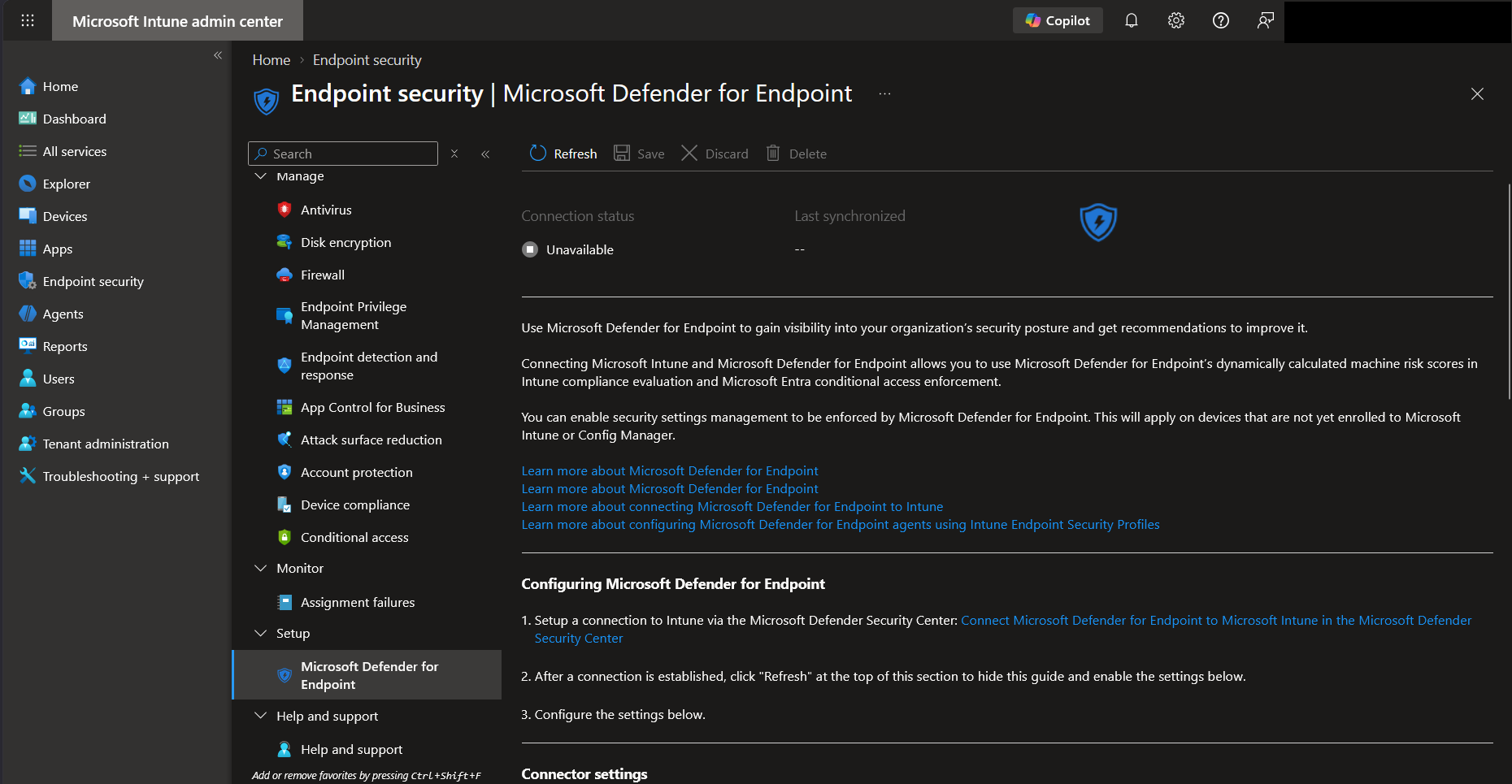
The Intune to Defender connection is a tenant level integration. Microsoft documents it as the service to service connection that lets Intune interact with Defender for Endpoint, including onboarding and risk reporting for supported devices.
Check the connection before policy creation:
- Open the Microsoft Intune admin centre.
- Go to Tenant administration > Connectors and tokens > Microsoft Defender for Endpoint.
- Check Connection status. Microsoft currently documents this as Connected when the service-to-service link is healthy.
- If it is not enabled, open the Microsoft Defender portal.
- Go to System > Settings > Endpoints > General > Advanced features.
- Turn on Microsoft Intune connection.
- Return to Intune and allow time for the connection status to update.
After the connection is enabled, configure Windows integration for compliance policy evaluation only if you intend Defender risk to feed device compliance. Do not combine onboarding with immediate Conditional Access enforcement unless that is part of a tested identity change.
Record these values:
| Item | Expected evidence |
|---|---|
| Intune connection status | Enabled |
| Windows compliance policy evaluation setting | On only if device risk will be used |
| Defender portal access | Admin can open device inventory and configuration management areas |
| Scope tags | Confirm whether Endpoint security policies need scope tags |
| RBAC | Confirm who can create, assign, report and troubleshoot |
If the connection is not enabled, the EDR onboarding policy may require manual onboarding blob handling rather than the recommended automatic package from the connector. Treat that as a setup problem, not as a reason to rush a manual workaround.
Onboarding Methods
Microsoft supports several onboarding methods. For cloud native Intune managed Windows devices, Intune is the recommended path. Other methods still matter in mixed estates.
| Method | Use when | Caution |
|---|---|---|
| Intune Endpoint security EDR policy | Windows devices are enrolled and managed by Intune | Best fit for this guide |
| Defender deployment tool | You are using Microsoft's deployment tool path for supported devices | Confirm preview or general availability status before relying on it |
| Configuration Manager or tenant attach | Devices are managed through Configuration Manager or co-management | Check workload ownership and avoid duplicate policies |
| Group Policy | Domain joined devices are not managed by Intune | Not the target design for a cloud managed fleet |
| Local onboarding script | Small pilot or break glass troubleshooting | Not suitable as the normal fleet rollout method |
| Security settings management for Defender for Endpoint | Devices are not enrolled in Intune but need security settings management through Defender | Separate design from Intune enrolment |
For this guide, create a custom Intune EDR onboarding policy rather than using broad quick setup. Microsoft documents a preconfigured quick setup option, but it assigns broadly. A custom policy gives better control over pilot groups, scope tags and change review.
Endpoint Security Policy Ownership
Use Intune Endpoint security policies for the security workloads where they fit. They are purpose built and easier to report on than a mixed device configuration profile.
| Workload | Intune path | Primary purpose |
|---|---|---|
| EDR onboarding | Endpoint security > Endpoint detection and response | Onboard devices to Defender for Endpoint and configure EDR settings |
| Antivirus | Endpoint security > Antivirus | Configure Microsoft Defender Antivirus settings and exclusions |
| Firewall | Endpoint security > Firewall | Configure Windows Firewall global settings and rules |
| Attack surface reduction | Endpoint security > Attack surface reduction | Configure ASR rules, controlled folder access, device control and related controls |
| Security baselines | Endpoint security > Security baselines | Apply a Microsoft recommended baseline, then customise for your environment |
Before you create new policies, inventory existing sources:
| Source | Why it matters |
|---|---|
| Group Policy | May already set Defender Antivirus, firewall or ASR values |
| Configuration Manager | May own endpoint protection settings in co-managed environments |
| Intune device configuration | May duplicate Endpoint security settings |
| Security baselines | May set overlapping Defender, firewall or attack surface controls |
| Local scripts | May set Set-MpPreference, registry values or firewall rules |
| Third party security tooling | May expect Defender AV to be passive or disabled |
One setting should have one policy owner. If Endpoint security owns firewall state, do not also configure the same firewall state in Settings Catalog or Group Policy unless you have a documented migration plan.
Build the EDR Onboarding Policy
Create the first onboarding policy for lab devices only.
- Open the Microsoft Intune admin centre.
- Go to Endpoint security > Endpoint detection and response.
- Select Create Policy.
- Choose Windows as the platform.
- Choose Endpoint detection and response as the profile.
- Name the policy clearly, for example
WIN - MDE - EDR Onboarding - Lab. - Set the Defender for Endpoint client configuration package type to Auto from connector where available.
- Configure sample sharing according to your organisation's data handling policy.
- Add scope tags if required.
- Assign to the lab device group only.
- Review and create.
Good description shape:
Onboards lab Windows devices to Microsoft Defender for Endpoint through the Intune connector. Do not broaden assignment until Sense service, Defender portal inventory, Intune EDR onboarding status and local Defender checks are clean.Record:
- Policy name.
- Policy ID.
- Assignment group object ID.
- Assignment filter ID and mode if used.
- Scope tags.
- Sample sharing decision.
- Rollback owner.
- Planned next ring.
Do not combine onboarding, antivirus hardening, firewall changes and ASR block mode in the same first action. Onboard first, confirm device health, then harden in controlled steps.
Antivirus Policy
Create a separate antivirus policy so Defender Antivirus settings have a clear owner.
Start with settings that improve protection without surprising users:
| Area | Check before enforcing |
|---|---|
| Real time protection | Third party antivirus coexistence and passive mode expectations |
| Cloud delivered protection | Network access to Microsoft cloud protection services |
| Behaviour monitoring | Application compatibility in pilot devices |
| IOAV protection | Browser and download workflows |
| Script scanning | Admin scripts, logon scripts and line of business automation |
| PUA protection | Whether audit mode is needed first |
| Network protection | Browser and proxy compatibility |
| Exclusions | Approved change process and expiry review |
| Security intelligence updates | Update source, proxy, WSUS or Windows Update for Business design |
For exclusions, keep the default answer as no exclusion. Add exclusions only when there is a documented business reason, vendor guidance, detection evidence or performance evidence. Record who approved the exclusion and when it should be reviewed.
Local check:
Get-MpComputerStatus |
    Select-Object `
        AMRunningMode,
        AntivirusEnabled,
        AMServiceEnabled,
        RealTimeProtectionEnabled,
        BehaviorMonitorEnabled,
        IoavProtectionEnabled,
        NISEnabled,
        IsTamperProtected,
        AntivirusSignatureLastUpdated,
        AntivirusSignatureVersion
Expected output shape:
AMRunningMode                  : Normal
AntivirusEnabled               : True
AMServiceEnabled               : True
RealTimeProtectionEnabled      : True
BehaviorMonitorEnabled         : True
IoavProtectionEnabled          : True
NISEnabled                     : True
IsTamperProtected              : True
AntivirusSignatureLastUpdated  : <date/time>
AntivirusSignatureVersion      : <version>
If a third party antivirus product is active, AMRunningMode may show passive mode rather than normal. That is not automatically a failure. It must match the coexistence design.
Check effective preferences:
Get-MpPreference |
    Select-Object `
        DisableRealtimeMonitoring,
        DisableBehaviorMonitoring,
        DisableIOAVProtection,
        DisableScriptScanning,
        DisableArchiveScanning,
        PUAProtection,
        EnableNetworkProtection,
        ExclusionPath,
        ExclusionProcess,
        ExclusionExtension
Expected output shape:
DisableRealtimeMonitoring : False
DisableBehaviorMonitoring : False
DisableIOAVProtection     : False
DisableScriptScanning     : False
DisableArchiveScanning    : False
PUAProtection             : <0, 1 or 2 depending on policy>
EnableNetworkProtection   : <0, 1 or 2 depending on policy>
ExclusionPath             : {<approved paths only>}
ExclusionProcess          : {<approved processes only>}
ExclusionExtension        : {<approved extensions only>}
If the values do not match Intune, check for Group Policy, Configuration Manager, local Set-MpPreference, tamper protection, or another security management channel.
Firewall Policy
Use a dedicated Endpoint security firewall policy for global Windows Firewall state and a separate firewall rules policy for granular app, port and protocol rules.
Recommended rollout pattern:
- Inventory current firewall state on lab devices.
- Inventory existing Group Policy and local firewall rules.
- Create one global firewall policy for domain, private and public profiles.
- Create separate firewall rule policies by application or service owner.
- Pilot rules with business owners who can confirm application behaviour.
- Review Intune firewall reports after each ring.
Local checks:
Get-NetFirewallProfile |
    Select-Object Name, Enabled, DefaultInboundAction, DefaultOutboundAction, NotifyOnListen
Expected output shape:
Name    Enabled DefaultInboundAction DefaultOutboundAction NotifyOnListen
----    ------- -------------------- --------------------- --------------
Domain  True    Block                Allow                 <value>
Private True    Block                Allow                 <value>
Public  True    Block                Allow                 <value>
Check a rule by display name or application:
Get-NetFirewallRule |
    Where-Object DisplayName -like "*<application-or-rule-name>*" |
    Select-Object DisplayName, Enabled, Direction, Action, Profile, PolicyStoreSource
Expected output shape:
DisplayName  : <rule name>
Enabled      : True
Direction    : Inbound
Action       : Allow
Profile      : Domain, Private
PolicyStoreSource : <policy source>
For firewall issues, avoid changing the global profile state just to make one application work. Fix the specific rule and confirm ports, protocol, app path and profile.
Attack Surface Reduction Rules
Attack surface reduction rules can prevent common malware behaviours, but they can also expose old application habits. Treat ASR rollout as its own project inside the Defender rollout.
Use this staged approach:
| Stage | Purpose |
|---|---|
| Inventory | Find existing ASR settings from GPO, Intune, baselines or scripts |
| Audit | Turn on audit where supported to see likely impact |
| Warn | Use warn mode for rules where user override is acceptable and supported |
| Block pilot | Apply block mode to lab and pilot groups |
| Block production | Expand only after reviewing events and business app compatibility |
Common ASR controls to review include Office child process creation, executable content from email and webmail, credential stealing from LSASS, JavaScript and VBScript execution of downloaded executables, and abuse of vulnerable signed drivers. Do not enable every rule in block mode on day one. The right target state depends on device role, user type and application compatibility.
Check local ASR settings:
$Preference = Get-MpPreference

[PSCustomObject]@{
    AttackSurfaceReductionRulesIds = $Preference.AttackSurfaceReductionRules_Ids
    AttackSurfaceReductionRulesActions = $Preference.AttackSurfaceReductionRules_Actions
    ControlledFolderAccess = $Preference.EnableControlledFolderAccess
    NetworkProtection = $Preference.EnableNetworkProtection
}
Expected output shape:
AttackSurfaceReductionRulesIds     : {<rule-guid>, <rule-guid>, <rule-guid>}
AttackSurfaceReductionRulesActions : {AuditMode, Enabled, Warn}
ControlledFolderAccess             : <value>
NetworkProtection                  : <value>
Review Microsoft Defender Antivirus events for ASR activity:
Get-WinEvent -LogName "Microsoft-Windows-Windows Defender/Operational" -MaxEvents 50 |
    Where-Object Id -in 1121, 1122 |
    Select-Object TimeCreated, Id, LevelDisplayName, Message
Expected output shape:
TimeCreated          Id   LevelDisplayName Message
-----------          --   ---------------- -------
<date/time>          1121 <level>          <ASR block event text>
<date/time>          1122 <level>          <ASR audit event text>
Use audit evidence to identify real application impact. Do not create broad ASR exclusions for a whole directory tree unless a narrow exclusion has been tested and approved.
EDR Policy and Sense Service Checks
The EDR onboarding policy should result in a healthy Sense service and a device that appears in the Defender portal inventory.
Check the service:
Get-Service -Name Sense |
    Select-Object Name, DisplayName, Status, StartType
Expected output shape:
Name        : Sense
DisplayName : Windows Defender Advanced Threat Protection Service
Status      : Running
StartType   : <not disabled>
You can also use the command Microsoft includes in onboarding troubleshooting:
sc.exe query senseExpected output shape:
SERVICE_NAME: sense
        TYPE               : <service type>
        STATE              : 4  RUNNING
        WIN32_EXIT_CODE    : 0  (0x0)
        SERVICE_EXIT_CODE  : 0  (0x0)
If the service is missing, stopped or stuck in a pending state, check onboarding status, operating system support, proxy access, endpoint connectivity, tamper protection and event logs before changing policy.
Defender and Sense Event Logs
Use local event logs to confirm what the device actually did.
| Log | Use it for |
|---|---|
Microsoft-Windows-SENSE/Operational | Defender for Endpoint onboarding, sensor and communication events |
Microsoft-Windows-Windows Defender/Operational | Microsoft Defender Antivirus, ASR, remediation and configuration events |
Microsoft-Windows-DeviceManagement-Enterprise-Diagnostics-Provider/Admin | MDM and Intune policy processing evidence |
Check recent Sense events:
Get-WinEvent -LogName "Microsoft-Windows-SENSE/Operational" -MaxEvents 30 |
    Select-Object TimeCreated, Id, LevelDisplayName, ProviderName, Message
Expected output shape:
TimeCreated          Id   LevelDisplayName ProviderName            Message
-----------          --   ---------------- ------------            -------
<date/time>          <id> <level>          Microsoft-Windows-SENSE <event text>
Check recent Defender Antivirus events:
Get-WinEvent -LogName "Microsoft-Windows-Windows Defender/Operational" -MaxEvents 30 |
    Select-Object TimeCreated, Id, LevelDisplayName, ProviderName, Message
Expected output shape:
TimeCreated          Id   LevelDisplayName ProviderName                         Message
-----------          --   ---------------- ------------                         -------
<date/time>          <id> <level>          Microsoft-Windows-Windows Defender   <event text>
For onboarding script errors, Microsoft documents specific SENSE event IDs such as failed service start and registry write failures. Intune onboarding normally gives you policy and device status first, but local logs are still useful when a device does not appear in the Defender portal after policy applies.
Security Baseline Considerations
Security baselines can help enforce a recommended posture, but they are not a substitute for policy ownership. They can include settings that overlap with antivirus, firewall, ASR, BitLocker, browser and general Windows hardening controls.
Before assigning a baseline:
| Check | Why it matters |
|---|---|
| Baseline version | Baseline defaults change across versions |
| Existing endpoint security policies | Avoid duplicate Defender, firewall and ASR settings |
| Existing CIS or custom hardening | Avoid conflicting values |
| Device type | Microsoft notes that the Defender baseline is optimised for physical devices and may not suit all virtual or VDI endpoints |
| Rollback route | Removing a profile may not revert every CSP setting |
| Reporting owner | Someone must review conflict and error states |
Use baselines to complement a controlled design, not to hide unknown settings behind a template. For detailed Windows hardening planning, see Hardening Windows 11 Endpoints with CIS Benchmark Level 1.
Pilot Ring Design
A good pilot proves technical onboarding and operational support.
Use these rings:
| Ring | Scope | Exit criteria |
|---|---|---|
| Lab | IT owned devices that can be restarted and inspected | EDR onboarding succeeds, Sense runs, device appears in Defender portal, local Defender checks match design |
| Friendly pilot | Real users from IT and one or two low risk business teams | No blocking application issues, support path works, reports are clean enough to expand |
| Compatibility pilot | Devices with VPN, legacy apps, developer tools, finance tools, remote workers and unusual peripherals | Known exceptions documented and approved |
| Early production | One department, location or device model group | Intune and Defender reports remain stable for a full reporting cycle |
| Broad production | Main managed Windows fleet | Expansion occurs in scheduled waves with daily checks |
| Exception ring | Devices that cannot move yet | Owner, reason and review date are recorded |
Prefer static device groups for the first lab and pilot assignments. Dynamic groups and filters are useful, but they add evaluation timing. Microsoft recommends care with dynamic device group exclusions in latency sensitive scenarios.
Assignment pattern:
| Policy | First assignment | Expansion |
|---|---|---|
| EDR onboarding | Lab device group | Add pilot, then production rings |
| Antivirus | Lab device group | Add pilot after onboarding health is clean |
| Firewall | Lab device group | Expand only after app owner validation |
| ASR | Audit in lab and pilot first | Move selected rules to block in rings |
| Security baseline | Lab only | Expand after conflict review |
Avoid assigning endpoint security policies to all devices during creation. Create them unassigned or assigned only to lab, then expand deliberately.
Intune Endpoint Security Assignment Checks
Check assignments in the Intune admin centre first:
- Go to Endpoint security.
- Open Endpoint detection and response, Antivirus, Firewall or Attack surface reduction.
- Select the policy.
- Open Properties > Assignments.
- Confirm included groups, excluded groups and filters.
- Open Device status and Per-setting status where available.
Use Graph PowerShell to record assignment evidence:
$EndpointSecurityPolicies = Get-MgBetaDeviceManagementConfigurationPolicy -All |
    Where-Object {
        $_.TemplateReference.TemplateFamily -like "endpointSecurity*" -or
        $_.Name -match "Defender|EDR|Antivirus|Firewall|ASR"
    } |
    Select-Object `
        Id,
        Name,
        IsAssigned,
        SettingCount,
        Platforms,
        Technologies,
        @{Name="TemplateFamily";Expression={$_.TemplateReference.TemplateFamily}},
        @{Name="TemplateDisplayName";Expression={$_.TemplateReference.TemplateDisplayName}}

$EndpointSecurityPolicies |
    Sort-Object Name |
    Format-Table Name, IsAssigned, SettingCount, Platforms, Technologies, TemplateFamily
Expected output shape:
Name                                  IsAssigned SettingCount Platforms Technologies TemplateFamily
----                                  ---------- ------------ --------- ------------ --------------
WIN - MDE - EDR Onboarding - Lab      True       <n>          windows   mdm          endpointSecurityEndpointDetectionAndResponse
WIN - Defender Antivirus - Lab        True       <n>          windows   mdm          endpointSecurityAntivirus
WIN - Firewall - Global - Lab         True       <n>          windows   mdm          endpointSecurityFirewall
WIN - ASR - Audit - Lab               True       <n>          windows   mdm          endpointSecurityAttackSurfaceReduction
Check one policy's assignments:
$PolicyId = "<endpoint-security-policy-id>"

$Assignments = Invoke-MgGraphRequest `
    -Method GET `
    -Uri "https://graph.microsoft.com/beta/deviceManagement/configurationPolicies/$PolicyId/assignments"

$Assignments.value |
    ForEach-Object {
        [PSCustomObject]@{
            AssignmentId = $_.id
            TargetType = $_.target.'@odata.type'
            GroupId = $_.target.groupId
            FilterId = $_.target.deviceAndAppManagementAssignmentFilterId
            FilterType = $_.target.deviceAndAppManagementAssignmentFilterType
        }
    } |
    Format-Table AssignmentId, TargetType, GroupId, FilterId, FilterType
Expected output shape:
AssignmentId TargetType                             GroupId    FilterId    FilterType
------------ ----------                             -------    --------    ----------
<id>         #microsoft.graph.groupAssignmentTarget <group-id> <filter-id> include
Resolve the group name:
$GroupId = "<group-id>"

Get-MgGroup -GroupId $GroupId |
    Select-Object Id, DisplayName, SecurityEnabled, GroupTypes, MembershipRule
Expected output shape:
Id              : <group-id>
DisplayName     : <pilot group name>
SecurityEnabled : True
GroupTypes      : {DynamicMembership} or {}
MembershipRule  : <dynamic rule or blank>
If the policy is assigned to a user group, remember that user sign-in can affect when settings apply. For device level security controls, use device groups unless there is a clear reason to target users.
Reporting and Device Health Checks
Use both service side and local checks. Intune can say a policy applied while local state still needs a restart, a user sign-in, a signature update or a service recovery.
Service side checks:
| Location | What to check |
|---|---|
| Intune > Endpoint security > Endpoint detection and response > EDR Onboarding Status | Successfully onboarded, failed, pending and not applicable devices |
| Intune policy > Device status | Device level policy result |
| Intune policy > Per-setting status | Setting level errors and conflicts |
| Intune > Devices > Monitor > Assignment failures | Cross policy assignment failures |
| Defender portal > Endpoints > Device inventory | Device appears after onboarding |
| Defender portal > Endpoints > Configuration management > Dashboard | Onboarding coverage for Intune managed Windows devices |
| Defender portal device page | Sensor health, exposure, risk and recent activity where licensed |
Local health pack for a pilot device:
$ComputerStatus = Get-MpComputerStatus
$Preference = Get-MpPreference
$Sense = Get-Service -Name Sense -ErrorAction SilentlyContinue

[PSCustomObject]@{
    ComputerName = $env:COMPUTERNAME
    AMRunningMode = $ComputerStatus.AMRunningMode
    AntivirusEnabled = $ComputerStatus.AntivirusEnabled
    RealTimeProtectionEnabled = $ComputerStatus.RealTimeProtectionEnabled
    IsTamperProtected = $ComputerStatus.IsTamperProtected
    AntivirusSignatureLastUpdated = $ComputerStatus.AntivirusSignatureLastUpdated
    SenseStatus = $Sense.Status
    SenseStartType = $Sense.StartType
    NetworkProtection = $Preference.EnableNetworkProtection
    PUAProtection = $Preference.PUAProtection
}
Expected output shape:
ComputerName                  : <device-name>
AMRunningMode                 : Normal
AntivirusEnabled              : True
RealTimeProtectionEnabled     : True
IsTamperProtected             : True
AntivirusSignatureLastUpdated : <date/time>
SenseStatus                   : Running
SenseStartType                : <not disabled>
NetworkProtection             : <value>
PUAProtection                 : <value>
If the device is missing from Defender inventory after Intune reports success, wait for normal reporting delay, then check Sense events, proxy and endpoint connectivity, service state, operating system support and whether the device was previously offboarded.
Common Rollout Failures
| Failure | What to check |
|---|---|
| EDR policy created before Intune connector is healthy | Confirm Intune connection status and automatic onboarding package availability |
| Policy assigned to users but expected to apply before sign-in | Use device groups for device level controls |
| Device stuck pending in Intune | Check last check-in and use Intune Device Not Syncing |
| Device not in pilot group | Confirm Entra group membership and dynamic rule timing |
| Assignment filter excludes the device | Check associated assignments and filter evaluation |
| Sense service not running | Review SENSE operational log, service state, onboarding errors and OS support |
| Defender Antivirus disabled | Check third party antivirus state, onboarding state and policy conflicts |
| Local values do not match Intune | Check GPO, Configuration Manager, local scripts, security settings management and tamper protection |
| ASR blocks a business workflow | Review Defender events, use audit evidence, then create a narrow approved exception if needed |
| Firewall rule breaks an app | Confirm app path, protocol, local port, remote port, profile and rule precedence |
| Device appears in Intune but not Defender portal | Check onboarding policy, Sense events, proxy, service health and reporting delay |
| Offboarding does not work | Confirm the offboarding package has not expired and that the correct management channel is used |
| Remediation script does not run | Use Intune Remediation Script Not Running before assuming Defender is at fault |
Do not treat a single clean lab device as proof that the fleet is ready. Include remote users, shared devices, devices with VPN, devices with developer tools, devices with finance software, and devices with any third party endpoint product still installed.
Coexistence with Third Party AV or EDR
Coexistence needs an explicit decision, not hope.
Microsoft documents that when an onboarded Windows device is protected by a non-Microsoft anti-malware client, Microsoft Defender Antivirus can run in passive mode. In passive mode, Defender Antivirus is not the primary antivirus product. Defender for Endpoint capabilities and EDR in block mode have separate behaviour and exclusions do not map exactly to Defender Antivirus exclusions.
Plan coexistence like this:
| Decision | Why it matters |
|---|---|
| Which product is primary antivirus during each ring | Determines whether Defender Antivirus should be normal or passive |
| Whether EDR in block mode is enabled | Can remediate threats even when Defender Antivirus is passive |
| Mutual exclusions | Helps reduce performance and compatibility issues |
| Uninstall order | Determines when Defender Antivirus changes state |
| Support ownership | Prevents two vendors or teams blaming each other |
| Rollback route | Avoids devices with no effective protection |
Client device checks:
Get-MpComputerStatus |
    Select-Object AMRunningMode, AntivirusEnabled, RealTimeProtectionEnabled, AMServiceEnabled
Expected output shape during Defender active phase:
AMRunningMode             : Normal
AntivirusEnabled          : True
RealTimeProtectionEnabled : True
AMServiceEnabled          : True
Expected output shape during approved third party antivirus coexistence:
AMRunningMode             : Passive
AntivirusEnabled          : True
RealTimeProtectionEnabled : False
AMServiceEnabled          : True
Do not copy this output into your rollout report as a target for every device. The expected mode depends on the product that is meant to be active at that point in the migration.
For servers, do not assume the same passive mode behaviour as Windows clients. Server onboarding and passive mode require separate planning, licensing and testing.
Rollback and Recovery Notes
Rollback must be prepared before broad assignment.
For onboarding:
- Stop expanding to the next ring.
- Remove the affected group from the EDR onboarding assignment.
- Sync a small number of affected devices.
- Confirm whether devices should remain onboarded or need formal offboarding.
- If formal offboarding is needed, use the Microsoft supported offboarding package for the correct management channel.
- Remember that Microsoft states offboarding packages expire after seven days from download.
- Confirm device state in the Defender portal and local Sense service state.
For antivirus, firewall, ASR and baseline settings:
- Stop expansion.
- Export the current policy and assignments.
- Remove the affected ring from the new policy.
- Restore the previous policy owner if one was removed.
- Sync pilot devices and restart where required.
- Check local state with PowerShell.
- Check Intune per-setting status.
- Check event logs for errors and blocks.
- Record whether any CSP setting remained in place after policy removal.
Rollback warning:
- Removing a policy assignment does not guarantee every Windows setting immediately returns to its previous value.
- Devices must check in before Intune changes apply.
- Some settings may need restart or user sign-in.
- Dynamic group changes may not be quick enough for urgent rollback.
- If Conditional Access depends on Defender risk or compliance, access recovery may also require compliance re-evaluation.
Keep the first production wave small enough that rollback is a practical support task, not a crisis.
Prevention Checklist
Use this checklist before each rollout wave:
- The Intune and Defender for Endpoint connection is enabled.
- Defender for Endpoint licensing has been confirmed.
- Intune licensing has been confirmed.
- Server licensing has been checked if servers are in scope.
- The required Intune and Defender roles are assigned.
- Existing GPO, Configuration Manager, Intune and script based Defender settings have been inventoried.
- The EDR onboarding policy uses the automatic connector package where available.
- The EDR policy is assigned only to the current ring.
- Antivirus, firewall and ASR policies are separate.
- Security baseline overlap has been reviewed.
- ASR rules have been piloted in audit or warn mode where appropriate.
- Firewall rules have named business owners.
- Antivirus exclusions are narrow, approved and reviewable.
- Third party antivirus or EDR coexistence has a written plan.
- Lab devices have passed local checks.
- Pilot devices appear in Defender portal inventory.
- Sense service is running on pilot devices.
- Defender Antivirus mode matches the design.
- Intune device status and per-setting status have been reviewed.
- Assignment groups, exclusions and filters have been checked.
- Device sync problems have been separated from Defender policy problems.
- Rollback ownership is clear.
- Offboarding is understood but not used casually.
- Conditional Access enforcement is not enabled until Defender risk reporting is proven.
Final Operational Pattern
The safest pattern is:
- Confirm licensing and roles.
- Enable the Intune and Defender connection.
- Inventory existing security policy owners.
- Create a lab only EDR onboarding policy.
- Confirm Sense service, event logs, Defender portal inventory and Intune EDR status.
- Add antivirus policy in lab.
- Add firewall policy in lab.
- Add ASR in audit or warn mode.
- Review security baseline overlap.
- Expand to friendly pilot.
- Resolve application and coexistence issues.
- Expand in production rings.
- Keep reporting and rollback active until the broad fleet is stable.
The goal is not just to get devices onboarded. The goal is to make Defender for Endpoint a managed security service inside your Windows fleet, with clear ownership, reliable reporting and a supportable path when something goes wrong.
Related Resources
- Endpoint Security
- Microsoft Intune
- PowerShell
- Microsoft Entra ID
- Hardening Windows 11 Endpoints with CIS Benchmark Level 1
- Conditional Access Microsoft 365 Policy Map
- Intune Device Not Syncing
- Intune Remediation Script Not Running
- Configure Microsoft Defender for Endpoint with Intune and onboard devices
- Troubleshoot Microsoft Defender for Endpoint onboarding issues
- Antivirus solution compatibility with Microsoft Defender for Endpoint

Jack Hadcroft
LinkedInBand 6 Endpoint Specialist and author of AdminSignal
Technical claims are reviewed against current Microsoft documentation. Lab or tenant checks are named only when they were done.
Independent publication. About · Editorial policy