
Exchange Online SMTP AUTH Basic Authentication 2026 Migration Planning
Who This Guide Is For
This guide is for Microsoft 365 administrators, messaging engineers, identity teams, and platform engineers who still have devices, applications, or scripts that use one of these patterns:
| Pattern | Common examples |
|---|---|
| SMTP AUTH with Basic Authentication | Printers, scanners, monitoring tools, line of business applications, report servers |
| SMTP AUTH with OAuth | Modern applications that already support XOAUTH2 or Microsoft identity platform token flows |
| Exchange Online PowerShell with stored credentials | Scheduled tasks, Azure Automation jobs, service desk scripts, reporting scripts |
| Legacy remote PowerShell connection code | Old New-PSSession examples that use -Authentication Basic |
Use these related AdminSignal resources while planning the work:
- Microsoft 365
- Microsoft Entra ID
- PowerShell
- Migrating AzureAD and MSOnline PowerShell Scripts to Microsoft Graph PowerShell SDK
- Microsoft 365 Admin Centre Mandatory MFA Readiness
- Conditional Access Microsoft 365 Policy Map
- Microsoft Entra ID P1 vs P2
Official Microsoft references used for this guide:
- Updated Exchange Online SMTP AUTH Basic Authentication Deprecation Timeline
- Enable or disable authenticated client SMTP submission in Exchange Online
- SMTP AUTH Clients report in the new Exchange admin center
- Authenticate an IMAP, POP or SMTP connection using OAuth
- How to set up a multifunction device or application to send email using Microsoft 365 or Office 365
- Manage High Volume Email for Microsoft 365
- OAuth authentication for High Volume Email for Microsoft 365
- Create credentials for SMTP authentication in Azure Communication Services
- Connect to Exchange Online PowerShell
- Connect-ExchangeOnline
- App-only authentication for unattended scripts in Exchange Online PowerShell
- Use Azure managed identities to connect to Exchange Online PowerShell
- Customise and filter Microsoft Entra activity logs
Scope and Verification Basis
This guide was written and reviewed on May 8, 2026 against current Microsoft Learn and Microsoft Exchange Team guidance.
The examples assume:
- Exchange Online mailboxes in a Microsoft 365 tenant.
- Exchange Online PowerShell module 3.x or later.
- PowerShell 7 for new automation unless a managed service still requires Windows PowerShell.
- A privileged admin workstation, Azure Automation account, build runner, or secure operations host.
- Microsoft Entra sign-in logs are available to the admin team.
- The Exchange admin centre SMTP AUTH Clients report is available to the messaging team.
- Changes are tested against pilot accounts before tenant-wide enforcement.
The examples show output shapes only. They do not include real tenant IDs, user names, mailbox addresses, app names, IP addresses, certificates, or production values.
Prerequisites
Before changing anything, collect:
- An Exchange Online administrator account for interactive discovery.
- Reports Reader or equivalent access for Microsoft Entra sign-in logs.
- Permission to view Exchange admin centre mail flow reports.
- A list of known printers, scanners, applications, report servers, and monitoring tools that send mail.
- A list of scheduled tasks, runbooks, CI jobs, and service scripts that import
ExchangeOnlineManagement. - Change windows for devices that cannot be updated remotely.
- A rollback owner for every exception that remains after migration.
- A decision path for workloads that need external recipient delivery.
- A certificate lifecycle process if you will use app-only Exchange Online PowerShell.
Install or update the Exchange Online PowerShell module on a discovery workstation:
Install-Module ExchangeOnlineManagement -Scope CurrentUser -Repository PSGallery -Force

Import-Module ExchangeOnlineManagement

Get-Module ExchangeOnlineManagement -ListAvailable |
    Sort-Object Version -Descending |
    Select-Object Name, Version, ModuleBase -First 1
Expected output shape:
Name                     Version ModuleBase
----                     ------- ----------
ExchangeOnlineManagement <version> <module path>
Connect interactively for discovery:
Connect-ExchangeOnline `
    -UserPrincipalName "<admin-upn>" `
    -ShowBanner:$false
This is a human admin connection. It is not the target pattern for unattended automation.
What Is Changing With SMTP AUTH Basic Authentication
SMTP AUTH is the authenticated client submission protocol commonly used with smtp.office365.com on port 587. Microsoft documents that SMTP AUTH supports OAuth as well as Basic Authentication, but recommends disabling SMTP AUTH for the organisation and enabling it only for mailboxes that still require it.
The current Microsoft Exchange Team timeline checked on May 8, 2026 is:
| Date or period | Microsoft stated change |
|---|---|
| Now to December 2026 | SMTP AUTH Basic Authentication behaviour remains unchanged |
| End of December 2026 | SMTP AUTH Basic Authentication is disabled by default for existing tenants, with administrators still able to enable it if needed |
| New tenants created after December 2026 | SMTP AUTH Basic Authentication is unavailable by default, and OAuth is the supported authentication method |
| Second half of 2027 | Microsoft plans to announce the final removal date for SMTP AUTH Basic Authentication |
This is an updated timeline. Older references to a March 2026 or April 2026 final rejection period should not be used as the current planning baseline without checking the latest Microsoft Exchange Team announcement.
The practical planning message is still direct:
- Do not build new SMTP AUTH Basic Authentication dependencies.
- Treat existing Basic Authentication senders as exceptions.
- Move capable applications to SMTP AUTH with OAuth.
- Move internal high volume device or application mail to High Volume Email where it fits.
- Move external application mail to Azure Communication Services Email or another purpose-built email service where it fits.
- Keep temporary Basic Authentication exceptions small, named, monitored, and time-limited.
What Is Changing With Connect-ExchangeOnline Credential Based Automation
Exchange Online PowerShell is a separate issue from SMTP AUTH.
Microsoft's current Connect-ExchangeOnline documentation still includes the -Credential parameter for username and password connections, and states that it should not be used for accounts that use MFA. Microsoft also documents that the Exchange Online PowerShell module uses modern authentication for normal interactive connections.
That does not make stored credential automation a good long-term design. For unattended scripts, Microsoft points administrators to:
- Certificate based app-only authentication.
- Managed identity for supported Azure resources.
- Interactive modern authentication for human-run administrative work.
For 2026 planning, treat this as an automation hardening project rather than an SMTP AUTH retirement item. Your goal is to remove stored user passwords from unattended Exchange Online PowerShell jobs before MFA, Conditional Access, password rotation, or account risk controls break them.
Why SMTP AUTH and Exchange PowerShell Automation Are Separate Issues
These two areas often appear in the same incident register because they both involve old credentials, but they are different control planes.
| Area | What it controls | Common endpoint or command | Replacement direction |
|---|---|---|---|
| SMTP AUTH Basic Authentication | Sending mail from devices and applications through Exchange Online client submission | smtp.office365.com, port 587 | SMTP OAuth, High Volume Email, Azure Communication Services Email, SMTP relay, direct send for narrow internal cases |
| Exchange Online PowerShell credentials | Admin automation against Exchange Online configuration and recipients | Connect-ExchangeOnline -Credential or old New-PSSession code | App-only certificate authentication, managed identity, interactive modern authentication |
Changing Set-TransportConfig or Set-CASMailbox affects SMTP AUTH. It does not migrate a scheduled script that signs in with Connect-ExchangeOnline -Credential.
Replacing Connect-ExchangeOnline -Credential affects admin automation. It does not change whether a printer can sign in to smtp.office365.com.
Keep the inventories separate, even if the same service mailbox or admin account appears in both.
Inventory SMTP AUTH Usage
Start with the Exchange admin centre report because it shows observed SMTP AUTH client submission behaviour.
In the Exchange admin centre:
- Go to Reports.
- Go to Mail flow.
- Open SMTP AUTH Clients.
- Change the date range beyond the default 7 days if the report is empty.
- Export the results.
Microsoft documents that the report can show:
| Field | Use in migration |
|---|---|
| Sender address | Identifies the mailbox or account being used |
| Domain | Helps group workloads by business area |
| Authentication Protocol | Separates Basic Auth from Modern Auth |
| TLS 1.0, TLS 1.1, TLS 1.2 | Shows weak TLS dependencies |
| Messages sent | Helps rank migration priority |
Build a register with one row per sender and system:
| Field | Example shape |
|---|---|
| Sender | <mailbox-or-account> |
| Owner | <team> |
| Workload | <printer, scanner, application, script, monitoring tool> |
| Current auth | <Basic Auth, OAuth, unknown> |
| Current endpoint | <smtp.office365.com, smtp relay, direct send, other> |
| Recipients | <internal only, external, mixed> |
| Volume | <low, medium, high> |
| Replacement option | <OAuth, HVE, ACS Email, relay, direct send, retire> |
| Temporary exception expiry | <date> |
Exchange Admin Centre Checks
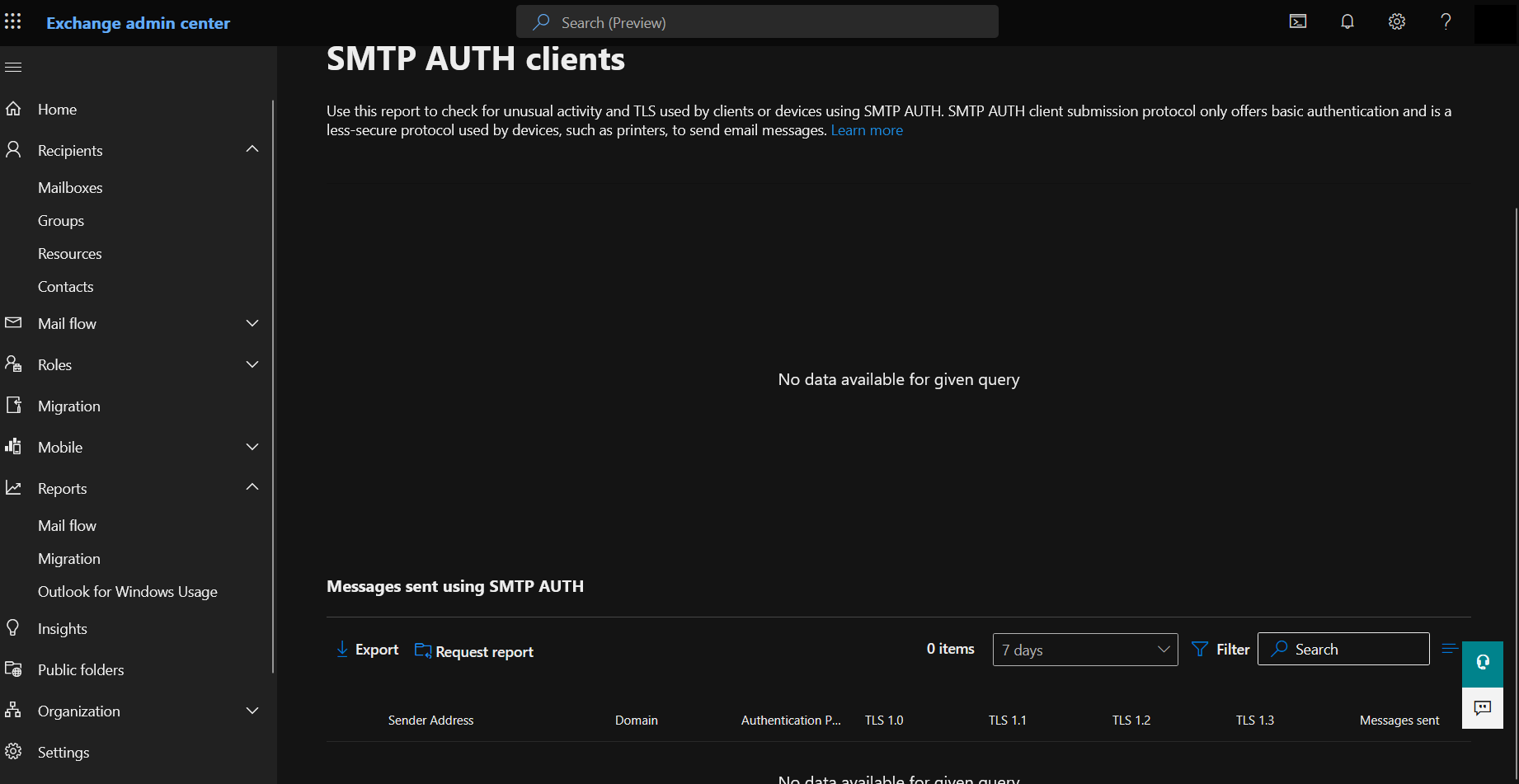
Use the Exchange admin centre for two checks: observed use and current mailbox controls.
For observed use:
- Check Reports > Mail flow > SMTP AUTH Clients.
- Export the report for 30, 60, or 90 days where available.
- Sort by Basic Auth first.
- Sort by message volume second.
- Check TLS 1.0 and TLS 1.1 columns because weak TLS can become a separate remediation task.
For mailbox controls:
- In the Microsoft 365 admin centre, go to Users > Active users.
- Select the user.
- Open Mail.
- Open Manage email apps.
- Check Authenticated SMTP.
The admin centre checkbox maps to the mailbox SMTP AUTH setting. It does not prove that the sender is using Basic Authentication. Use the SMTP AUTH Clients report and Entra sign-in logs for observed authentication behaviour.
Microsoft Entra Sign-In Log Checks
Use Microsoft Entra sign-in logs to find legacy authentication and failed sign-ins.
In the Microsoft Entra admin centre:
- Go to Microsoft Entra ID > Monitoring & health > Sign-in logs.
- Check interactive and non-interactive user sign-ins.
- Add or review columns for application, resource, client app, IP address, status, and Conditional Access.
- Use the Client app filter.
- Review legacy authentication clients, especially Authenticated SMTP and Exchange Online PowerShell.
Microsoft documents Authenticated SMTP as the legacy authentication client used by POP and IMAP clients to send email. Microsoft also documents Exchange Online PowerShell as a legacy authentication client category for remote PowerShell sign-ins.
Expected export shape:
CreatedDateTime       UserPrincipalName     AppDisplayName              ClientAppUsed       Status
---------------       -----------------     --------------              -------------       ------
<timestamp>           <sender-upn>          Office 365 Exchange Online  Authenticated SMTP  <success/failure>
<timestamp>           <admin-upn>           Office 365 Exchange Online  Exchange Online PowerShell <success/failure>
Use sign-in logs to answer:
- Which users or service accounts are still using Authenticated SMTP?
- Are the sign-ins successful or failing?
- Which source IPs are involved?
- Are failures caused by Conditional Access, disabled SMTP AUTH, disabled Basic Authentication, or password issues?
- Are there PowerShell sign-ins from old hosts that need a separate automation migration?
Do not rely on sign-in logs alone for SMTP inventory. The Exchange admin centre SMTP AUTH Clients report is designed for mail flow visibility and includes message and protocol details.
PowerShell Baseline
Connect to Exchange Online PowerShell:
Connect-ExchangeOnline `
    -UserPrincipalName "<admin-upn>" `
    -ShowBanner:$false
Check the tenant-level SMTP AUTH setting:
Get-TransportConfig |
    Format-List SmtpClientAuthenticationDisabled
Expected output shape:
SmtpClientAuthenticationDisabled : <True, False, or blank>Interpretation:
| Value | Meaning |
|---|---|
True | Authenticated SMTP is disabled at organisation level |
False | Authenticated SMTP is enabled at organisation level |
| Blank | Review with Microsoft documentation and tenant history, then confirm mailbox behaviour |
Check mailbox-level overrides:
Get-CASMailbox -ResultSize Unlimited |
    Select-Object DisplayName, PrimarySmtpAddress, SmtpClientAuthenticationDisabled |
    Sort-Object SmtpClientAuthenticationDisabled, PrimarySmtpAddress
Expected output shape:
DisplayName       PrimarySmtpAddress             SmtpClientAuthenticationDisabled
-----------       ------------------             --------------------------------
<display name>    <mailbox@domain.example>       <True, False, or blank>
Find explicitly enabled mailboxes:
Get-CASMailbox -ResultSize Unlimited |
    Where-Object { $_.SmtpClientAuthenticationDisabled -eq $false } |
    Select-Object DisplayName, PrimarySmtpAddress, SmtpClientAuthenticationDisabled
Find explicitly disabled mailboxes:
Get-CASMailbox -ResultSize Unlimited |
    Where-Object { $_.SmtpClientAuthenticationDisabled -eq $true } |
    Select-Object DisplayName, PrimarySmtpAddress, SmtpClientAuthenticationDisabled
Find mailboxes inheriting the organisation setting:
Get-CASMailbox -ResultSize Unlimited |
    Where-Object { $null -eq $_.SmtpClientAuthenticationDisabled } |
    Select-Object DisplayName, PrimarySmtpAddress, SmtpClientAuthenticationDisabled
Check authentication policies:
Get-AuthenticationPolicy |
    Format-Table Name, AllowBasicAuthSmtp, AllowBasicAuthPowershell -AutoSize
Expected output shape:
Name                    AllowBasicAuthSmtp AllowBasicAuthPowershell
----                    ------------------ ------------------------
<policy name>           <True/False>       <True/False>
If AllowBasicAuthSmtp is false in an assigned authentication policy, SMTP AUTH Basic Authentication can be blocked even if SMTP AUTH is enabled at the tenant or mailbox level.
Mailbox Level SMTP AUTH Settings
The mailbox setting overrides the organisation setting.
Use Set-CASMailbox only after the owner and workload are known:
Set-CASMailbox `
    -Identity "<mailbox-upn>" `
    -SmtpClientAuthenticationDisabled $false
This explicitly enables SMTP AUTH for that mailbox. It does not force Basic Authentication. It allows the mailbox to use SMTP AUTH if other controls permit it.
To explicitly disable SMTP AUTH for a mailbox:
Set-CASMailbox `
    -Identity "<mailbox-upn>" `
    -SmtpClientAuthenticationDisabled $true
To return the mailbox to the organisation-level setting:
Set-CASMailbox `
    -Identity "<mailbox-upn>" `
    -SmtpClientAuthenticationDisabled $null
Verify:
Get-CASMailbox -Identity "<mailbox-upn>" |
    Format-List PrimarySmtpAddress, SmtpClientAuthenticationDisabled
Expected output shape:
PrimarySmtpAddress                 : <mailbox@domain.example>
SmtpClientAuthenticationDisabled   : <True, False, or blank>
Use mailbox-level exceptions when:
- The tenant default is disabled.
- A named workload still needs SMTP AUTH.
- The sender has an owner.
- The exception has an expiry date.
- The sign-ins are monitored.
Do not use mailbox-level exceptions as a substitute for migration.
Tenant Level SMTP AUTH Settings
Microsoft recommends disabling SMTP AUTH for the organisation and enabling it only for accounts that still require it.
To disable SMTP AUTH at organisation level:
Set-TransportConfig -SmtpClientAuthenticationDisabled $trueTo enable SMTP AUTH at organisation level during a controlled rollback:
Set-TransportConfig -SmtpClientAuthenticationDisabled $falseVerify:
Get-TransportConfig |
    Format-List SmtpClientAuthenticationDisabled
Expected output shape:
SmtpClientAuthenticationDisabled : TrueA safer long-term pattern is:
Set-TransportConfig -SmtpClientAuthenticationDisabled $true

Set-CASMailbox `
    -Identity "<approved-exception-mailbox>" `
    -SmtpClientAuthenticationDisabled $false
This blocks SMTP AUTH broadly while allowing a small set of named mailboxes.
Authentication Policy Checks
Authentication policies can block Basic Authentication for SMTP even when SMTP AUTH is enabled.
Check policies:
Get-AuthenticationPolicy |
    Select-Object Name, AllowBasicAuthSmtp, AllowBasicAuthPowershell |
    Format-Table -AutoSize
Expected output shape:
Name                    AllowBasicAuthSmtp AllowBasicAuthPowershell
----                    ------------------ ------------------------
<policy name>           False              False
If you must create a temporary policy that allows Basic Authentication for SMTP, keep it narrow and time-limited:
Set-AuthenticationPolicy `
    -Identity "<temporary-policy-name>" `
    -AllowBasicAuthSmtp
To block Basic Authentication for SMTP again:
Set-AuthenticationPolicy `
    -Identity "<temporary-policy-name>" `
    -AllowBasicAuthSmtp:$false
Do not use this as a broad tenant bypass. If an exception is needed, document:
- The mailbox.
- The device or app.
- The source location.
- The business owner.
- The expiry date.
- The replacement path.
Migration Options for Printers, Scan to Email, Apps, and Scripts
Use the recipient pattern and application capability to choose a migration path.
| Workload | Best fit where possible | Watch points |
|---|---|---|
| Modern application that supports OAuth for SMTP | SMTP AUTH with OAuth | Requires app registration, token handling, and XOAUTH2 support |
| Internal high volume notifications | High Volume Email for Microsoft 365 | Internal recipients only in current GA guidance |
| External transactional email from an application | Azure Communication Services Email | Separate Azure service, domain setup, identity, cost, and deliverability planning |
| On-premises application with static public IP or certificate | SMTP relay through Exchange Online connector | Port 25, connector hygiene, SPF, retry handling, blocklist risk |
| Internal-only device alerts | Direct send | Cannot relay to external recipients through Microsoft 365 |
| Exchange Online admin script | App-only Exchange Online PowerShell or managed identity | Separate from SMTP settings |
Old script using Send-MailMessage with mailbox password | Replace mail send path | Send-MailMessage is not a modern application mail strategy |
Where a device cannot support OAuth:
- Check for firmware updates.
- Check whether the vendor supports SMTP OAuth, HVE, or a local relay.
- Consider an on-premises supported mail relay for local devices.
- Consider HVE for internal-only messages.
- Consider ACS Email for application-to-person external messaging.
- Retire the workflow if nobody owns it.
OAuth Ready Applications
SMTP AUTH with OAuth keeps the SMTP protocol but replaces password authentication with OAuth tokens.
Microsoft documents delegated SMTP AUTH scope as:
https://outlook.office.com/SMTP.SendFor application permission SMTP flows, Microsoft documents the Office 365 Exchange Online application permission SMTP.SendAsApp and Exchange service principal registration steps.
The application must be able to:
- Register an application in Microsoft Entra.
- Obtain an access token from Microsoft identity platform.
- Format the SMTP authentication request using SASL XOAUTH2.
- Store and rotate app credentials or certificates safely.
- Restrict mailbox access where the application model supports it.
This is usually a developer change, not a helpdesk setting change. Put it in the application backlog with test evidence.
High Volume Email for Microsoft 365
High Volume Email for Microsoft 365 is relevant for automated, transactional, and operational messages to internal recipients. Microsoft positions it for workloads such as HR notifications, monitoring alerts, line of business messages, printer and scanner workflows, and security notifications.
Use HVE when:
- Recipients are internal to the tenant.
- The workload should be separated from user mailboxes.
- The sender is a device or application, not a person.
- You need a Microsoft 365 native option for internal operational mail.
Do not treat HVE as a full replacement for every SMTP AUTH use case. It is not a general external bulk email platform.
Microsoft Learn currently documents these HVE SMTP settings:
| Setting | Value |
|---|---|
| Server | smtp.hve.mx.microsoft |
| Port | 587 |
| TLS | Enabled |
| Authentication | HVE account credentials or OAuth token |
Microsoft documentation also notes that HVE can authenticate when SmtpClientAuthenticationDisabled is True in TransportConfig, because HVE uses a dedicated SMTP endpoint. Authentication policies and security defaults can still matter, so test the exact account and method.
Azure Communication Services Email
Azure Communication Services Email is relevant when the workload is application-to-person email, especially where external recipients are needed and the application can move to a purpose-built sending service.
Use ACS Email when:
- The application sends external transactional email.
- You need a service outside Exchange Online mailbox limits.
- You can verify and manage a sending domain.
- The development team can manage Azure resources, identity, credentials, and monitoring.
Microsoft documents SMTP support for ACS Email using Microsoft Entra application service principals. That is different from using a Microsoft 365 mailbox password against smtp.office365.com.
Planning items:
- Domain verification and sender authentication.
- Azure subscription ownership.
- Cost centre and billing.
- Secret or credential lifecycle.
- Logging and delivery monitoring.
- Application failover behaviour.
Direct Send and SMTP Relay Caveats
Microsoft documents three common Microsoft 365 device and application mail patterns: client SMTP submission, SMTP relay, and direct send.
Direct send:
- Does not require authentication.
- Sends to recipients in your accepted domains.
- Does not relay to external recipients through Microsoft 365.
- Uses your MX endpoint, not
smtp.office365.com. - Needs SPF and mail hygiene review.
SMTP relay:
- Uses an inbound connector.
- Authenticates the sending system by certificate or static public IP.
- Can relay to external recipients when configured correctly.
- Requires port 25 and retry-capable sending systems.
- Is not suitable for third-party hosted services where the source IP is not dedicated to you.
- Can be disrupted by IP reputation or blocklist issues.
Client SMTP submission:
- Uses a mailbox identity.
- Uses
smtp.office365.com. - Supports SMTP AUTH with OAuth.
- Basic Authentication is the part being phased down.
- Is subject to mailbox and service limits.
Choose the smallest option that matches the workflow. Do not move every printer to an external email platform if it only sends internal scan notifications, and do not use direct send for a workload that must reach customers.
Inventory Exchange Online PowerShell Credential Automation
Search script repositories and automation hosts for Exchange Online connection patterns:
$SearchRoot = "C:\\Scripts"

Select-String `
    -Path (Join-Path $SearchRoot "*.ps1") `
    -Pattern "Connect-ExchangeOnline|New-PSSession|PowerShell-LiveID|Authentication Basic|Get-Credential|-Credential" `
    -CaseSensitive:$false |
    Select-Object Path, LineNumber, Line
Expected output shape:
Path                         LineNumber Line
----                         ---------- ----
C:\\Scripts\\MailboxReport.ps1 <n>        Connect-ExchangeOnline -Credential $Credential
C:\\Scripts\\OldRemote.ps1     <n>        New-PSSession ... -Authentication Basic
Create a separate automation register:
| Field | Example shape |
|---|---|
| Script or job | <script name> |
| Host | <scheduled task, Azure Automation, CI runner, admin workstation> |
| Owner | <team> |
| Current auth | <interactive, Credential, Basic New-PSSession, certificate, managed identity> |
| Exchange actions | <read recipients, change mailbox, update transport rule> |
| Required roles | <Exchange role or Entra role> |
| Replacement | <app-only certificate, managed identity, interactive admin> |
| Cutover date | <date> |
Replacing Connect-ExchangeOnline -Credential
A typical legacy pattern looks like this:
$Password = ConvertTo-SecureString "<password>" -AsPlainText -Force
$Credential = [pscredential]::new("<admin-upn>", $Password)

Connect-ExchangeOnline `
    -Credential $Credential `
    -ShowBanner:$false
Do not migrate this by moving the password to another text file. Pick the authentication pattern from the job type.
| Job type | Replacement |
|---|---|
| Human-run support script | Connect-ExchangeOnline -UserPrincipalName "<admin-upn>" |
| Unattended job outside Azure | Certificate based app-only authentication |
| Azure Automation or Azure VM job | Managed identity where supported |
| Cross-tenant partner administration | Review GDAP, delegated organisation support, and app-only feasibility |
| Script that mostly reads Entra ID data | Consider Microsoft Graph PowerShell instead |
For human-run scripts:
Connect-ExchangeOnline `
    -UserPrincipalName "<admin-upn>" `
    -ShowBanner:$false
For unattended scripts, use app-only authentication or managed identity instead of stored user credentials.
Certificate Based App-Only Exchange Online PowerShell
Microsoft documents certificate based app-only authentication for unattended Exchange Online PowerShell scripts.
At a high level:
- Register an application in Microsoft Entra.
- Add the Office 365 Exchange Online application permission
Exchange.ManageAsApp. - Grant admin consent.
- Create or obtain a supported X.509 certificate.
- Upload the public certificate to the app registration.
- Assign the required Exchange or Entra role to the application.
- Connect with the app ID, certificate, and tenant organisation.
Windows certificate store example:
Connect-ExchangeOnline `
    -CertificateThumbprint "<certificate-thumbprint>" `
    -AppID "<application-client-id>" `
    -Organization "<tenant>.onmicrosoft.com" `
    -ShowBanner:$false
Expected output shape:
<no output on successful connection unless banner or warnings are shown>Verify the session by running a safe read command:
Get-TransportConfig |
    Select-Object SmtpClientAuthenticationDisabled
Expected output shape:
SmtpClientAuthenticationDisabled
--------------------------------
<True/False/blank>
Certificate operations checklist:
- Store private keys only on approved hosts or in approved secret stores.
- Track certificate expiry before it becomes an outage.
- Avoid local plain text certificate passwords.
- Use least privilege RBAC.
- Log the app identity used by every automation job.
- Keep a break-glass human admin path for emergency recovery.
Managed Identity Where Useful
Managed identity is useful when the job runs in a supported Azure resource such as Azure Automation or an Azure virtual machine.
System-assigned managed identity example:
Connect-ExchangeOnline `
    -ManagedIdentity `
    -Organization "<tenant>.onmicrosoft.com" `
    -ShowBanner:$false
User-assigned managed identity example:
Connect-ExchangeOnline `
    -ManagedIdentity `
    -ManagedIdentityAccountId "<managed-identity-principal-id>" `
    -Organization "<tenant>.onmicrosoft.com" `
    -ShowBanner:$false
Use managed identity when:
- The script runs in Azure.
- You do not want to manage certificates on the host.
- The required cmdlets are supported for the managed identity scenario.
- You can assign the right roles and audit the identity.
Do not choose managed identity for a local Windows scheduled task. Microsoft documents that managed identity connection commands run in the context of the Azure resource associated with the identity, not from a normal local PowerShell session.
Conditional Access and MFA Implications
SMTP AUTH Basic Authentication does not satisfy modern MFA expectations. Microsoft Entra security defaults disable Basic Authentication methods, including SMTP, and authentication policies can block Basic Authentication for SMTP even when mailbox SMTP AUTH is enabled.
For SMTP workloads:
- MFA does not fix a printer that only knows a mailbox password.
- App passwords are not a strategic answer and can be blocked with Basic Authentication controls.
- Conditional Access legacy authentication blocking can stop Basic Authentication clients.
- OAuth-capable applications should be tested with the exact Conditional Access policy set that will apply.
- Service accounts used for SMTP should not be exempt from every identity control without a compensating control.
For Exchange Online PowerShell automation:
Connect-ExchangeOnline -Credentialis not suitable for MFA accounts.- Interactive admin scripts should use modern authentication and named admin accounts.
- Unattended scripts should use app-only authentication or managed identity.
- Conditional Access for workload identities should be reviewed separately from user MFA policies.
- Sign-in and audit logs should identify the app or managed identity, not a shared admin password.
For policy design, map this work into your Conditional Access baseline rather than creating broad exclusions. The related Conditional Access Microsoft 365 Policy Map can help structure that review.
Rollback or Temporary Exception Process
A good rollback process is narrow. It restores a single business workflow while keeping the migration pressure visible.
Use this sequence for SMTP exceptions:
- Confirm the sender in the SMTP AUTH Clients report.
- Confirm the owner and business impact.
- Confirm the mailbox is not an interactive user mailbox where a dedicated sender is more appropriate.
- Confirm the tenant setting and mailbox setting.
- Confirm whether an authentication policy blocks Basic Authentication for SMTP.
- Add or extend the exception with an expiry date.
- Monitor sign-ins and message volume.
- Remove the exception after migration.
Temporary mailbox exception:
Set-CASMailbox `
    -Identity "<exception-mailbox>" `
    -SmtpClientAuthenticationDisabled $false
Temporary tenant rollback, only during a controlled incident:
Set-TransportConfig -SmtpClientAuthenticationDisabled $falseReturn to restricted posture:
Set-TransportConfig -SmtpClientAuthenticationDisabled $true

Set-CASMailbox `
    -Identity "<exception-mailbox>" `
    -SmtpClientAuthenticationDisabled $null
For Exchange Online PowerShell automation rollback:
- Prefer reverting to a previous app certificate or managed identity assignment.
- Avoid reintroducing a stored admin password unless there is no other operational path.
- Put any temporary credential path behind a named incident record and expiry.
- Review audit logs after the incident.
Cutover Plan
Run the migration in rings:
| Ring | Scope | Exit criteria |
|---|---|---|
| Discovery | Reports, sign-in logs, scripts, device owners | Every observed sender has an owner or retirement decision |
| Pilot | Low-risk device or application senders | Replacement sends successfully and logs are understood |
| Internal high volume | Monitoring, HR, operational alerts | HVE or equivalent path is tested with internal recipients |
| External applications | Customer or supplier mail | ACS Email or another approved service is tested with domain and delivery controls |
| PowerShell automation | Scheduled and unattended Exchange jobs | No job uses stored user credentials or old Basic remote PowerShell |
| Enforcement | Tenant SMTP AUTH disabled except named exceptions | Exceptions have expiry and monitoring |
Keep SMTP and PowerShell cutovers separate. A printer failure should not delay removal of stored admin credentials from a reporting script, and a script migration issue should not justify leaving SMTP AUTH enabled for every mailbox.
Prevention Checklist
Use this checklist after the first migration wave:
- Tenant-level SMTP AUTH is disabled unless there is a documented reason.
- Mailbox-level SMTP AUTH exceptions are named, owned, and time-limited.
- The SMTP AUTH Clients report is reviewed on a schedule.
- Microsoft Entra sign-in logs are checked for Authenticated SMTP and Exchange Online PowerShell legacy clients.
- New printers and scanners are required to support OAuth, HVE, direct send, or approved relay patterns before purchase.
- New applications are not allowed to request a Microsoft 365 mailbox password for sending mail.
- Internal high volume application mail has an HVE decision.
- External application mail has an ACS Email or approved email service decision.
- Direct send is used only for internal recipient scenarios that fit the Microsoft guidance.
- SMTP relay connectors have static IP or certificate ownership documented.
- Old
New-PSSessionExchange Online Basic Authentication examples are removed from script templates. Connect-ExchangeOnline -Credentialis removed from unattended jobs.- App-only Exchange Online PowerShell certificates have expiry monitoring.
- Managed identities have documented role assignments and owners.
- Conditional Access exceptions are narrow and reviewed.
- Break-glass admin access is tested and separate from routine automation.
The goal is not just to survive the 2026 SMTP AUTH Basic Authentication default change. The better outcome is a tenant where device mail, application mail, and Exchange administration each have a clear, modern, supportable authentication pattern.

Jack Hadcroft
LinkedInBand 6 Endpoint Specialist and author of AdminSignal
Technical claims are reviewed against current Microsoft documentation. Lab or tenant checks are named only when they were done.
Independent publication. About · Editorial policy